
CXAIR 2017.2
The CXAIR 2017.2 release features a number of enhancements to a range of core functionality areas including the loading and saving, scheduling and creation of highly visual reports.
Installation Notes
Before upgrading, please close all instances of the Mozilla Firefox internet browser, including any remaining processes using the Windows Task Manager.
To install this latest version, a minimum of 16GB RAM is required. The update will not start if less than 16GB of RAM is detected.
There is now only one system service: CXAIR. This single service performs all tasks that were previously carried out by three separate services.
Following a successful upgrade, a new licence will need to be applied. This can only be installed by the super admin account and the relevant page is automatically loaded upon login.
Interface Enhancements
New Portal Screen
When logging in, users can now be directed to the Portal screen where a number of functionality areas can be quickly accessed.
To set this option, navigate to the front-end and click Preferences to open the User Preferences. Click the Starting Up CXAIR section to reveal the View After Login drop-down list. Set this to Portal and click Save to activate this feature.

New Default Skin
Following customer feedback, the default skin has now been refreshed. Lighter colours are now used throughout the solution, both in the front-end and in the administration screens.

Please note that any custom skins from previous versions will need to be reviewed, as minor adjustments may be required to ensure compatibility with the new styling options.
New Pages Interface
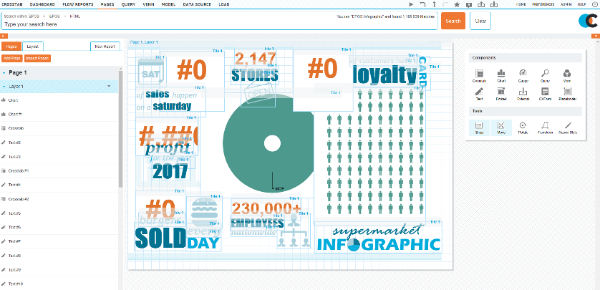
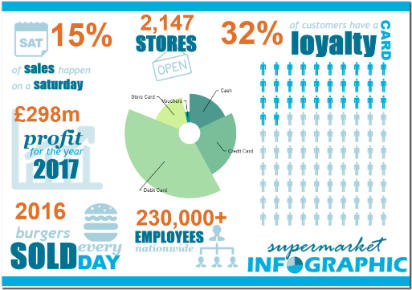
When Pages was first introduced, the drastically improved functionality provided by the drag-and-drop ability meant that creating highly visual reports was easier than ever before. Now, an interface refresh has further refined the creation process while retaining the intuitive design options.
Screen real estate has been carefully considered, resulting in a new Run icon and the available report components being relocated to a floating toolbox that can be manoeuvred anywhere on-screen. A detailed breakdown of the current report is located on the left of the screen, employing collapsible lists to allow a better understanding of the current report.
A number of performance enhancements have also been made to complement the aesthetic changes and ensure compatibility with wide range of supported resolutions and browsers. This includes the new Zoom functionality, accessed by clicking Report Style on the toolbox, that allows the size of the page to be altered on-screen.
System Diagram Redesign
The original system diagram design, while useful for establishing connections across Data Sources, was fundamentally limited in the way the data was displayed.
A complete structural and visual overhaul has resulted in a far more efficient process to present administrators with an accurate view of the data contained on the system along with the options to modify components and schedules directly from the System Diagram screen.
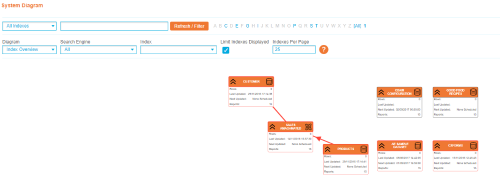
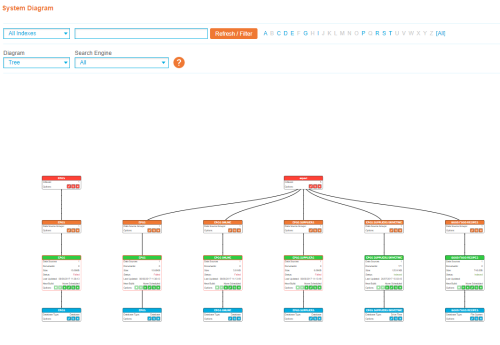
Furthermore, a new schedule view presents a real-time Gantt chart of configured schedules to allow greater visibility of timing across a system. Editing a schedule is now easier than ever before – simply click the relevant entry to configure the available options.

New Load Screen Functionality
The loading and saving of reports has been revised to take advantage of the Indexing methodology used throughout the solution, improving reliability and performance when dealing with a large number of files and directories.
Reports can also be favourited by clicking the new Favourite icon, allowing fast access to selected reports. To favourite all reports in a folder, click the icon at folder level.
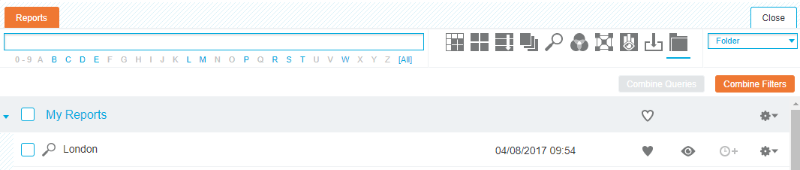
Select Favourites from the view drop-down list to display reports that have been favourited, or Viewer to display saved reports using a structure based on the Report Viewer functionality.
New Scheduling Options
The inconsistencies across the Index schedules and report schedules screens have been addressed to unify the control available to users and administrators when configuring the Index and system schedules.
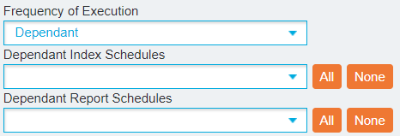
The option to now make report and Index schedules dependant on other schedules is now available. Select Dependant from the Frequency of Execution drop-down list to specify the other schedules that must run before the new schedule is triggered.
Crosstab Header Display Change
Dynamic Date Queries are now translated into the header of a Crosstab report.
Renamed Data Source
The Filters data source has now been renamed to ETL.
Redesigned Wizard Layout
The Wizard screens have been redesigned to present a far more ordered approach to the creation of Indexes. Also, the Column Mapping performance has been greatly enhanced to account for larger Data Sources.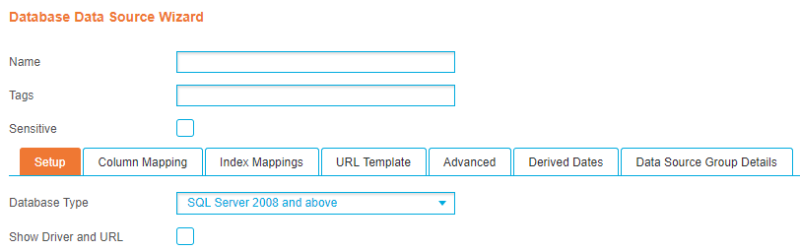
System Settings Layout
The System Settings screen has been reorganised into logical groupings to assist system administrators when optimising system performance and modifying system-wide settings.
Licence Screen Redesign
The Licence screen now presents a far clearer view of the currently installed licence along with permitted usage.
New Features
User Data Source
The User Data Source option allows users, with the relevant permissions, to upload and configure their own Data Sources from CSV and Excel files.
The wizard contains a number of key options, such as Column Mapping and field modification, to ensure the best possible data quality and to walk users through the process step-by-step.
The entire process has been designed to be as intuitive as possible, providing access to functionality previously available only to administrators.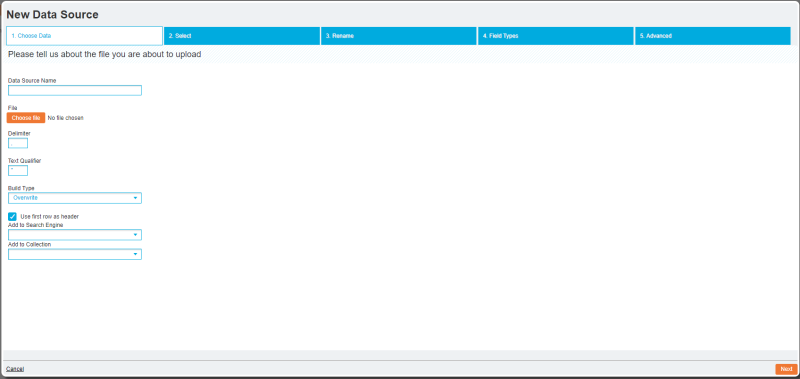
New Upgrade Functionality
Upgrading CXAIR is now easier than ever before. Once installed, the newest version can then be upgraded from within the solution. Click Setup, System then Upgrade CXAIR to access the functionality.
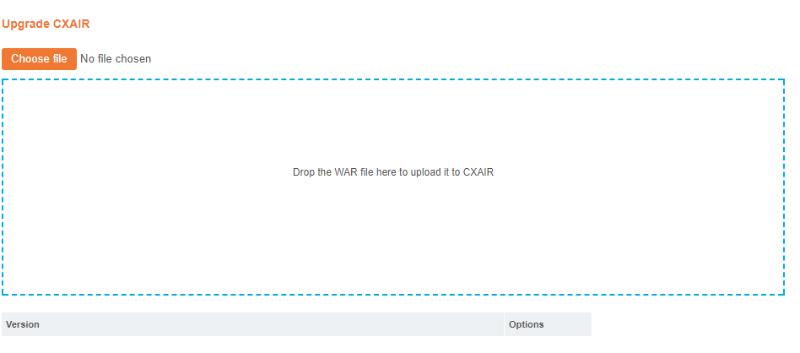
Simply drop the relevant CXAIR.war file onto the page for an automatic upgrade procedure that restarts the relevant service and prompts the administrator to verify a successful upgrade or roll back to a previous version.
CXWiki
Following a comprehensive review of the technical documentation that was distributed alongside the solution, it was clear that a number of improvements were required across all written content.
This has culminated in a complete re-write of all administrator and user documentation crafted specifically for a new online environment: CXWiki.
At over 150,000 words and spanning more than 50 web pages, the newly consolidated documentation is now far easier to navigate than ever before and is both printer and mobile friendly.
For navigation and search tips, please refer to the Wiki Guide.
Bugs Resolved in 2017.2
The following reported bugs have now been resolved and the fixes are included in this release:
Issue ID | Summary |
8473 | User Type Listing. |
10475 | Issues when exporting gauges. |
10824 | Map boundaries not visible in PDF export. |
10925 | Cannot defeat question mark in Query. |
11021 | Filters data picker missing button. |
11225 | Windows Authentication Report Viewer access issue. |
11285 | Scrolling Charts not displaying correctly in Internet Explorer. |
11316 | New Chart Type: Column 2D Stacked (Dual Y Axis + Lines). |
11340 | Custom Page Size Pages option issue. |
11345 | Cannot restore deleted folders. |
11379 | Axis in linked Crosstabs editable. |
11381 | Issue with locked values and placeholders. |
11388 | Read permissions issue. |
11392 | Bar 2D Chart colour issue. |
11408 | Pie 2D chart label issue. |
11425 | Amalgamated Indexes only take one version of an Index field. |
11440 | CXFORMS URL not present in documentation. |
11453 | Group Administrator access permissions issue upon overlap. |
11473 | Automatically Resize Columns option always enabled when exporting. |
11475 | Integers gain a decimal place in Slider Range Filters when value set outside of range. |
11494 | IS NOT NULL calculation does not work when a second condition is used. |
11495 | Crosstab with table controls not displayed in Dashboard. |
11497 | Filter panel not opening at a specific zoom level. |
11498 | Issue with width of columns when exporting to Excel. |
11501 | Images cannot be dragged into text report component in Pages. |
11521 | Discrepancy in Logic used to apply group options for a multi group user. |
11528 | Queries loaded with ‘-‘ applied. |
11537 | Excel exports using px size value rather than pt. |
11539 | Corrupt Crosstabs when a field has been removed from Index. |
11540 | Inaccurate data when Display Field names have been changed. |
11541 | Logo proportions change when window resized. |
11545 | Issue with the Cog options in Query. |
11547 | Filters not applied for Report Viewer users. |
11548 | Format calculation ignoring time values. |
11578 | Radial chart total not working with cell calculations. |
11581 | Droplist Filter freezing browser. |
11585 | Tooltip remains on-screen when drilling to a linked report. |
11602 | Alignment issue when a Crosstab has the Locked Headers Enabled option turned on. |
11607 | Flow Reports not loading correctly after upgrade. |
11612 | NoAuth in Report Viewer fails for Report Viewer users. |
11640 | Issue indexing XLSX file. |
11650 | Issue with text colour in Skins. |
11662 | Issue with certain buttons in Skins. |
11664 | Rules missing from PDF export of Crosstabs. |
11668 | Issue replacing queries on a Dashboard. |
11669 | Issue with Current Query option in Pages. |
11671 | Certain date fields excluded when exporting to Excel. |
11673 | Run As functionality issues. |
11683 | Order in Filters does not restrict does not restrict the Available and Selected Values lists. |
12983 | Realm-based security returning results when a specified field does not exist in an Index. |