02. Pages Reporting Guide
- Report Structure
- Report Design
- Additional Options
- HTML Examples
- Rectangular Box with Full Border
- Blue Box with Curved Edges, Border and Shadowed Background
- Blue Box with Curved Edges, Shaded Background and centred Header
- White Box with Curved Edges, Shaded Background Left-aligned Element Header
- Header with Curved Corner and Coloured Border
- White Shadowed Box
- Header with Curved Corner and Sub-header
- Textbox with Blue Border, Curved edge and Header
- Header with Curved Top and Corners
- Box with Header and Paragraph including Hyperlink
- White Box with Shaded Corner and Blue Border
- Header with Bottom Border
- Header with Text Shadow
- Orange Dotted Border
- Element Box with Header
This guide is designed to aid in the creation of CXAIR Pages reports in the 2019.1 release and will cover the various functionality areas available such as layers, tiling, HTML elements and drill through options.
Report Structure
When using Pages, there are two distinct modes: Edit mode and Run mode.
To edit a Pages report, click the Edit icon: 
To run a Pages report, click the Run icon: 
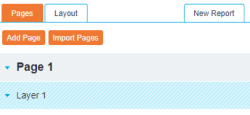
When in Edit mode, the structure panel located on the left side of the screen contains all the current report information and components:
The floating toolbox contains all available report components and the associated tools to visually manipulate the resulting report.
The toolbox can be moved anywhere on-screen by clicking and dragging it to the desired location. Its sections can be collapsed using the blue arrow to the right of each heading and the entire toolbox can be collapsed to a single row using the icon in the top-left corner.
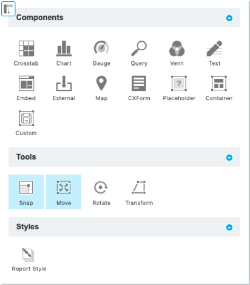
To add a component to the report, drag and drop the relevant icon to the required location on the page.
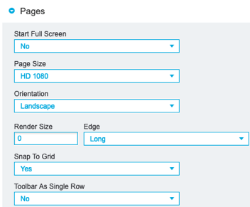
Please note: before starting the report building process, it is important to consider who will be digesting the output and how. Setting up the size of the page and its orientation is a key step that must be completed prior to adding components, as making retrospective changes will clear the report.
Changes can be made to individual reports, or a set of options can be saved as User Preferences that will apply to new reports automatically.
To change the default layout, navigate to the Pages section of the User Preferences:
Report Design
There are a number of options to consider before designing a Pages report:
Is a single-page report required? If so, will it contain a background image and HTML elements to improve its appearance?
Is an interactive report required? Reports can be created where the user effectively clicks one of a number of buttons to drill through to other layers or pages.
Is a report containing a number of pages, each displaying the same information split by a relevant field, required? It is possible to create reports that repeats pages based on a specific field, such as Region or Area.
Examples of each will be given below. There are many ways to create Pages reports, and the following examples detail a number of key stages.
Single Page Report with Background Image, Titles and HTML Elements
Adding Background Images
In Edit mode drag a Text component from the toolbox onto the page. Single-click the added component to display a number of component-specific options:
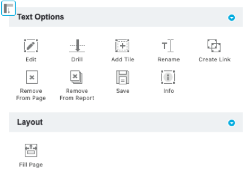
Click Fill Page from the Layout section of the toolbox to resize the component to fill the entire page, then double click the added component to display the following popup:
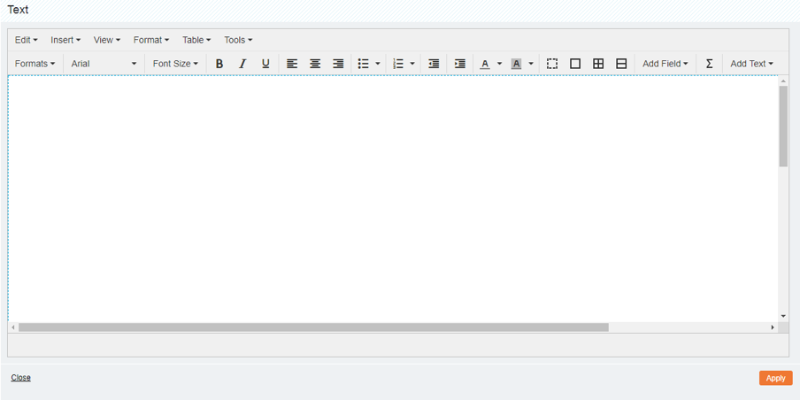
Drag and drop a background image, such as the one below into the white space. Then, using the bottom right corner of the image, resize the image so it fits the outlined blue area. Click Apply.

Tip: It is recommended that, when adding images to a report, the Run icon at the top of the screen should be clicked to view how the image is currently displayed.
HTML Elements
Now the report has a background image, a number of HTML elements can be added that can serve as a backdrop to individual reporting components. These are added using more Text components.
Click Page 1 from the structure panel and select Add Layer from the floating toolbox. Now, click the up arrow to move Layer 2 above Layer 1:

Click Layer 2 and drag a Text component onto the left side of the page. Double-click it and select Tools, then Source Code.
Copy and paste the following text into the Source Code window:
<div style="width: 97%; height: 90%; background: #e1c38f; box-shadow: 5px 5px 5px #888888; border-radius: 1em;">
<p style="text-align: center;"><br /></p>
<p style="text-align: center;"><span style="font-family: 'trebuchet ms', geneva, sans-serif; color: #fff;"><span style="font-family: 'trebuchet ms', geneva, sans-serif;" class="font24">Header</span></span></p>
<br /></div>
Click Ok, then Apply.
This will provide a light brown box with curved edges, shaded background and a centred header. A selection of useful HTML options are detailed within the HTML Examples section of this guide that provide an insight into how to amend the colours, headers and other display options.
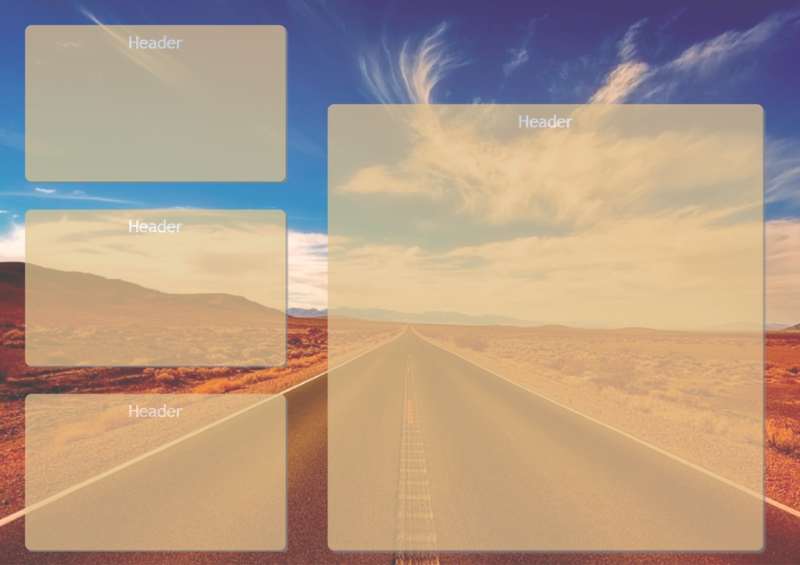
In this instance, the report is intended to have three of the smaller HTML Text components on the side of the screen and a larger Text component on the right. Resize the Text component then, under Layer 2, drag and drop the Text component onto the page. This will add a copy of the previously created Text component. Repeat this procedure twice more, resize and move accordingly.
Click Layer 2 then Layer Style at the bottom of the component toolbox. Slightly amend the opacity so background image is slightly visible.
Click Run, and the report should resemble the following image:
Using the Custom component, HTML elements can be saved and used in other reports.
To save a HTML element, single-click it in edit mode. Then from the toolbox, click Save:
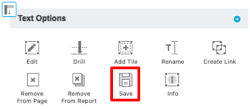
Type a name for the element in the Report Name folder and select a destination folder. Click Save to complete the process.
When adding the Custom reporting component, previously created HTML elements can now be loaded.
Adding a Chart to the Report
Return to Edit mode, click Page 1 then Add Layer. Move this layer to the top of the list.
Click Layer 3, drag a Chart component into the top-left HTML Text component and resize it to fit. Make this a Bar Chart, remove the Legend and style the Chart so that the text colour is FFFFFF and the Background colour is blank, also amending the Bar Chart Colour.
Click Save Chart to add it to the page. Single-click the newly added chart and click Component Style in the toolbox. Enable the Remove Background option.
Adding a Crosstab to the Report
Click Layer 3, drag a Crosstab component into the middle-left HTML Text component and resize it to fit. In the Totals tab, make this a sum of a monetary value, adding a £ Prefix and amending the Value Format to be #,0.
Click the Layout tab. In the Table options, disable the Show Cell Borders option. Click the preview and select Table from the popup menu to reveal the the Style options, where the Font Size and Text Colour of the totals can be changed.
Click Save Crosstab to add it to the page. Single-click the newly added Crosstab and click Component Style in the toolbox. Enable the Remove Background option.
The values in the Crosstab will have the drill through functionality enabled, allowing users to view the underlying records.
Adding a Headline Figure to the Report
The sum of a value will now be added using the same settings found in the Crosstab Total tab. However, the drill through functionality will be disabled.
Click Layer 3 in the structure panel and drag a Text component into the bottom-left HTML Text component and resize it to fit. Double click the textbox and click the Sigma (Σ) icon to display the following screen:
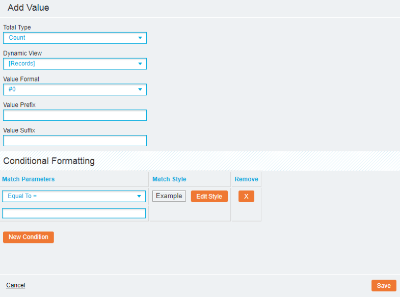
Amend the options so that an average of a numeric value is calculated and click Save. Click on newly added component and change its Font Size and Colour. Centrally align the value and click Apply.
Now, drag a Text component into the top-right of the report, above the previously added Text component. Double click it and drag a logo into the text editor. Click the image and select Insert, then Link. Enter a valid URL and change the Target to be New Window before clicking Ok. Click Apply and then run the report.
It should resemble the following image:
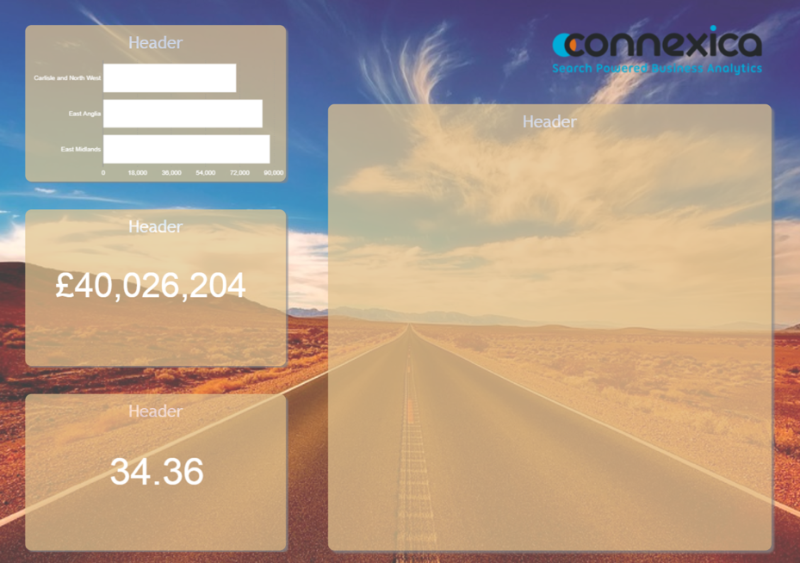
When the logo is clicked in run mode, a new browser window will open that will navigate to the specified URL.
Adding Tiles and Containers to the Report
Using Tiles, end-users are able to navigate between reporting components added to the same area of a report. Containers take this concept a step further and allow multiple components to be switched at once.
Return to Edit mode, click Layer 3 and drag a Chart component into the last empty HTML Text component before resizing it to fit. Make this a column chart and change the Style options so that the text colour is FFFFFF and the background colour is blank. Amend the column chart Colour.
Click Save Chart to add it to the page. Single-click the newly added chart and click Component Style in the toolbox. Enable the Remove Background option.
Click the chart and select Add Tile from the floating toolbox. This will add a second tile in the same location as the previously created chart and enables the user to change the view between charts. Click Tile 2 and drag another chart onto the tile.
Run the report and it should resemble the following image:
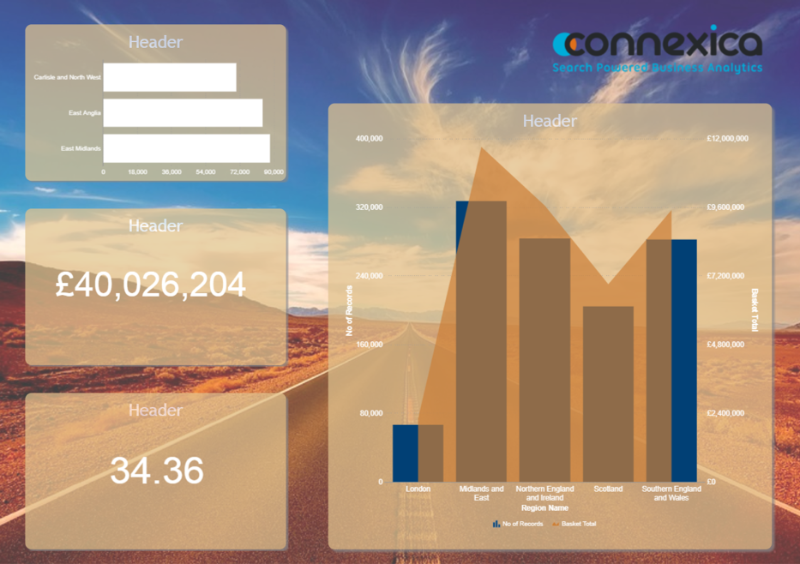
Hovering the mouse over the newly added chart will enable left and right arrows for the user to navigate between tiles.
Return to Edit mode, click the Tiles heading from the structure panel and click Style from the Tiles Options section of the floating toolbox. The Transition drop-down list controls how the tile will be changed, with Slider selected by default and Slideshow available, where the tile is automatically changed after a specified number of seconds. With Slider selected from the Transition drop-down list, select an option from the Navigation drop-down list to modify how users interact with the tiles.
Containers work in a similar manner but need to be added prior to the reporting components. In Edit mode, single-click the chart at the top-left of the report and click Remove from Page. Do the same for the Crosstab in the middle HTML element. Using this remove option will keep the report component in the structure panel ready to be re-added with all configuration options preserved.
Add a Container to the report using the following icon:
Resize this component so that it encompasses both empty HTML elements and drag the previously removed components back onto the HTML elements from the Unused section of the structure panel. They will be now be added to the Container.
Click the Container entry in the structure panel and click Add Tile from the floating toolbox. Add another Container before adding more reporting components, or simply add a single component that can be navigated to using the same options used when adding Tiles.
Now when running the report, multiple components can be controlled using the same Tile transition.
Click the Save icon at the top of the report to save the created report.
Single Page Report with Drill Through into Layers
In Edit mode, click the New Report tab to clear the report and load a blank page.
Click Page 1 from the structure panel and select Page Style from the floating toolbox. Change the Orientation to Landscape and the Background Colour to EEEEEE.
Drag a Text component onto the page, position it in the top-left corner of the page and then stretch it so it fits the whole width. Double-click it and select Tools, then Source Code. Copy and paste the following text into the Source Code window:
<div style="width: 100%; height: 92%; background: #00acdc; border-bottom-right-radius: 10em; border-bottom: 5px solid #313139;">
<p style="text-align: center;"><br /></p>
<p style="text-align: center;"><span style="font-family: 'trebuchet ms', geneva, sans-serif; color: #fff;"><span style="font-family: 'trebuchet ms', geneva, sans-serif;" class="font24">Header</span></span></p>
<br /></div>
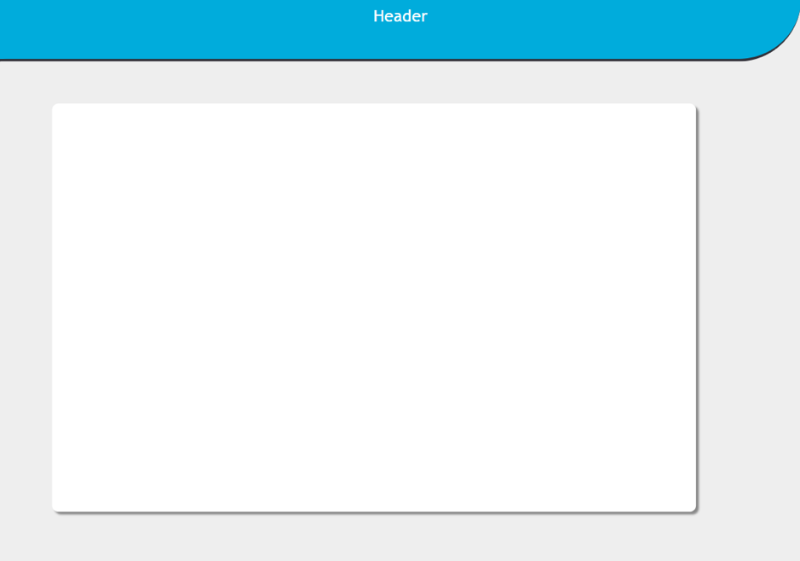
Click Apply to save this change. Drag another Text component onto the page and expand it to fill two-thirds of the page, leaving space on the right side. Add the following HTML to the Text component:
<div style="width: 98%; height: 97%; background: #fff; box-shadow: 5px 5px 5px #888888; border-radius: 1em;">
<br /></div>
Click Run, and the report should resemble the following image:
Return to Edit mode and click Layer 1 from the structure panel. Click Rename from the floating toolbox and name the component Background.
Click Page 1 from the structure panel then click Add Layer from the floating toolbox. Ensure this layer is moved to the top of the list and rename this to be called Top Layer. On this layer add a small Text component to the right side of the page. This will be used as a button to drill through to another layer. Add the following HTML:
<div style="width: 97%; height: 90%; background: #00acdc; box-shadow: 5px 5px 5px #888888; border-radius: 1em;">
<p style="text-align: center;"><br /></p>
<p style="text-align: center;"><span style="font-family: 'trebuchet ms', geneva, sans-serif; color: #fff;"><span style="font-family: 'trebuchet ms', geneva, sans-serif;" class="font18">Financials</span></span></p>
<br /></div>
From the structure panel, locate the Text component that has just been modified. Drag this from the panel onto the page, below the original component. This will create an exact copy of the component. Double-click the copy and in the HTML, replace the word ‘Financials’ with ‘Trends’. This will amend the button name.
Drag a Chart component into the middle Text component, resize it to fit and make the chart a record count and a column chart.
Select the Chart component and select Drill in the toolbox to modify the drill action. To display a pop-up window containing the drill through records specific to the data point clicked, select Popup from the Drill-To drop-down list. The Pop-up Element will default to 'Report' which displays the records in a table, but you can pass the context through to another element.
Click Run, and the report should resemble the following image:
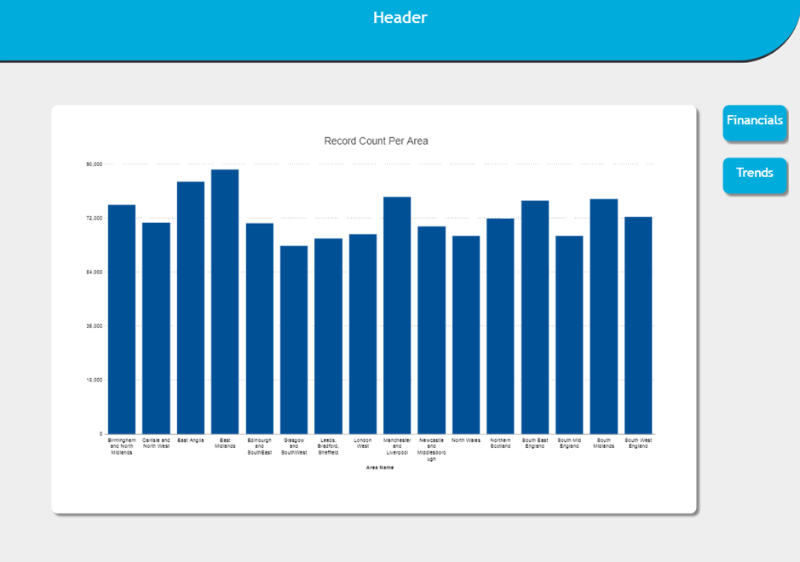
Notice that when selecting 'Birmingham and North Midlands' this loads a pop-up table containing the context specific records rather than loading the query screen:

Return to Edit mode and click on the Top Layer. In the floating toolbox, click Copy. There will now be a third layer called Copy of Top Layer. Ensure this is positioned below Top Layer in the structure panel.
Click on Copy of Top Layer in the structure panel and select Layer Style from the floating toolbox. Enable the Hidden option and click Apply.
Rename the Top Layer to Financials, rename Copy of Top Layer to Trends.
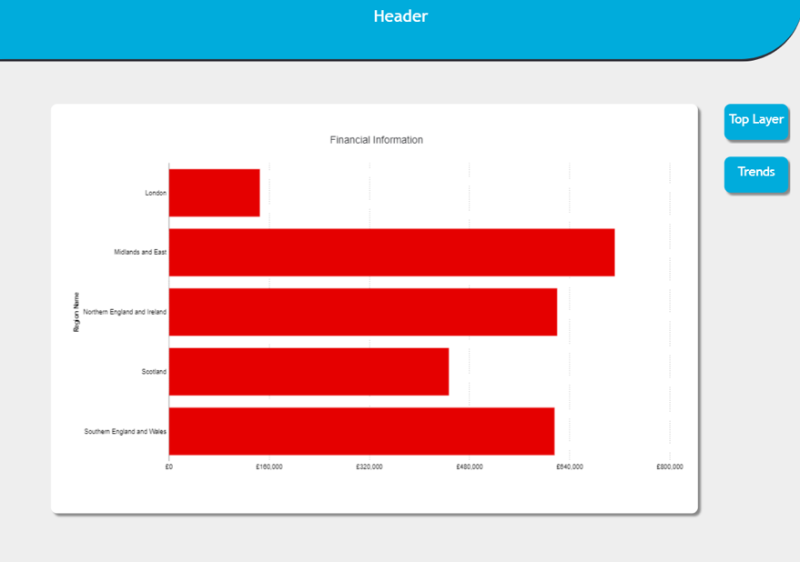
On the Financials layer, double click the Financials Text component on the page and change the name in the HTML to Top Layer. Double-click the Chart component, amend it to be a bar chart using different colours, containing financial information. Add the name Financials to user field 1 and add this to the chart header.
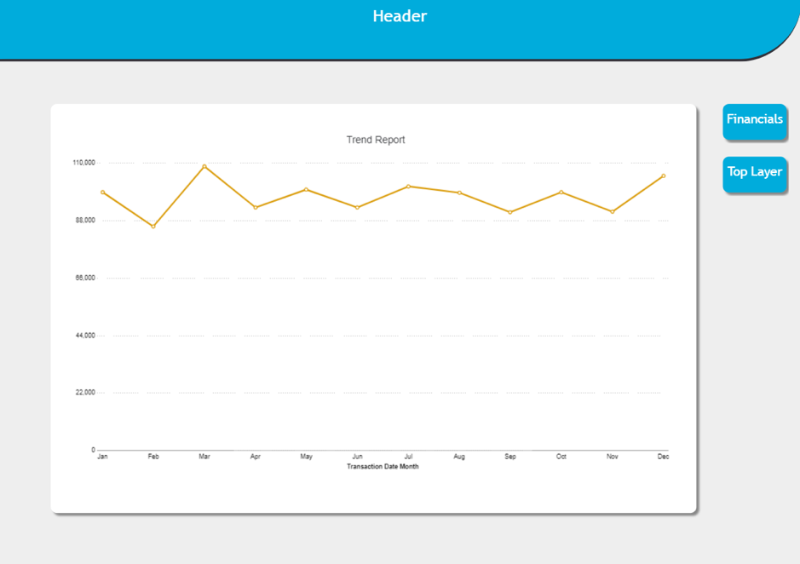
On the Trends layer, double click the Financials Text component on the page and change the name in the HTML to Top Layer. Double-click the Chart component, add the name Trends to user field 1 and add this to the chart header.
To activate the buttons, first click the Financials button then click Drill from the floating toolbox. Here, the setting can be amended, allowing a component to drill through to another layer or page. Select the Financials layer. Repeat this process for each of the three layers containing charts.
Click Run, then click the Financials button and the report should navigate to the Financials Layer:
Click the Trends button and the user should see the Trends Layer:
Click the Save icon at the top of the report to save the created report.
Page Report with Break Fields
In Edit mode, click the New Report tab to clear the report and load a blank page. Click Report Style from the floating toolbox and change the Orientation to Landscape.
Drag a Text component onto the page that fills three-quarters of the screen. Double-click the component and drag a background image into it.
Click on Page 1 then Add Layer. Using this new layer, drag a Text component to the right of the screen. Double-click this and drag in a logo. Resize accordingly.
Drag a Text component to the top-left of the screen. Double-click this and give the report a header.
Click Run, and the report should resemble the following image:
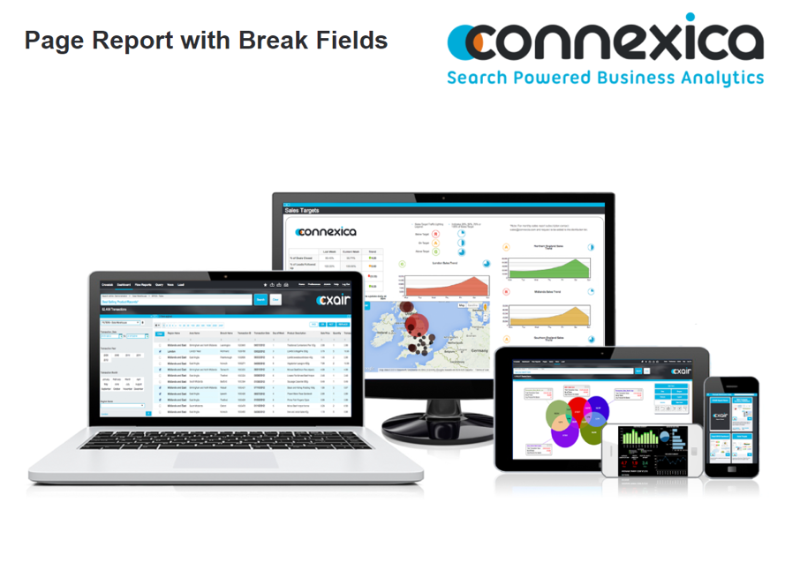
Return to Edit mode, click Page 1 and select Copy from the floating toolbox. A new page called Page 1#1 will now be available in the structure panel. Click on Page 1#1 and rename it to Information Page.
On the Information Page, click on Layer 1 and reduce the opacity using the Style options.
Click on Layer 2 and drag a Text component onto a page. Add the following HTML:
<div style="width: 100%; height: 90%; background-color: #29374a; border-radius: 15px; box-shadow: 4px 4px 4px #888888; text-align: center; color: #fff; vertical-align: middle; font-size: 20pt; padding-top: 15px;">Overall Rating</div>
<div>
<p><br /></p>
</div>
This will be used to add a gauge on top of it. Repeat the procedure but use the slightly amended HTML below:
<div style="width: 100%; height: 95%; background-color: #29374a; border-radius: 15px; box-shadow: 4px 4px 4px #888888; text-align: center; color: #fff; vertical-align: middle; font-size: 20pt; padding-top: 15px;">Trends</div>
<div>
<p><br /></p>
</div>
This will be used to add a chart on top of it. Run the report and there should now be two pages available, with the second page resembling the following image:
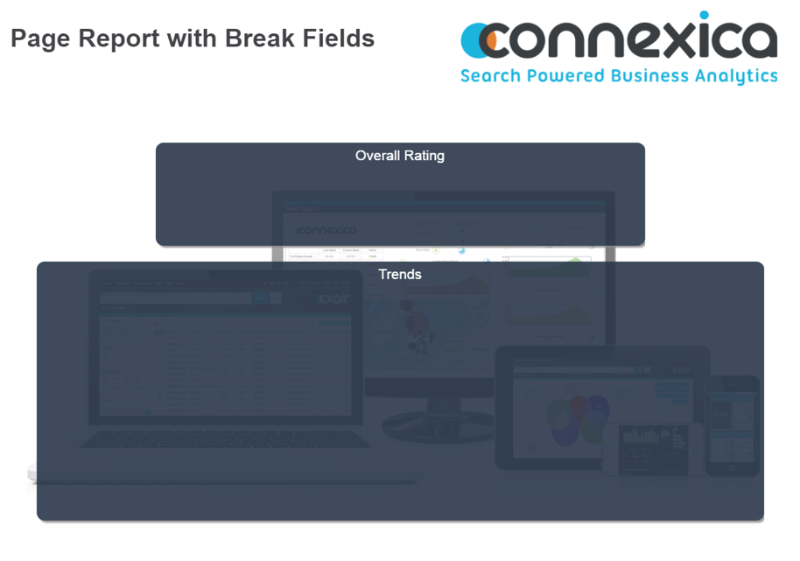
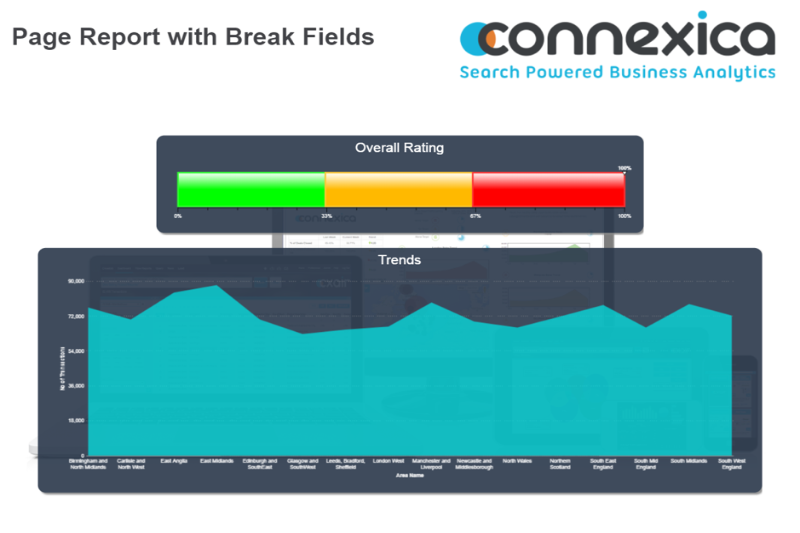
Return to Edit mode, click on the Information Page and Add Layer. Click on Layer 3 then drag a Gauge component onto the Overall rating HTML Text component and a Chart component onto the Trends HTML Text component. Remove the background on both components and in the change the chart text colour to be FFFFFF. Run the report and the Information Page should resemble the following image:
Currently all of the data within the Index is being displayed. By breaking this page down by a field, such as Region Name, the same page structure will be displayed but only against each Region’s data.
To create a page break, return to Edit mode and in the click the Layout tab above the structure panel.
The following screen should be displayed:
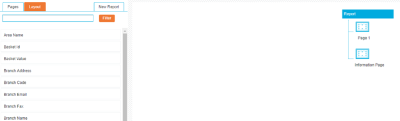
The current page layout is displayed on the right side of the screen. The pages can be dragged above or below to re-order them, if necessary. To create the break fields, drag a field from the left side and onto the Information Page.
This will display the following:
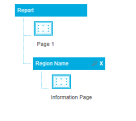
To order or exclude values, click the Magnifying Glass icon located to the left of the X icon.
Click the Pages tab above the structure panel and click on Layer 2 beneath the Information Page. Double click the Text component containing the header. Delete the text contained within here and under the Add Field drop-down list, select the field you have just broken the page on, such as Region Name. Amend the font size and format, if required. This will identify the Region Name on each Page.
Run the report. After the header page, there will be a page per each value in the field specified.
Click the Save icon at the top of the report to save the created report.
Additional Options
Options from the Toolbox include:
- Snap – this is useful in providing more flexibility for resizing elements
- Rotate – this enables components to be rotated into the desired on-screen position
- Transform – is used to stretch or shrink the sides of a component.
Clicking on any report component will reveal its properties and options in the floating toolbox:
- Drill to set the drill action for the component, it can be used to navigate to separate layers of the report or present users with a pop-up window
- Add Tile
- Rename
- Create Links to other charts and Crosstabs
- Info will inform the user which Search Engine and Index the component is built from
- Remove from Page (the component is removed from the page but still available under the Unused list from the left-hand structure)
- Remove from Report (completely removed from the report)
Clicking on any report page or background will reveal its style options in the floating toolbox:
- Report Style
- Page Size sets the dimensions of the report
- Cell Size lets you change the size of the snap to grid background
- Cycle through pages Automatically cycles through pages within the report, refreshing data as each page is displayed.
- Page Style Set these options before adding content to your report, the layout changes will clear your layout. These are the settings to change the page orientation and background colour.
- Layer Style This allows you to hide the layer and set Opacity.
HTML Examples
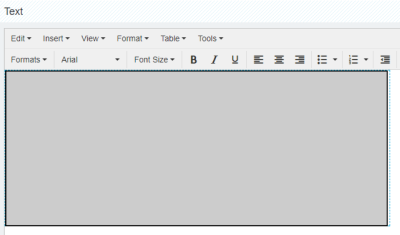
Rectangular Box with Full Border
<div style="width: 99%; height: 99%; background: #ccc; border: 2px solid #000;"><br /></div>
Style=width: 99%; height: 99% - box ;
background:#ccc - colour of the box;
border: 1px solid #000 - border of the box
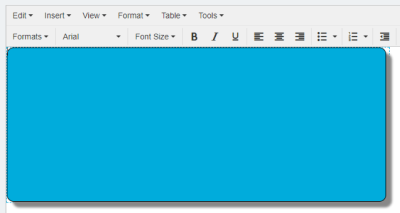
Blue Box with Curved Edges, Border and Shadowed Background
<div style="width: 98%; height: 96%; background: #00acdc; border: 1px solid #000; box-shadow: 10px 10px 5px #888888; border-radius: 1em;"><br /></div>
box-shadow: 10px 10px 5px #888888 - background shadow & size and colour
border-radius: 1em - cornered edges
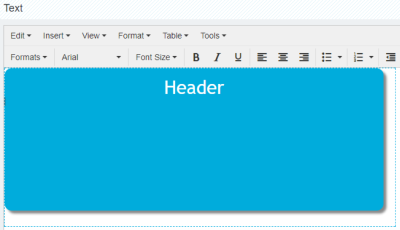
Blue Box with Curved Edges, Shaded Background and centred Header
<div style="width: 97%; height: 90%; background: #00acdc; box-shadow: 5px 5px 5px #888888; border-radius: 1em;">
<p style="text-align: center;"><br /></p>
<p style="text-align: center;"><span style="font-family: 'trebuchet ms', geneva, sans-serif; color: #fff;"><span style="font-family: 'trebuchet ms', geneva, sans-serif;" class="font24">Header</span></span></p>
<br /></div>
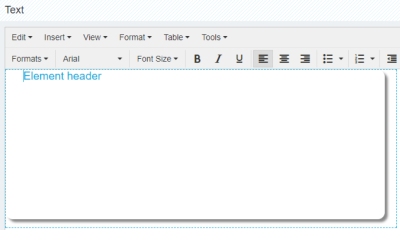
White Box with Curved Edges, Shaded Background Left-aligned Element Header
<div style="width: 97%; height: 95%; background: #fff; box-shadow: 5px 5px 5px #888888; border-radius: 1em;">
<p style="text-align: left; padding-left: 30px;" class="font14"><span color="#00acdc" style="color: #00acdc;">Element header</span></p>
<br /></div>
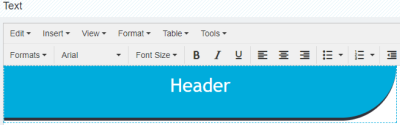
Header with Curved Corner and Coloured Border
<div style="width: 100%; height: 92%; background: #00acdc; border-bottom-right-radius: 10em; border-bottom: 5px solid #313139;">
<p style="text-align: center;"><br /></p>
<p style="text-align: center;"><span style="font-family: 'trebuchet ms', geneva, sans-serif; color: #fff;"><span style="font-family: 'trebuchet ms', geneva, sans-serif;" class="font24">Header</span></span></p>
<br /></div>
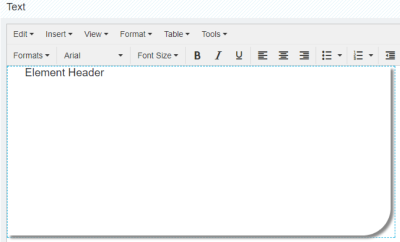
White Shadowed Box
<div style="width: 99%; height: 99%; background: #fff; box-shadow: 5px 5px 5px #888888; border-bottom-right-radius: 4em;">
<p style="text-align: left; padding-left: 30px;" class="font14">Element Header</p>
<br /></div>
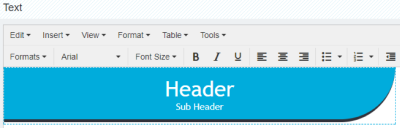
Header with Curved Corner and Sub-header
<div style="width: 100%; height: 92%; background: #00acdc; border-bottom-right-radius: 10em; border-bottom: 5px solid #313139;">
<p style="text-align: center;"><br /></p>
<p style="text-align: center;"><span style="font-family: 'trebuchet ms', geneva, sans-serif; color: #fff;"><span style="font-family: 'trebuchet ms', geneva, sans-serif;" class="font28">Header</span></span></p>
<p style="text-align: center;"><span style="font-family: 'trebuchet ms', geneva, sans-serif; color: #ffffff;"><span style="font-family: 'trebuchet ms', geneva, sans-serif; color: #ffffff;" class="font12">Sub Header</span></span></p>
<br /></div>
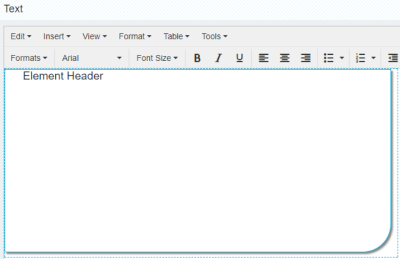
Textbox with Blue Border, Curved edge and Header
<div style="width: 98%; height: 97%; background: #fff; border-bottom-right-radius: 4em; border: 1px solid #00acdc; box-shadow: 3px 3px 3px #888888;">
<p style="text-align: left; padding-left: 30px;" class="font14">Element Header</p>
<br /></div>
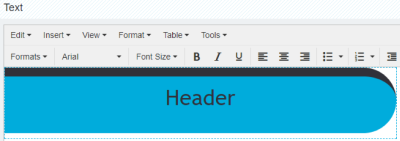
Header with Curved Top and Corners
<div style="width: 100%; height: 80%; background: #00acdc; border-bottom-right-radius: 10em; border-top-right-radius: 10em; border-top: 15px solid #313139;">
<p style="text-align: center;"><br /></p>
<p style="text-align: center;"><span color="#030303" face="trebuchet ms, geneva, sans-serif" style="color: #313139; font-family: 'trebuchet ms', geneva, sans-serif;"><span style="font-size: 37.3333px;">Header</span></span></p>
<br /></div>
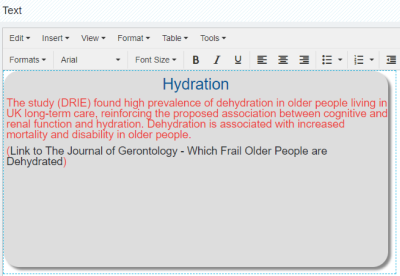
Box with Header and Paragraph including Hyperlink
<div style="width: 98%; height: 94%; background-color: #dddddd; border-radius: 1em; box-shadow: 5px 5px 5px #888888; text-align: center; color: #005395; vertical-align: middle; font-size: 20pt; padding-top: 10px;">Hydration<br />
<div style="text-align: left; color: #eb3d3a; font-size: 14pt; padding-top: 10px; padding-left: 5px;">The study (DRIE) found high prevalence of dehydration in older people living in UK long-term care, reinforcing the proposed association between cognitive and renal function and hydration. Dehydration is associated with increased mortality and disability in older people.</div>
<div style="text-align: left; color: #eb3d3a; font-size: 14pt; padding-top: 10px; padding-left: 5px;">(<a href="http://biomedgerontology.oxfordjournals.org/content/71/10/1341.short?rss=1" target="_blank">Link to The Journal of Gerontology - Which Frail Older People are Dehydrated</a>)</div>
</div>
White Box with Shaded Corner and Blue Border
<div style="width: 97%; height: 95%; background: #fff; box-shadow: 5px 5px 5px #888888; border-top: 1px solid #0075C2; border-left: 1px solid #0075C2;"><br /></div>
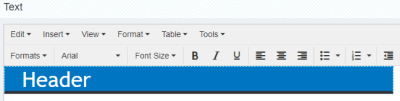
Header with Bottom Border
<div style="width: 100%; height: 92%; background: #0075C2; border-bottom: 5px solid #313139;">
<p style="text-align: left; padding-left: 30px;"><span style="font-family: 'trebuchet ms', geneva, sans-serif; color: #fff;"><span style="font-family: 'trebuchet ms', geneva, sans-serif;" class="font28">Header</span></span></p>
<br /></div>
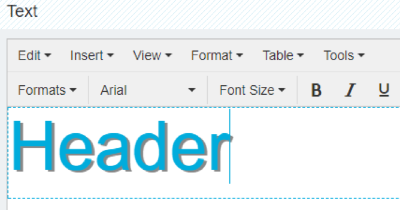
Header with Text Shadow
<p><span class="font54" style="color: #00acdc; text-shadow: 3px 2px #888;">Header</span></p>
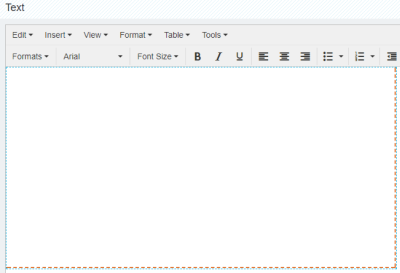
Orange Dotted Border
<div style="width: 99.5%; height: 99%; border-bottom: 2px dashed #E17029; border-right: 2px dashed #E17029;"><br /></div>
Element Box with Header
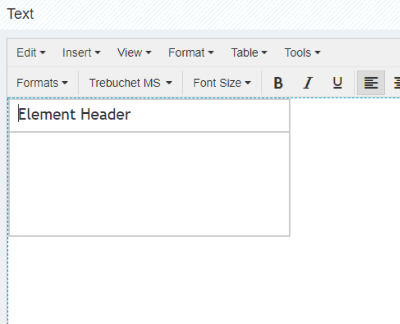
<div style="width: 330px; height: 30px; background: #ffffff; border: 2px solid #cccccc; text-align: left; padding-left: 10px; padding-top: 7.5px;"><span style="font-family: 'trebuchet ms', geneva, sans-serif; color: #313139;"><span class="font14">Element Header</span></span></div>
<div style="width: 340px; height: 125px; background: #fff; border-bottom: 2px solid #ccc; border-right: 2px solid #ccc; border-left: 2px solid #ccc;"><br /></div>