
03ci. Calculation Builder
Used in front-end reporting and Index configuration, the CXAIR Calculation Builder provides an interactive interface to create additional fields, configure re-usable variables and utilise preconfigured functions to control data structures and reporting output.
New calculations can be derived when creating a report or at Index build-time. This guide will cover both front-end reporting techniques and, for system administrators, examples that have been used to enhance customer Indexes for end-users.
Interface
In the front-end, the Calculation Builder is accessed when creating Crosstab totals. There are two distinct uses when reporting: Measure Calculations and Cell Calculations.
Measure Calculations
Using the calculation as a Measure allows users to perform calculations at row-level based on the Total Type rather than a direct cell calculation using existing totals.
In the Totals tab, select a Total Type then select Calculation from the subsequently revealed Measure drop-down list:
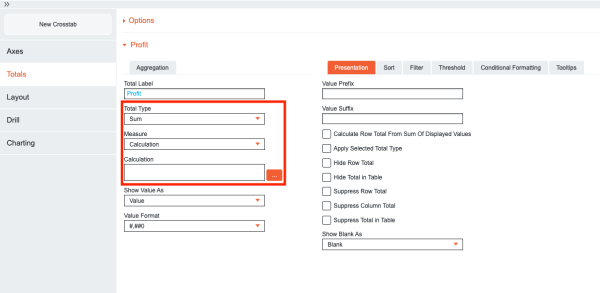
Clicking the … icon will open the Calculation Builder:
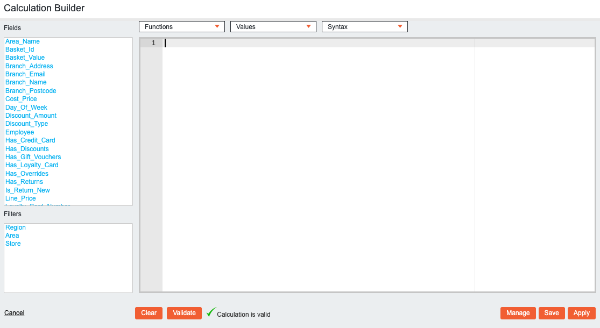
On the left of the pop-up window, a list of available Fields and Filters are displayed that can be directly referenced when building calculations, along with Functions, Values and Syntax drop-down lists.
Use the Functions list to select from the available calculation functions. Simply replace the template values contained within <> with actual values required for the function.
For example:
Floor(<Expression>) becomes Floor(Sales_Price)
Select an option from the Values list to add dynamic values based on the currently loaded Index.
The Syntax drop-down list contains a number of common structures to assist with the creation of calculations within the tool. It is recommended that users familiarise themselves with the structures found in this list when first using the Calculation Builder.
To test the validity of the currently entered syntax, click the Validate button.
A green tick icon will denote when the syntax is correct, allowing the Apply button to be clicked and the total added to the report.
Click the Clear button to remove all text, or to cancel any changes made to the calculation, click Cancel.
Saving & Loading Calculations
To save a calculation, click the Save button located at the bottom-right corner.
Saved calculations can be made available for other users who have access to the same Index by selecting the Available as Aggregation option. Type a Name in the textbox and click Save. To discard changes, click the Cancel button.
After saving a global calculation it will then be displayed under the Crosstab Measure drop-down list for use in any future reports using the same Index, or by other users with the relevant permissions.
To remove or edit a global calculation, open the Measure Calculation Builder and click the Manage button. This will display a list of any saved and global calculations. Click the Load button to load the calculation into the Calculation Builder for editing or click on the Remove button to delete the calculation.
Adding Comments
To add comments to a calculation, wrap the required comment in /*. For example:
/*This calculation brings back CASH only payments*/
Cell Calculations
Using Cell Calculations, users can perform calculations based on existing totals that have already been specified in the report.
In the Totals tab, select Cell/Total Calculation from the Total Type drop-down list:
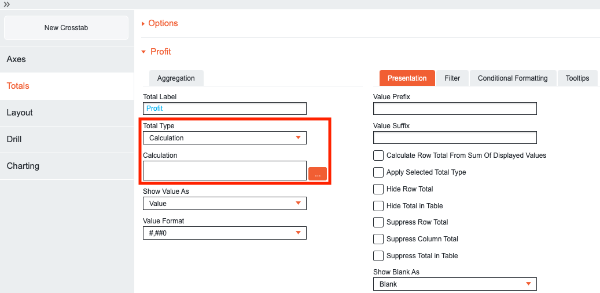
Clicking the … icon will open the Calculation Builder:
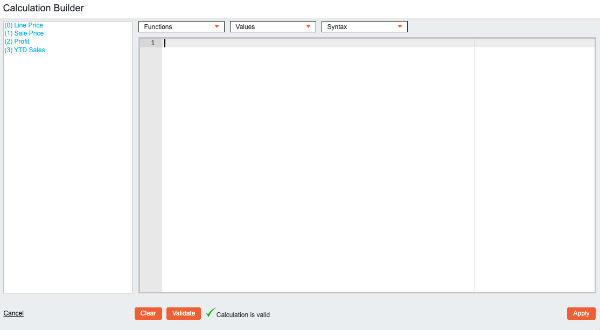
Rather than a list of available fields, previously defined totals are now displayed. This allows calculations between totals to be defined that are run against the Index at report run-time.
To reference totals, their position or name can be used with the Total function. This uses the following syntax:
Total( <Expression> )
For example, TOTAL(0) can be used to reference the first total, with an incremental numeric value assigned to each total in turn. Alternatively, if the total has been named, the Total function is not required and the name in single quotes can be used, such as 'Sales'.
Use the Count cell calculation functions to perform these aggregation functions while referencing the values from other totals. These functions will only appear in the cell calculation builder and use the following syntax, with the 'Expression' text representing the calculation logic that will be wrapped in the function:
Count( <Expression> )
To reference the actual runtime position of a total, use the following syntax:
Total (n,True)
Enter a value to reference the total position. This is especially useful when assigning saved queries to totals and calculating across them.
For a full list of functions available for cell calculations, see the Calculations Function Index.
DrillThru
To translate the calculation logic into syntax that can be parsed in the Query screen, the total logic or field must be wrapped in the DrillThru function.
For example:
IF
IF (Area_Name='Birmingham and North Midlands') {DrillThru(Cost_Price)}
IF (Area_Name='Birmingham and North Midlands') {DrillThru(1)}
CASE
CASE WHEN Area_Name = 'Birmingham and North Midlands' THEN DrillThru(Cost_Price) END
CASE WHEN Area_Name = 'Birmingham and North Midlands' THEN DrillThru(1) END
When referencing more than one total in a calculation, the DrillThru function is used to select the value that informs the drill operation.
For example, when deriving percentage values, the DrillThru function can be used to specify the numerator or denominator value. The following Row Total calculation calculates the percentage of branded items:
(sum(CASE WHEN Product_Type = 'Branded' THEN 1 ELSE 0 END)/sum( 1 ))*100
The following calculation drills to the branded product transactions:
(sum(CASE WHEN Product_Type = 'Branded' THEN DrillThru( 1 ) ELSE 0 END)/sum( 1 ))*100
The following calculation drills to the unbranded product transactions:
(sum(CASE WHEN Product_Type = 'Branded' THEN 1 ELSE DrillThru( 0 ) END)/sum( 1 ))*100
The following calculation drills to both branded and unbranded product transactions:
(sum(CASE WHEN Product_Type = 'Branded' THEN 1 ELSE 0 END)/sum( DrillThru( 1 ) ))*100
Conditional Statements
When creating calculations, utilising conditional statements is key to shaping output in both reporting and Index management.
CASE Statements
CASE statements use the following syntax:
CASE WHEN <Condition> THEN <Expression> ELSE <Expression> END
To populate the calculation builder with the required syntax structure, select the CASE option from the Syntax drop-down list.
First, a condition is specified. An expression is then defined that will be output when the condition is true, or not true. A CASE statement must always finish with END.
For example, the following syntax will filter the output to only include cash sales:
CASE WHEN MOP = 'Cash' THEN 1 ELSE 0 END
‘When the MOP field contains the value ‘Cash’, then count the rowotherwise ignore it.’
Here, the condition is that the ‘MOP’ (method of payment) field equals ‘Cash’, and the expression ‘1’. This Boolean flag means that the rows will be included. The ‘ELSE 0’ expression is another Boolean flag that will instead omit any rows that do not equal ‘Cash’.
Notice how the MOP value is specified in single quotes. This is due to the field containing string values. Numeric fields used in calculations do not require single quotes.
The ‘1’ and ‘0’ values in this statement represent the calculation logic that will be applied, in this case either including or omitting the rows based on the condition. These values can be changed to suit the required report.
For example:
CASE WHEN MOP = 'Cash' THEN Sales_Price ELSE 0 END
'When the MOP field equals ‘Cash’, then apply the selected Total Type to the ‘Sales Price’ field for these rows in the output. Otherwise, exclude rows with other MOP values.’
Here, the ‘1’ value in the previous example has been swapped for ‘Sales_Price’. This will result in the selected Total Type for the total being applied to this field for all cash transactions. Other rows will be omitted.
Notice how the specified field has an underscore rather than a space. To work correctly, a field must be entered exactly as it is stored in the Index. To ensure the field is entered correctly, single-click the field of interest in the Fields list of the Calculation Builder.
Further Examples
| CASE WHEN In( Acc_ACC_PURPOSE_CODE,'FA', 'FP', 'PP', 'HPO', 'REL' ) THEN 1 WHEN In( Acc_ACC_PURPOSE_CODE,'REN', 'RED', 'REO', 'REB') THEN 2 ELSE 7 END | CASE WHEN (C1_CPD_CUSTP_NATIONALITY = 'BRIT' || C1_CPD_CUSTP_NATIONALITY IS NULL) && (Addr_ADDR_COUNTRY_CODE = 'UK' || Addr_ADDR_COUNTRY_CODE IS NULL) THEN 'N' ELSE 'Y' END |
IF Statements
IF statements use the following syntax structure:
IF <Condition> { <Expression> } ELSE { <Expression> }
To populate the calculation builder with the required syntax structure, select the IF option from the Syntax drop-down list.
The syntax differs to a CASE statement, with the condition specified before defining expressions wrapped in curly brackets.
For example:
IF MOP = 'Cash' { 1 } ELSE { 0 }
‘When the MOP field contains the value ‘Cash’, then count the row, otherwise ignore it.’
This filters the output in the same way as the previously reviewed CASE statement.
Again, the ‘1’ and ‘0’ values in this statement represent the calculation logic that will be applied, in this case either including or omitting the rows based on the condition. These values can be changed to suit the required report.
For example:
IF MOP = 'Cash' { Sales_Price } ELSE { 0 }
'If the MOP field equals ‘Cash’, then apply the selected Total Type to the ‘Sales Price’ field for these rows in the output. Otherwise, exclude rows with other MOP values.’
As with the previous example, the ‘1’ value in the previous example has been swapped for ‘Sales_Price’. This will result in the selected Total Type for the total being applied to this field for all cash transactions. Other rows will be omitted.
Dynamic Views
A dynamic view is a distinct count of a pre-configured field setup by an administrator.
For example, adding a Dynamic View for an ‘Employee Name or ID’ would allow users to create reports that only count unique employees within their report.
When drilling through on a Dynamic View or when there is both an aggregation and a Dynamic View present, the first row found will be shown on the drill through results.
Use the Dynamic View drop-down list when creating Crosstab totals to select from the list of Dynamic Views added by the system administrator:
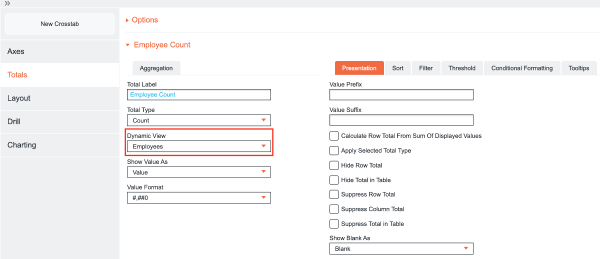
Selecting [Records] from this list will perform the selected Total Type on the underlying rows with no distinct count applied.
If a field doesn’t appear as an option under the Dynamic View drop list, contact you CXAIR administrator.
Dynamic Views can also be used in the Query screen using the following syntax:
+<Field_Name>:"<Query>" +DYNAMICVIEW: "<Dynamic View Name>"
For example:
+Region_Name:"London" +DYNAMICVIEW: "Employees"
Ordering Calculation Logic
Understanding how Dynamic Views filter the data is vital to ensuring reporting figures are valid.
When a Dynamic View is invoked, the Index is scanned row-by-row until a match is found. The order in which rows are scanned is based on the underlying structure of the Index, not necessarily the order in which the data was ingested.
When the first unique record is identified, every other row containing this identifier is discarded and not included in the output.
When using the Dynamic View drop-down list functionality in a standard total, the distinct count is run against the records before any calculation logic is applied. In some circumstances, this may remove records of interest.
By using the CountDistinct and SumDistinct calculation functions, the distinct count can instead be run against the records after the calculation logic has been applied.
The calculations use the following syntax:
CountDistinct( <Expression> , <String Expression> )
Returns the distinct count from a dynamic view following the specified calculation logic.
SumDistinct( <Expression> , <String Expression> )
Sums the distinct count from a dynamic view following the specified calculation logic.
The following report contains two totals counting the number of unique employees that have processed cash transactions broken down by region:
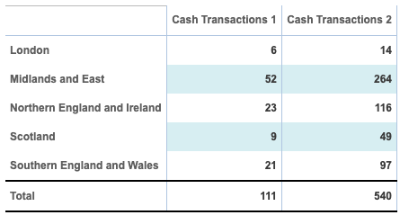
Both totals employ the same dynamic view, titled ‘Employees’, but at different stages of the calculation.
The first total, ‘Cash Transactions 1’, has the Total Type set to Sum, the Dynamic View drop-down list set to Employees and the following calculation:
CASE WHEN MOP = 'Cash' THEN 1 END
When this calculation is run, the dynamic view filters to only the first row for each employee before then filtering to cash transactions. This means that many cash transactions have been filtered from the reporting output - only if the first row found for an employee contains a cash transaction is it included.
The second total, ‘Cash Transactions 2’, instead has the Total Type set to Sum, the Dynamic View drop-down list set to [Records] and the following calculation:
CountDistinct( CASE WHEN MOP = 'Cash' THEN 1 END , 'Employees' )
This calculation first filters the rows based on the specified MOP value, then runs the distinct count against those records. This ensures all ‘Cash’ records are included in the result set before the distinct count of employees is run.
Date Calculations
When working with date fields in an Index, there are a number of ways values can be referenced to form the basis for new fields and calculated output when reporting.
Reference Variables
When using date differentials in calculations, the following dynamic syntax can be used to add and subtract from date values:
Point in Time |
NOW |
TODAY |
MONDAY |
TUESDAY |
WEDNESDAY |
THURSDAY |
FRIDAY |
SATURDAY |
SUNDAY |
FIRST_SECOND_OF_DAY |
LAST_SECOND_OF_DAY |
FIRST_MINUTE_OF_DAY |
LAST_MINUTE_OF_DAY |
FIRST_SECOND_OF_WEEK |
LAST_SECOND_OF_WEEK |
FIRST_DAY_OF_WEEK |
LAST_DAY_OF_WEEK |
FIRST_SECOND_OF_MONTH |
LAST_SECOND_OF_MONTH |
FIRST_DAY_OF_MONTH |
LAST_DAY_OF_MONTH |
FIRST_DAY_OF_QUARTER |
LAST_DAY_OF_QUARTER |
FIRST_SECOND_OF_YEAR |
LAST_SECOND_OF_YEAR |
FIRST_DAY_OF_YEAR |
LAST_DAY_OF_YEAR |
FIRST_SECOND_OF_FISCAL_YEAR |
LAST_SECOND_OF_FISCAL_YEAR |
FIRST_DAY_OF_FISCAL_YEAR |
LAST_DAY_OF_FISCAL_YEAR |
FIRST_DAY_OF_FISCAL_HALF_YEAR |
LAST_DAY_OF_FISCAL_HALF_YEAR |
Differentials |
SECONDS |
MINUTES |
HOURS |
DAYS |
WEEKS |
MONTHS |
YEARS |
YEAR_SAME_WEEK |
WORKINGDAYS (When enabled by the system administrator) |
Please note that using the SECONDS differential over thousands of records will increase the processing time.
Adding and Subtracting from Dates
Adding and subtracting from dates can be achieved a number of ways, such as wrapping the date field in the relevant point in time syntax and specifying a numeric value in the following format:
POINT IN TIME (<Date Field>)+<Numeric>DIFFERENTIAL
For example:
TODAY(Transaction_Date)+7DAYS
Returns the referenced date field plus seven days.
To reference numeric fields, use the following format:
POINT IN TIME(<Date Field>)+DIFFERENTIAL(<Numeric Field>)
For example:
NOW(Transaction_Date)+DAYS(Dispatch_Days)
Returns the referenced date field and outputs field plus the number of months based on the numeric output of the calculation.
LAST_DAY_OF_MONTH(SOC_CURR_PERIOD)-1MONTH
TODAY(LOAN_DATE)+MONTHS(Remaining_Term_in_Months)-1MONTH
Please note that TODAY will return the current date, while NOW will return the current date and time.
To reference calculations, use the following format:
POINT IN TIME(<Date Field>)+DIFFERENTIAL(<’Calculation’>)
For example:
FIRST_DAY_OF_MONTH(Transaction_Date)+WORKINGDAYS(‘Dispatch Days’)
Returns the referenced date field and outputs the first day of the corresponding month plus the number of working days based on the numeric output of the calculation.
Please note that calculations need to be referenced in single quotes.
Reporting Examples
A range of functions are available in the calculation builder that allow two or more dates to be referenced on a single row, with the output tailored to suit specific time differentials.
Time in Department
The following report shows the minutes between arrival and departure using sample A&E data:
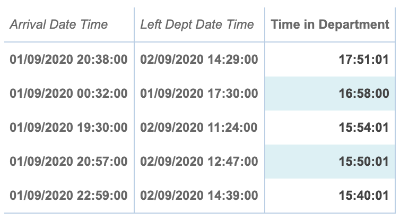
This report contains a single total using the DateBetween function:
DateBetween( <Date Expression> , <Date Expression> , <TIMEPERIOD> )
Returns the number of inclusive period values between two date expressions, except when a time is specified.
First, the two date fields of interest are added and comma separated. Finally, the required time period is then added, also comma separated.
In this reporting example, the following calculation has been used:
DateBetween(Arrival_Date_Time,Left_Dept_Date_Time, SECONDS)
This compares two date fields on a single row and outputs the difference in seconds. The Show Value As drop-down list has then been set to Time Measure to format the output to HH:MM:SS. Please refer to the Reference Variables table earlier in the chapter to view the other possible differentials.
Furthermore, the dynamic point in time options also found in this table can be utilised when using the DateBetween function. For example:
DateBetween( TODAY, Closed_Date, MONTHS)
Compares today’s date and the value in the Closed_Date field and returns a dynamic numeric value based on the date the report was run.
Average Dispatch Time
The following report uses sample supermarket data to display the total number of orders, returns and the average number of days a before a product category order is dispatched:
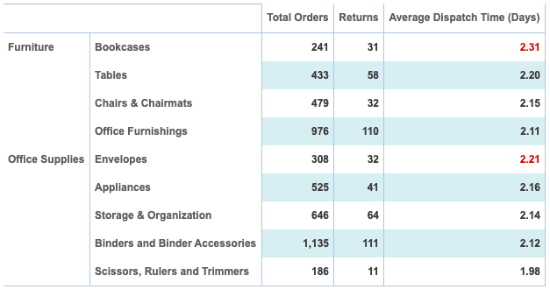
This report contains a single total using the DaysBetween function:
DaysBetween( <Date Expression> , <Date Expression>, <Optional Day(s)> )
Returns the number of inclusive period values between two date expressions.
First, the two date fields of interest are added and comma separated. Optionally, days that are not required can be added, also comma separated. This is most commonly used to omit weekends by including SATURDAY and SUNDAY in the calculation logic.
In this reporting example, the following calculation has been used with the Total Type set to Average:
DaysBetween(Order_Date,Ship_Date, SATURDAY, SUNDAY)
This compares two date fields on a single row and outputs the difference in days, omitting any rows that have a day value of Saturday or Sunday.
As the Total Type has been set to average, the report then displays the average dispatch time, omitting weekends. The total then uses a descending Row Sort to order the output for each product category.
In this example, conditional formatting has also been applied. Should a product category take longer to dispatch than the previous month, the total will be highlighted red. For more information regarding variance reports, please refer to the Crosstab Reporting Guide.
Average Turnaround Time in Days & Working Days
The following report shows a small sample of mortgage applications along with two totals that display the average number of days taken for an application to be reviewed and accepted:
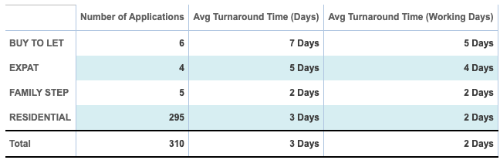
This report contains two totals, using the previously detailed DaysBetween function and also the CountWorkingDays function:
CountWorkingDays( <Expression> , <Expression> )
Counts the number of working days between two date fields.
Please note that working days and holidays need to be configured by an administrator.
This function uses the same logic as the DaysBetween function, but does not allow an optional expression to be added that omits certain days. Instead, two date fields of interest are added and comma separated. This returns a count of working days, as set by the administrator.
In this report, while both totals have the Total Type set to Average, the first total, ‘Avg Turnaround Time (Days)’, uses the following calculation logic:
DaysBetween(Date_received,Date_accepted)
This returns a count of days between the Date_received and Date_accepted fields, before averaging the output in the report.
The second total, ‘Avg Turnaround Time (Working Days)’ instead uses the CountWorkingDays function:
CountWorkingDays(Date_received,Date_accepted)
The second total references the working days and bank holiday specified by the system administrator to automatically omit non-working days, providing an accurate total without the need for further calculations.
By setting the working days for the system, all report creators can leverage this function for any Index containing two or more date fields.
Time To Departure
The following report displays three different ways in which date differentials can be expressed:
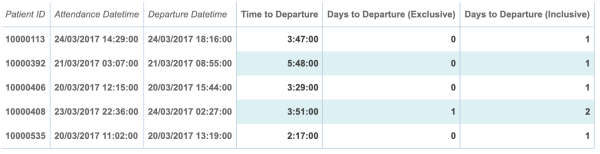
This report contains three totals. The first, ‘Time to Departure’, uses the ToJulianDayTime function:
ToJulianDayTime( <Date Expression> )
Returns the Julian Daytime value of a datetime expression. The Julian daytime is the continuous count of seconds since the beginning of the Julian Period and is used when comparing two datetimes.
In this reporting example, the following calculation has been used:
ToJulianDayTime( Departure_Datetime )-ToJulianDayTime( Attendance_Datetime )
By wrapping the datetime fields in the ToJulianTime function, the values are converted to numeric values. This has a key performance advantage over the previous example where the DateBetween function was used, as simple arithmetic can be used to calculate output rather than the system conducting date differentials at report run time. The Show Value As drop-down list has then been set to Hours Measure to achieve the desired output.
The second total, ‘Days to Departure (Exclusive)’ uses the ToJulianDay function:
ToJulianDay( <Date Expression> )
Returns the Julian Day value of a date(time) expression. The Julian day is the continuous count of days since the beginning of the Julian Period and is used when comparing two dates.
This works in the same way as the previous total, but is used for date fields rather than datetime fields.
The following calculation has been used:
ToJulianDay( Departure_Date )-ToJulianDay( Attendance_Date )
This returns an exclusive count of days between the two date values, resulting in a value of 0 should both dates match. Should an inclusive value be required, the system requires a date differential to be calculated at run time rather than a numeric calculation. This is achieved using the third total in this report.
To achieve an inclusive value for the third total, ‘Days to Departure (Inclusive)’, the following calculation logic has been used:
DaysBetween(Attendance_Date,Departure_Date
This will return an inclusive value, resulting in a value of 1 if both values match.
Calculating Age at the Time of an Appointment
Converting a date value to a numeric Julian Day value is especially useful when calculating date differentials in calculations, such as when calculating age at the time of an appointment. This can be achieved using the following calculation logic:
In Years:
FLOOR((ToJulianDay(<Appointment Date>) - ToJulianDay(<Date of Birth>))/365.25)
In Days:
FLOOR((ToJulianDay(<Appointment Date>) - ToJulianDay(<Date of Birth>)))
By converting both fields to Julian Day values, a simple subtraction will result in a value that can then be divided by 365.25 to derive age in years.
Order Confirmation Time
Converting a date time value to a numeric Julian Day Time value means that calculations can be used to derive time differentials between two fields. For example, the following calculations show the time between an order being received and confirmed:
In Seconds:
(ToJulianDayTime( Order_Confirmed_Time ) - ToJulianDayTime( Order_Created_Time ))
In Minutes:
ToJulianDayTime( Order_Confirmed_Time ) - ToJulianDayTime( Order_Created_Time))/60
Extra Field Calculations
Please note that the following section applies to system administrators only.
Supplementing Indexes with additional calculated fields allows administrators to provide pre-aggregated output that is calculated during build time. This can have an exponential impact on performance, significantly reducing report load times while also providing additional aggregations to end-users.
Report Optimisation
When there is regular use of common logic across multiple reports, such as removing dummy records or defining cohorts of interest using queries, this filtering process can be optimised using calculated fields to generate Boolean flags.
This has some key advantages. First, the integrity of the query is controlled by administrators rather than relying on users to build complex queries. This reduces the margin for error and ensures reports are always run against the same cohort of records. Furthermore, when the report is loaded, the query bar does not contain a long string of individual values, freeing up this space for users to add their own queries.
For example, the following query is used in reporting to select a cohort of patients:
((Team_Code "T1" OR "T2" OR "T3") AND Age"0" OR "1" OR "2" OR "3" OR "4" OR "5" OR "6" OR "7" OR "8" OR "9" OR "10" OR "11" OR "12" OR "13" OR "14" OR "15" OR "16" OR "17" OR "18" OR "19")) AND Financial_Year:"2020-21")
While this does produce the report as expected, it can be optimised to instead use a Boolean flag as part of a calculated field. The above query can be translated to the simple CASE statement below:
CASE
WHEN In(TeamCode, 'T1', 'T2', 'T3')
&& Age < 20
&& FinancialYear = '2020-21'
THEN 1 ELSE 0
END
Reports can now reference the Boolean flag when referencing the cohort of patients, maintaining the integrity of the query and reducing load on the system when the report is run.
Calculation Functions Index
Numeric Functions
Abs
Abs( <Expression> )
A mathematical function that returns the absolute (positive) value of a numeric expression.
Arguments
The expression has to be a numeric value.
Examples
Cost_Price = 0, Sale_Price = 1.69, Refund_Price = -1.69
Abs( Cost_Price )
would return 0
Abs( Sale_Price )
would return 1.69
Abs( Refund_Price )
would return 1.69
Ceil
Ceil( <Expression>, <Optional Decimal Places> )
Returns a numeric value rounded up to the nearest whole number or to the specified number of decimal places.
Arguments
The expression has to be a numeric value or numeric field.
Examples
Cost_Price = 1.49, Sale_Price = 1.69, Profit = 0.539
Ceil( Cost_Price )
would return 2.00
Ceil( Sale_Price )
would return 2.00
Ceil( Profit, 1 )
would return 0.6
Cos
Cos( <Expression> )
Returns the cosine of the provided expression. The result is returned in radians NOT degrees.
Arguments
The expression has to be a numeric value.
Examples
Value = 20
Would return 0.41
CountWorkingDays
CountWorkingDays( <Expression> , <Expression> )
Counts the number of working days between two date fields. Please note that working days and holidays need to be configured by an administrator.
Examples
Transaction Date = 19/09/2019, Return Date = 24/09/2019, Working Days = Monday, Tuesday, Wednesday, Thursday and Friday
CountWorkingDays( Transaction_Date , Return_Date )
would return 2
DateBetween
DateBetween( <Date Expression> , <Date Expression> , <TIMEPERIOD> )
Returns the number of inclusive period values between two date expressions, except when a time is specified.
Arguments
The expression must be a date(time) expression. A period must also be provided. This must be in UPPERCASE and can be one of the following: DAYS, WEEKS, MONTHS, YEARS, SECONDS, MINUTES OR HOURS.
Examples
Raised_Date = 09/12/2014 Closed_Date = 28/01/2015
DateBetween( Raised_Date , Closed_Date , DAYS )
would return 51
DateBetween( Raised_Date , Closed_Date , WEEKS )
would return 8
DateBetween( Raised_Date , Closed_Date , MONTHS )
would return 2
DateBetween( Raised_Date , Closed_Date , YEARS )
would return 1
DateBetween( Raised_Date , Closed_Date , SECONDS)
would return 4320001
DateBetween( Raised_Date , Closed_Date , MINUTES )
would return 72001
DateBetween( Raised_Date , Closed_Date , HOURS )
would return 1201
Please note that using DateBetween(<>,<>, SECONDS) over thousands of records will increase the processing time.
DaysBetween
DaysBetween( <Date Expression> , <Date Expression>, <Optional Day(s)> )
Returns the number of inclusive period values between two date expressions.
Arguments
The expression must be a date(time) expression. It can also contain optional arguments to exclude named days of the week from the calculation, commonly used to exclude weekends from a calculation.
Examples
Raised_Date = 15/01/2015 Closed_Date = 28/01/2015
DaysBetween( Raised_Date , Closed_Date )
would return 14
DaysBetween( Raised_Date , Closed_Date , SATURDAY, SUNDAY )
would return 10
This function is inclusive and returns ‘1’ if starting and finishing on the same day.
Fact
Fact( <Expression> )
Returns the factorial of a given number.
Examples
Fact(3)
would return 6
Floor
Floor( <Expression>, <Optional Decimal Places> )
Returns a numeric value rounded down to the nearest whole number or to the specified number of decimal places..
Arguments
The expression has to be a numeric value or numeric field.
Examples
Cost_Price = 1.49, Sale_Price = 1.69, Profit = 0.579
Floor( Cost_Price )
would return 1.00
Floor( Sale_Price )
would return 1.00
Floor( Profit, 1 )
would return 0.5
GCD
GCD( <Expression> )
Returns the greatest common divisor of two given numbers.
Arguments
The expression has to be a numeric value.
Examples
GCD (8, 12)
would return 4
IsNull
IsNull( <Expression> , <Expression> )
Returns a second specified value if the first is NULL.
Arguments
The expression can be a string, date or numeric value.
Example
IsNull(Surname,'No name provided')
Would return the string value in the event the Surname value is NULL.
LCM
Returns the lowest common multiple of two given numbers.
Arguments
The expression has to be a numeric value.
Examples
LCM (3, 4)
would return 12
Len
Len( <String Expression> )
Returns the number of characters of the specified string expression.
This function is only available for Calculated Fields in a Data Source Group or ETL stage.
Arguments
The expression can be a string or numeric value.
Examples
Name = ‘John Smith’, Loyalty_Points = 691
Len( Name )
would return 10
Len( Loyalty_Points )
would return 3
Log
Log( <Expression> , <Expression> )
Returns the logarithm of a number, using a supplied base.
Examples
Log(64,2)
would return 6
Max
Max( <Expression> , <Expression> )
Returns the maximum value of the provided expressions.
Arguments
The expressions can be a numeric field name, a date field name, a numeric value or a date value. A combination of a field name and a constant value can be used.
Examples
Cost_Price = 3.99, Sale_Price = 4.99, Trans = 25/01/2015 Return = 27/01/2015
Max( Cost_Price, 1.99 )
would return 3.99
Max( Cost_Price, 5.99 )
would return 5.99
Max( Cost_Price, Sale_Price )
would return 5.99
Max( Trans, ToDate(2015,01,22) )
would return 25/01/2015 (20150125000000)
Max( Trans, Return )
would return 27/01/2015 (20150127000000)
Mod
Mod( <Expression> , <Expression> )
Returns the remainder after division.
Examples
Mod(10,4)
would return 2
Power
Power( <Expression> , <Expression> )
Returns the sum of the provided power values.
Example
Power(2,3)
would return 8, as 2*2*2=8
Quotient
Quotient( <Expression> , <Expression> )
Returns the result of an integer division without the remainder.
Examples
Quotient(12,5)
would return 2
Round
Round( <Expression>, <Optional Decimal Places> )
Returns a numeric value rounded to the nearest whole number or to the specified number of decimal places..
Arguments
The expression has to be a numeric value or numeric field.
Examples
Cost_Price = 1.49, Sale_Price = 1.69, Profit = 0.579
Round( Cost_Price )
would return 1.00
Round( Sale_Price )
would return 2.00
Round( Profit, 1 )
would return 0.6
Sign
Sign( <Expression> )
Returns the sign of a number. If the number is positive, the function will return 1. If the number is negative, the function will return will return -1. If the number if 0, the function will return 0./
Examples
Sign(22)
would return 1
Sin
Sin( <Expression> )
Returns the sine of the provided expression. The result is returned in radians NOT degrees.
Arguments
The expression has to be a numeric value.
Examples
Sin(30)
would return -0.99
Sqrt
Sqrt( <Expression> )
Returns the square root of the provided expression.
Arguments
The expression has to be a numeric value.
Examples
Sqrt(81)
would return 9
Tan
Tan( <Expression> )
Returns the tangent of the provided expression. The result is returned in radians NOT degrees.
Arguments
The expression has to be a numeric value.
Example
Tan(50)
would return 0.96
ToDay
ToDay( <Date Expression> )
Returns the day date part of a date(time) expression.
Arguments
The expression must be a date or datetime expression.
Examples
Transaction_Date = 19/09/2021
ToDay( Transaction_Date )
would return 19
The numeric output of this function can then be used as part of other calculations.
ToDayOfWeek
ToDayOfWeek( <Date Expression> )
Returns the weekday number of a date(time) expression, where Sunday = 1.
Arguments
The expression must be a date or datetime expression.
Examples
Transaction_Date = 07/04/2021 (Wednesday)
ToDayOfWeek( Transaction_Date )
Would return 4
ToHour
ToHour( <Date Expression> )
Returns the hour datepart of a datetime expression.
Arguments
The expression must be a date or datetime expression.
Examples
Transaction_Date = 22/01/2015 18:32:15
ToHour( Transaction_Date )
would return 18
ToJulianDay
ToJulianDay( <Date Expression> )
Returns the Julian Day value of a date(time) expression. The Julian day is the continuous count of days since the beginning of the Julian Period and is used when comparing two dates.
Arguments
The expression must be a date or datetime expression.
Examples
Raised_Date = 22/01/2015 Closed_Date = 25/01/2015
ToJulianDay( Raised_Date )
would return 16457
ToJulianDay( Closed_Date )
would return 16460
ToJulianDay( Closed_Date ) - ToJulianDay( Raised_Date )
would return 3 (days)
ToJulianDayTime
ToJulianDayTime( <Date Expression> )
Returns the Julian Daytime value of a datetime expression. The Julian daytime is the continuous count of seconds since the beginning of the Julian Period and is used when comparing two datetimes.
Arguments
The expression must be a datetime expression.
Examples
Raised_Date = 28/01/2015 10:49:51 Closed_Date = 28/01/2015 14:01:44
ToJulianDayTime( Raised_Date )
would return 1422442191
ToJulianDayTime( Closed_Date )
would return 1422453704
ToJulianDayTime( Closed_Date ) - ToJulianDayTime( Raised_Date )
would return 11513 (seconds)
ToMinute
ToMinute( <Date Expression> )
Returns the minute datepart of a datetime expression.
Arguments
The expression must be a date or datetime expression.
Examples
Transaction_Date = 22/01/2015 18:32:15
ToMinute( Transaction_Date )
would return 32
ToMonth
ToMonth( <Date Expression> )
Returns the month datepart of a date(time) expression.
Arguments
The expression must be a date or datetime expression.
Examples
Transaction_Date = 22/01/2015
ToMonth( Transaction_Date )
would return 1
ToSecond
ToSecond( <Date Expression> )
Returns the second datepart of a datetime expression.
Arguments
The expression must be a date or datetime expression.
Examples
Transaction_Date = 22/01/2015 18:32:15
ToSecond( Transaction_Date )
would return 15
ToNumber
ToNumber( <Expression> )
Converts string values into a number.
This function is only available for Calculated Fields in a Data Source Group or ETL stage.
Arguments
The expression must be a string value.
ToWeek
ToWeek( <Date Expression> )
Returns the week datepart of a date(time) expression.
Arguments
The expression must be a date or datetime expression.
Examples
Transaction_Date = 22/01/2015
ToWeek( Transaction_Date )
would return 4
ToYear
ToYear( <Date Expression> )
Returns the year datepart of a date(time) expression.
Arguments
The expression must be a date or datetime expression.
Examples
Transaction_Date = 22/01/2015
ToYear( Transaction_Date )
would return 2015
Random
Random( <Expression> )
Generates a random number between 0 and 1.
Column
Column( <Expression> , <Expression> )
References the value of a total in a column.
This function is only available for Cell Calculations in Crosstabs.
Arguments
The first value is the position of the column, starting at 0 (zero) and the second value is the position of the total.
Examples
Using this function in a Cell Calculations, it is possible to reference totals by their position rather than name. For example:
Column(0 ,1 ) + Column(1,1)
As 0 (zero) is the starting point, this calculation will add the second total of the first column to the second total of the second column.
Reporting Examples
The following report displays a breakdown of credit card and debit card transactions:
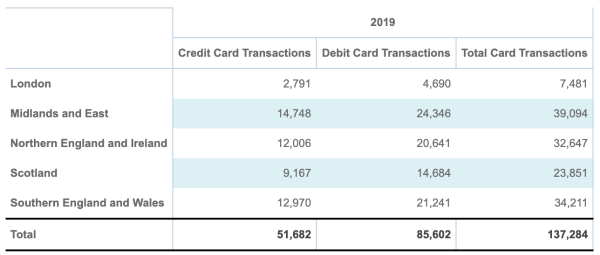
Using the Column function, totals can be referenced by their position rather than total name. The following cell calculation has been used to derive the ‘Total Cad Transactions’ total:
Column(0 ,0 ) + Column(0 ,1)
As only a single column value, 2019, has been added, the position 0 is referenced before referencing the first and second total, respectively.
ColumnTotal, RowTotal, GrandTotal
ColumnTotal( <Expression> )
References the column total, row total and grand total, respectively.
These functions are only available for cell calculations.
Reporting Examples
The following report displays a number of totals based on card transactions for each region:
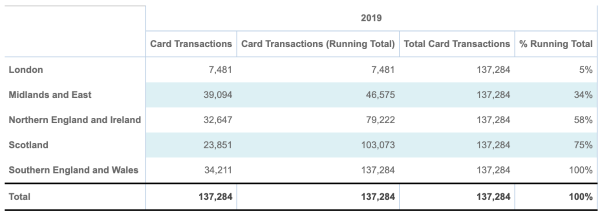
The first total, ‘Card Transactions’, simply counts all rows that contain ‘Credit Card’ or ‘Debit Card’ values for the MOP (Method of payment) column.
The second total, ‘Card Transactions (Running Total)’ uses the same logic as the previous total and has the Show Value As drop-down list set to Running Total Down Columns to provide a running total.
The third total, ‘Total Card Transactions’, uses a Cell calculation with the following logic:
ColumnTotal(1)
Using this function, the Column Total value can referenced to allow for the fourth total, ‘% Running Total’ to be calculated using the following logic:
('Card Transactions (Running Total)'/'Total Card Transactions')*100
This methodology is applicable for both the RowTotal and GrandTotal functions, respectively. By referencing these values in a report, they can be leveraged in future Cell calculations to achieve the desired output.
ColumnMin
Column( <Expression> )
References the minimum value of a total in a column.
This function is only available for Cell Calculations in Crosstabs.
Arguments
The expression should be the total from which you require the minimum value.
Examples
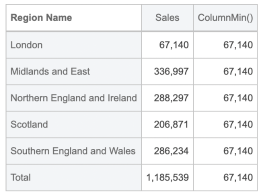
A Crosstab has a Total called 'Sales'. To write out the minimum value from this total use the following syntax:
ColumnMin( 'Sales' )
ColumnMax
Column( <Expression> )
References the maximum value of a total in a column.
This function is only available for Cell Calculations in Crosstabs.
Arguments
The expression should be the total from which you require the maximum value.
Examples
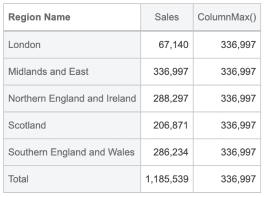
A Crosstab has a Total called 'Sales'. To write out the maximum value from this total use the following syntax:
ColumnMax( 'Sales' )
Date Functions
The following functions are available for Calculated Fields and Crosstab standard calculations (not cell calculations):
FromJulianDay
FromJulianDay( <Date Expression> )
Returns a date as a numeric field from a Julian day. The Julian day is the continuous count of days since the beginning of the Julian Period and can be used when comparing two dates.
Examples
Raised_Date = 16457 Closed_Date = 16460
FromJulianDay( Raised_Date ) would return 20150122
FromJulianDay( Closed_Date ) would return 20150125
Extra Field Example
The following example calculates the maximum difference between a referral date and appoint date on a row:
FromJulianDay( Max( ToJulianDay( Referral_Date ) , ToJulianDay( Appointment_Date ) ) )
Converting back to a date value from a Julian Day allows numeric calculations between dates to be achieved while retaining the date format in a single calculation.
FromJulianDayTime
FromJulianDayTime( <Date Expression> )
Returns a datetime expression from a Julian Daytime value. The Julian daytime is the continuous count of seconds since the beginning of the Julian Period and can be used when comparing two datetimes.
Example
Raised_Date = 1422442191 Closed_Date = 1422453704
FromJulianDayTime( Raised_Date )
would return 20150128104951
FromJulianDayTime( Closed_Date )
would return 20150128140144
Converting back to a date value from a Julian Day allows numeric calculations between dates to be achieved while retaining the date format in a single calculation.
Extra Field Example
The following example shows an extra field calculation that outputs the maximum value between two date times fields on a row:
In seconds:
FromJulianDayTime( Max( ToJulianDayTime( Referral_Date_Time ) , ToJulianDayTime( Appointment_Date_Time ) ) )
In minutes:
FromJulianDayTime( Max( ToJulianDayTime( Referral_Date_Time ) , ToJulianDayTime( Appointment_Date_Time ) ) )/60
ToDate
ToDate( <Expression> , <Expression> , <Expression> )
Returns a date value.
Arguments
Each expression can either contain a date field or a numeric value.
The first expression contains the year element, the second expression contains the month element and the third expression contains the minute element.
Examples
Raised_Date = 15/01/2015 Closed_Date = 16/01/2015
ToDate( 2014, 11, 8 )
would return 08/11/2014
ToDate ( ToYear(Raised_Date), ToMonth(Raised_Date), ToDay(Raised_Date) )
would return 15/01/2015
ToDate ( ToYear(Raised_Date), 12, 1 )
would return 01/12/2015
ToDate ( ToYear(Raised_Date), 12, ToDay(Closed_Date) )
would return 16/12/2015
The output value will be a date field when created as a Calculated Field for an Index. For a Crosstab, the output value will actually be a numeric representation of the date. However, the value can still be used for calculations that require date comparisons/logic.
ToDateTime
ToDate( <Expression> , <Expression> , <Expression>, <Expression> , <Expression> , <Expression> )
Returns a datetime value.
Arguments
Each expression can either contain a date field or a numeric value.
The first expression contains the year element, the second expression contains the month element and the third expression contains the minute element, the fourth expression contains the hour element, the fifth expression contains the minute element, the sixth expression contains the seconds element.
Examples
Raised_Date = 15/01/2015 14:15:59 Closed_Date = 16/01/2015 17:11:23
ToDateTime( 2014, 11, 8, 23, 59, 59 )
would return 08/11/2014 23:59:59
ToDateTime( ToYear(Raised_Date), ToMonth(Raised_Date), ToDay(Raised_Date), ToHour(Raised_Date), ToMinute(Raised_Date), ToSecond(Raised_Date) )
would return 15/01/2015 14:15:59
ToDateTime( ToYear(Raised_Date), 12, 1, 23, 59, 59 )
would return 01/12/2015 23:59:59
ToDateTime( ToYear(Raised_Date), 12, ToDay(Closed_Date), ToHour(Raised_Date), 45, ToSecond(Closed_Date) )
would return 16/12/2015 14:45:23
The output value will be a date field when created as a Calculated Field for an Index. For a Crosstab, the output value will actually be a numeric representation of the date. However, the value can still be used for calculations that require date comparisons/logic.
String Functions
The following functions are available for Calculated Fields only (in Data Source Groups and ETL stage calculations).
Format
Format( <Expression> , <Pattern> )
Changes the format of a field or string.
Arguments
The string expression can be a field or a static string value. This can be a date, a string or a numeric value. This function will only output a string value.
Example
Expression : 01/01/2010
Format(Transaction_Date_Time, ‘dd/MM/yyyy hh:mm:ss’)
would return 01/01/2010 00:00:00
IndexOf
IndexOf( <String Expression> , <Expression> , <Optional Start Point> )
Returns the position (numeric) of a specified character in a string expression.
Arguments
The string element can either be a field or a static string value. This is the string that will be parsed to look for an expression. The expression element specifies the character/string/value that is to be searched for. The expression element will accept a numeric value, a single string character or a strong expression.
There is also an optional expression for the start point of the search (in positional terms) e.g. Search for the first ‘&’ symbol that appears after the first ‘$’ symbol.
To include a special character in a search, prefix the desired character with the backslash character. For example, \n for a new line and \t for a tab space.
Examples
Phrase = abc:123&456:Oscar:test
IndexOf( Phrase , ‘:’ )
would return a value of 3 (a numeric value)
IndexOf( Phrase , ‘a’ )
would return a value of 0
IndexOf( Phrase , ‘:’, 5 )
would return a value of 11
IndexOf( Phrase , ‘&’, 10 )
would return a value of -1
IndexOf( Phrase , ‘:’, IndexOf(Phrase, ‘&’) )
would return a value of 11
The first position is 0 (zero). If the expression being searched for is not found, -1 will be returned.
LastIndexOf
LastIndexOf( <String Expression> , <Expression> , <Optional Start Point> )
Returns the last position (numeric) of a specified character in a string expression.
Arguments
The string element can either be a field or a static string value. This is the string that will be parsed to look for an expression. The expression element specifies the character/string/value that is to be searched for. The expression element will accept a numeric value, a single string character or a strong expression.
There is also an optional expression for the start point of the search (in positional terms) e.g. Search for the first ‘&’ symbol that appears after the first ‘$’ symbol.
Examples
Phrase = abc:123&456:Oscar:test
LastIndexOf( Phrase , ‘:’ )
would return a value of 17 (a numeric value)
LastIndexOf( Phrase , ‘a’ )
would return a value of 15
LastIndexOf( Phrase , ‘:’, 5 )
would return a value of 11
LastIndexOf( Phrase , ‘&’, 15 )
would return a value of -1
LastIndexOf( Phrase , ‘:’, LastIndexOf(Phrase, ‘&’) )
would return a value of 3
The first position is 0 (zero). If the expression being searched for is not found, -1 will be returned.
LTrim
LTrim( <String Expression> , <Expression> )
Trims (removes) characters from left to right. Returns a string value.
Arguments
The string element can either be a field or a static string value. This is the string that will be trimmed. The expression element specifies how many characters of the string expression are to be trimmed (removed) from the left side of the string expression. The expression element will only accept a numeric value.
Example
Status = underway
LTrim( Status , 5 )
would return way
Not to be confused with SQL Server TRIM function.
LTrimSpaces
LTrimSpaces( <String Expression> )
Removes space padding to the left of a string.
Arguments
The string element can either be a field or a static string value. This is the string that will be trimmed.
Examples
Value = “ Hat“
would return “Hat”
Replace
Replace( <String Expression> , <String Expression> , <String Expression> )
Replaces part or all of a string with another string.
Arguments
The string expression can be a field or a static string value. This can be a date, a string or a numeric value.
Example
Expression = Northern England and Ireland
Replace(Area_Name, ‘Northern England and Ireland’, ‘NE & I’)
Would return NE & I
RTrim
RTrim( <String Expression> , <Expression> )
Trims (removes) characters from right to left. Returns a string value.
Arguments
The string element can either be a field or a static string value. This is the string that will be trimmed. The expression element specifies how many characters of the string expression are to be trimmed (removed) from the right side of the string expression. The expression element will only accept a numeric value.
Examples
Status = underway
RTrim( Status , 3 )
would return under
Not to be confused with SQL Server TRIM function.
RtrimSpaces
RTrimSpaces( <String Expression> )
Removes space padding to the right of a string.
Arguments
The string element can either be a field or a static string value. This is the string that will be trimmed.
Examples
Value = “Hat “
would return “Hat”
Substring
Substring( <String Expression> , <Expression> , <Expression> )
Returns the specified part of a string expression.
Arguments
The string expression can be a field or a static string value. This can be a date, a string or a numeric value. The first expression is the start position of the substring. The second expression is the end position of the substring.
The start position of a string is 0 (zero).
The second expression is optional. Leaving this blank will return the remainder of the string expression after the specified start point.
Examples
Phrase = price:3.99:cost:2.99
Substring(Phrase, 6)
would return 3.99:cost:2.99
Substring(Phrase, 0, 5)
would return price
In combination with IndexOf() the following can be used:
Substring(Phrase, 0, IndexOf(Phrase, ‘:’))
would return price
Substring(Phrase, LastIndexOf(Phrase, ‘:’))
would return 2.99
Substring(Phrase, IndexOf(Phrase, ‘:’)+1,IndexOf(Phrase,’:’,IndexOf(Phrase,’:’)+1))
would return 3.99
ToLower
ToLower( <String Expression> )
Returns the provided expression in lower case.
Arguments
The string element can either be a field or a static string value.
Examples
Value = “Hat“
Would return “hat”
ToString
ToString( <Expression> )
Returns the provided expression as a string.
Arguments
The string element can either be a field or a static numeric or date value.
Examples
Expression = 30.9
Would return 30.9 as a string
ToUpper
ToUpper( <String Expression> )
Returns the provided expression in upper case.
Arguments
The string element can either be a field or a static string value.
Examples
Value = “Hat“
Would return “HAT”
Boolean Functions
Contains
Contains( <Expression> , <Expression> )
A function used to search for a value.
To include a special character in a search, prefix the desired character with the backslash character. For example, \n for a new line and \t for a tab space.
Available for use in Calculated Fields in a Data Source Group or an ETL stage calculation.
Arguments
Can only be used as part of a CASE or IF statement as part of a calculated field.
Examples
CASE WHEN Contains( MOP , 'Cash' ) THEN 1 ELSE 0 END
would return an extra field containing 1 where MOP contains Cash, or 0
In
In ( <Expression> , <Expression> )
Determines whether a specific value appears in a field.
Available for use in both Crosstabs and Calculated Fields in Data Source Group and ETL stage calculation.
Arguments
The first expression is the field of interest and the second expression is the value(s) searched for.
Examples
CASE WHEN In( Day_of_Week , 2, 3, 4) THEN 1 ELSE 0 END
would count records where Day_of_Week = 2,3 or 4
CASE WHEN In( MOP , 'Cash' , 'Vouchers') THEN 1 ELSE 0 END
Would count records where cash or vouchers were used as the method of payment.
IsFormat
IsFormat( <String Expression> , <Pattern>)
Returns ‘True’ or ‘False’ on whether a field/string is in a specified format.
Available for use in Calculated Fields in a Data Source Group or an ETL stage calculation.
Arguments
The string expression can be a field or a static string value. This can be a date, a string or a numeric value.
Examples
Expression: 10/05/2016 15:10:55
IF IsFormat(Transaction_Date_Time, ‘dd/MM/yyyy hh:mm:ss’ THEN {1} ELSE {0}
would return 1
Matches
Matches( <Expression> , <Expression> )
Used within a CASE or IF statement, returns whether a field matches a specified value.
Available for use in Calculated Fields in a Data Source Group or an ETL stage calculation.
Arguments
The string expression can be a field or a static string value. This can be a date, a string or a numeric value.
Example
Expression = Male
CASE WHEN Matches( Gender , 'Male' ) THEN 1 ELSE 0 END
would return 1
Within
Within( <Period> , <Date Expression> , <Date Expression> , <Expression> )
or
Within( <Period> , <Date Expression> , <Date Expression>, <Date Expression> , <Date Expression> , <Expression> )
Returns any record (row of data) that satisfies the supplied parameters. Primarily to be used where true date values are not in place e.g. a week number and a year number as separate fields.
Arguments
The period refers to the period of time to be used by the range expression. This argument can contain DAYS, WEEKS, MONTHS, YEARS.
The first date expression is the date field to be used. This can be an actual date or a partial date.
The second date expression is the end point of the required date range. For example, to return all data for the previous month, the end point of the range would be:
FIRST_DAY_OF_MONTH-1DAY
The final expression is the range value of the within function. This is an array-based number and so will start at 0 (zero).
Additional Date Expressions can be used if only elements of a date are available as separate fields.
In this case, the structure of the arguments is as follows:
• Period (WEEKS, MONTHS, YEARS)
• Date Expression (1st date element)
• Date Expression (2nd date element)
• Date Expression (1st date element end point)
• Date Expression (2nd date element end point)
• Expression (range value of the Within function)
Examples
Within( WEEKS , Sales_Date , LAST_DAY_OF_WEEK-1WEEK , 0)
would return all rows that have the Sales Date that exists in the previous week
Usage would be:
CASE WHEN Within( WEEKS , Sales_Date , LAST-DAY_OF_WEEK-1WEEK , 0 ) THEN 1 END
Within( WEEKS , Sales_Date , LAST_DAY_OF_WEEK-1WEEK , 3)
would return all rows that have the Sales Date that exists in the previous 4 weeks
Usage would be:
CASE WHEN Within( WEEKS , Sales_Date , LAST_DAY_OF_WEEK-1WEEK , 3) THEN 1 END
Within( WEEKS , Sales_Date_Week , Sales_Date_Year, LAST_DAY_OF_WEEK-1WEEK, LAST_DAY_OF_WEEK-1WEEK, 0)
would return all rows that have the Sales Date that exists in the previous week
IsColumn
IsColumn( <String Expression> )
References a column or nested column.
This function is only available for Crosstabs.
Arguments
The string expression should be a case-sensitive reference to the name of a column value. The reference must be contained in single quotes. To reference a nested column value, use comma separated string values.
Reporting Examples
In this report, two fields have been displayed on the column axis, with Area Name nested below Region Name:
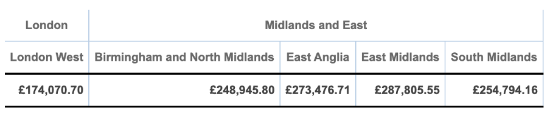
This report has been constructed using the IsColumn function so that the column outputs can be individually specified:
CASE
WHEN IsColumn('London')
THEN Price_EX_VAT
ELSE Prince_INC_VAT
END
For any values in the London column, the ‘Price_EX_VAT’ field is summed. For every other column, the ‘Price_INC_VAT’ field is summed.
Nested values can also be referenced by comma separating the string values. For example:
CASE
WHEN IsColumn('London') THEN Price_EX_VAT
WHEN IsColumn ('Midlands and East', 'East Anglia) THEN Price_EX_VAT
ELSE Prince_INC_VAT
END
In this next report, multiple outputs are specified in the calculation so that different totals can be specified for different columns:
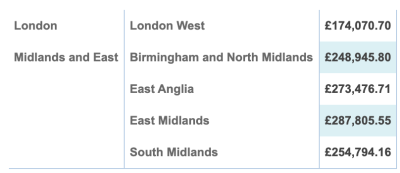
First, a ‘Costs’ total has been created by summing the ‘Cost Price’ field. This total is then hidden from the output using the Hide Total in Table option.
A cell calculation referencing this total has then been created using the following logic:
CASE
WHEN IsColumn('London') THEN 'Costs'*1.4
WHEN IsColumn('Midlands and East') THEN 'Costs'*1.2
ELSE 'Costs'*1.1
END
Two columns have now been specified. Should any additional columns be added to the report, their totals will be calculated using the ‘ELSE’ figure.
IsRow
IsRow( <String Expression> )
References a row or nested row.
This function is only available for Crosstabs.
Arguments
The string expression should be a case-sensitive reference to the name of a row value. The reference must be contained in single quotes. To reference a nested row value use comma separated string values.
Examples
Much like the IsColumn function, using IsRow allows users to specify the output for specific areas of the report, this time at row level.
The following report is a transposed version of the example used for the IsColumn function, with the Region Name and Area Name fields now added to the row:
The calculation has been tweaked to use the IsRow function to account for the axis change:
CASE
WHEN IsRow('London')
THEN Price_EX_VAT
ELSE Prince_INC_VAT
END
Nested values can also be referenced by comma separating the string values:
CASE
WHEN IsRow('London') THEN Price_EX_VAT
WHEN IsRow ('Midlands and East', 'East Midlands') THEN Price_EX_VAT
ELSE Prince_INC_VAT
END
IsColumnTotal, IsGrandTotal, IsRowTotal, IsSubTotal
IsColumnTotal(), IsGrandTotal(), IsRowTotal(), IsSubTotal()
References a column total or nested column total, a grand total, a row total or nested row total and a subtotal, respectively.
Arguments
The string expression should be a case-sensitive reference to the name of a row value. The reference must be contained in single quotes. To reference a nested row value use comma separated string values.
Reporting Example
The following report has been constructed to omit a percentage value from the subtotal output:
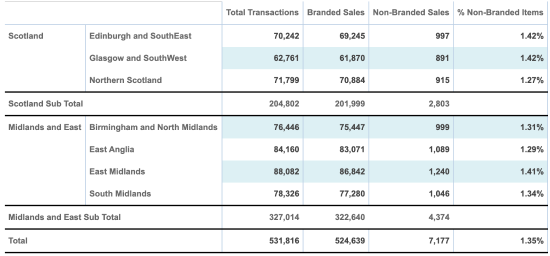
Using the following cell calculation, the ‘% Non-Branded Items’ total has been controlled to only be printed at column total, row total and grand total level:
CASE
WHEN IsColumnTotal() THEN (('Non-Branded Sales'/'Total Transactions')*100)
WHEN IsRowTotal() THEN (('Non-Branded Sales'/'Total Transactions')*100)
WHEN IsGrandTotal() THEN (('Non-Branded Sales'/'Total Transactions')*100)
WHEN IsSubTotal() THEN NULL
END
The IsColumnTotal, IsRowTotal and IsGrandTotal functions have been used to specify the output of the percentage calculation. By specifying a NULL value for the IsSubTotal function, the total can be omitted from the sub total output.
Aggregation Functions
The following functions are available for Crosstabs only, unless otherwise specified, and produce an aggregated value.
CountDistinct
CountDistinct( <Expression>, <String Expression> )
Returns a distinct count based on the value in the expression and the dynamic view being referenced.
Arguments
The expression output should be a numeric field.
Examples
To return the number of employees who have handled a cash transaction:
CountDistinct( CASE WHEN MOP = 'Cash' THEN 1 END , 'Employees' )
It is important to not return anything other than 1 in the CASE logic as the CountDistinct will also count the employees who did not perform Cash transactions i.e. CountDistinct( CASE WHEN MOP = 'Cash' THEN 1 ELSE 0 END , 'Employees' ) will count the distinct employees returning 1 and the distinct employees returning 0.
Average
Average( <Expression> )
Returns the average of all values in the specified expression (field). This only returns the average of fields that do not contain NULLs.
This option is only available when using the Row Total Total Type.
Arguments
The expression should be a numeric field.
Examples
Average(Total_Value)
AverageAll
AverageAll( <Expression> )
Returns the average of all values in the specified expression (field). This returns the average of ALL fields including those that contain NULLs.
This option is only available when using the Row Total Total Type.
Arguments
The expression should be a numeric field.
Examples
AverageAll(Total_Value)
PercentileSum
PercentileSum(<Expression> ,<Expression> ,<Expression> )
Returns the sum of n% of a specified expression (field).
Arguments
The first expression should be a numeric field, the second expression should be numeric and is the start point, in %, of the range to be used, and the third expression should be numeric and is the end point, in %, of the range to be used.
Examples
To return the sum of the top 10% of values:
PercentileSum(Sale_Price, 90, 100)
To return the sum of the bottom 25% of values:
PercentileSum(Sale_Price, 0, 25)
PercentileValue
PercentileValue(<Expression> ,<Expression> )
Returns the percentile value of the specified expression (field). This is the value below which a given percentage of observations in a group of observations falls. For example, the 20th percentile is the value below which 20% of the observations may be found.
Arguments
The first expression should be a numeric field and the second expression should be a numeric value that specifies the percentile value to be used by the function.
Examples
To return the limit of the lower quartile (bottom 25%) of values:
PercentileValue(Sale_Price, 25)
To return the limit of the median (bottom 50%) of values:
PercentileValue(Sale_Price, 50)
PercentileAverage
PercentileAverage(<Expression> ,<Expression> ,<Expression>)
Returns the average of the values that are between a percentile range given for the specified expression (field).
Arguments
The first expression should be a numeric field, the second expression should be a numeric value that specifies the lower percentile value to be used by the function and the third expression should be a numeric value that specifies the upper percentile value to be used.
Examples
To return the average of the lower quartile (bottom 25%) of values:
PercentileAverage(Sale_Price, 0, 25)
To return the average of the values between the 25th percentile and the 50th percentile:
PercentileAverage(Sale_Price, 25, 50)
PercentileCount
PercentileSum (<Expression> ,<Expression> ,<Expression>)
Returns the number of values that are between a percentile range given for the specified expression (field).
Arguments
The first expression should be a numeric field, the second expression should be a numeric value that specifies the lower percentile value to be used by the function and the third expression should be a numeric value that specifies the upper percentile value to be used.
Examples
To return the number of values in the lower quartile (bottom 25%) of values:
PercentileCount(Sale_Price, 0, 25)
To return the number of values between the 25th percentile and the 50th percentile:
PercentileCount(Sale_Price, 25, 50)
PercentileMin
PercentileMin (<Expression> ,<Expression> ,<Expression>)
Returns the Minimum data value within a percentile range given for the specified expression (field).
Arguments
The first expression should be a numeric field, the second expression should be a numeric value that specifies the lower percentile value to be used by the function and the third expression should be a numeric value that specifies the upper percentile value to be used.
Examples
To return the Minimum data value of the lower quartile (bottom 25%) of values:
PercentileMin(Sale_Price, 0, 25)
To return the Minimum data value between the 25th percentile and the 50th percentile:
PercentileMin(Sale_Price, 25, 50)
PercentileMax
PercentileMax (<Expression> ,<Expression> ,<Expression>)
Returns the Maximum data value within a percentile range given for the specified expression (field).
Arguments
The first expression should be a numeric field, the second expression should be a numeric value that specifies the lower percentile value to be used by the function and the third expression should be a numeric value that specifies the upper percentile value to be used.
Examples
To return the Maximum data value of the lower quartile (bottom 25%) of values:
PercentileMax(Sale_Price, 0, 25)
To return the Maximum data value between the 25th percentile and the 50th percentile:
PercentileMax(Sale_Price, 25, 50)
Sum
Sum( <Expression> )
Returns the sum of the values in the specified expression (field).
This option is only available when using the RowTotal total type.
Arguments
The expression should be a numeric field.
Examples
Sum(Total_Value)
7.5.9 CountDistinct / SumDistinct
CountDistinct( <Expression> , <String Expression> )
Returns the distinct count from a dynamic view following the specified calculation logic.
SumDistinct( <Expression> , <String Expression> )
Sums the distinct count from a dynamic view following the specified calculation logic.
Arguments
The expression represents the calculation logic and the string expression is the name of the dynamic view in single quotes. Dynamic Views can be selected from the Values drop-down list.
When using the Dynamic View drop-down list functionality in a standard total, the distinct count is run against the records before any calculation logic is applied. In some circumstances, this may remove records of interest. By using either calculation, the distinct count is run against the records after the calculation logic has been applied.
SumDistinct
SumDistinct( <Expression>, <String Expression> )
Returns a distinct sum based on the value in the expression and the dynamic view being referenced.
Arguments
The expression output should be a numeric field.
Examples
To return the number of employees who have handled a cash transaction:
SumDistinct( CASE WHEN MOP = 'Cash' THEN Line_Price END , 'Employees' )
Max
Max( <Expression>, <Expression>, TRUE )
Returns the maximum value of two aggregations (from the same or different totals).
Arguments
The expressions should be a numeric values. They need to refer to the runtime cell position (starting position being 0) of an aggregated value.
Examples
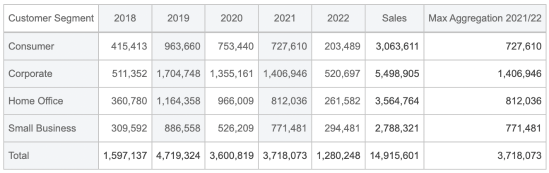
To return the maximum sales value of the years 2021 (position 3) and 2022 (position 4) in the Crosstab below, you would use the following syntax:
Max( 3 , 4 , TRUE )
Min
Min( <Expression>, <Expression>, TRUE )
Returns the minimum value of two aggregations (from the same or different totals).
Arguments
The expressions should be a numeric values. They need to refer to the runtime cell position (starting position being 0) of an aggregated value.
Examples
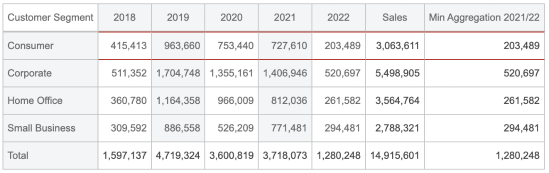
To return the minimum sales value of the years 2021 (position 3) and 2022 (position 4) in the Crosstab below, you would use the following syntax:
Min( 3 , 4 , TRUE )
Miscellaneous Functions
FORMFIELD
The following function is available for Crosstabs only and allow users to reference a filter, or elements of a filter, rather than allowing the filter to filter the data in the report.
FORMFIELD^<Identifier>
Returns the value of a filter.
Arguments
The expression should be the same as the data type of the filter. Filters must be referenced using double quotes (").
Examples
CASE WHEN ToMonth( Transaction_Month ) = ToMonth( FORMFIELD^"Transaction Month" ) && ToYear( Transaction_Year ) = ToYear( FORMFIELD^"Transaction Year" ) THEN Line_Price END
By enabling the Ignore option for the Transaction Month filter, changing its value will only affect this single total in the report.
To reference the higher and lower values from a range filter, enter ^HIGH and ^LOW, respectively, after the filter name. For example:
CASE WHEN Transaction_Date BETWEEN FORMFIELD^"Transaction Date"^LOW AND FORMFIELD^"Transaction Date"^HIGH THEN Cost_Price END
To reference FORMFIELD values in a multi-select drop list use the In() function. For example:
CASE WHEN In(FORMFIELD^"Product Group",Product_Group) THEN 1 END
For more FORMFIELD examples, please refer to the Crosstab Reporting Guide.
Cell Referencing
The following syntax is available for Cell/Total Calculations only and allow users to reference a cell in a Crosstab.
Sum(rows(<Row Name>),columns(<Column Name>),<Total Position>)
Returns the value of a cell.
Arguments
Note: this option is not available in the Functions drop list.
The syntax has to start with Sum. You can either reference a Row or a Column or both. Totals start at position 0 (zero).
Example
For a Crosstab with Provinces as rows and Customer Segments as columns with 2 totals (Count and Sales). I can references the Ontario Corporate Sales by using:
Sum(rows('Ontario'),columns('Corporate'),1)
String Calculation
Allows a custom phrase to be displayed in a report and aggregation tooltips.
Arguments
The phrase must be punctuated using double quotes (").
Examples
CASE WHEN 'Total' > 100 THEN "Check Source Data" END
To utilise String Calculations as part of an aggregation tooltip, navigate to the Tooltips tab of a total and click the New Tooltip button under the Aggregation Tooltips heading and select the relevant String Calculation total.
The following example utilises four totals: a count of transactions, % branded products sold, row count, average amount of branded items sold and the following String Calculation:
CASE
WHEN Transactions < 100000 && '% Branded Products' < 'Branded Average'
THEN 'Transactions' + " is quite a low value and the % branded sales (" +'% Branded Products' + ") is lower than the average of " + 'Branded Average'
END
By referencing totals as part of the string values, the tooltip will display the hard-coded text alongside the dynamic aggregation values.
For more information regarding the make-up of this report, please refer to the Crosstab Reporting Guide, where a detailed breakdown is available.