
03cii. Charting
- Chart Types
- Area Graphs
- Bar Charts
- Column Charts
- Column
- Column 3D
- Column (Multi-Series)
- Column 3D (Multi-Series)
- Column (Stacked)
- Column 3D (Stacked)
- Column (Scrolling)
- Column (Stacked Scrolling)
- Column (Dual Y Axis)
- Column 3D (Dual Y Axis)
- Column Multi-Series (Dual Y Axis + Line)
- Column (Combination)
- Column 3D (Combination)
- Column (Combination Scrolling)
- Column (Combination Dual Y Axis)
- Column (Combination Scrolling Dual Y Axis)
- Column (Grouped)
- Marimekko (Multi-Series)
- Line Graphs
- Pie Charts
- XY
- Miscellaneous Charts
- Candlestick
- Sankey Diagram
- Heat Map
- Chord
- Gantt
- Kagi
- SPC Chart - CStatus
- SPC Chart - Individual
- SPC Chart - Moving Range
- SPC Chart - X bar
- SPC Chart - Cumulative Sum
- SPC Chart - X bar Moving Range
- Funnel
- Bullet
- Bullet - Vertical
- Pyramid 3D
- Radar
- Spark Column
- Spark Column Multi Chart
- Spark Line
- Spark Line Multi Chart
- Time
- Picture Chart
- Bubble Chart
- Box and Whiskers
- Chart Options
- Styling Options
The charting option is designed to be a way of quickly adding a single chart to a report. Saved Crosstabs can be imported into Pages if multiple charts are required.
Select a chart from the Chart Type drop-down list. The chart library will only display chart types that are relevant to the data currently added to the Crosstab.
Chart Types
Area Graphs
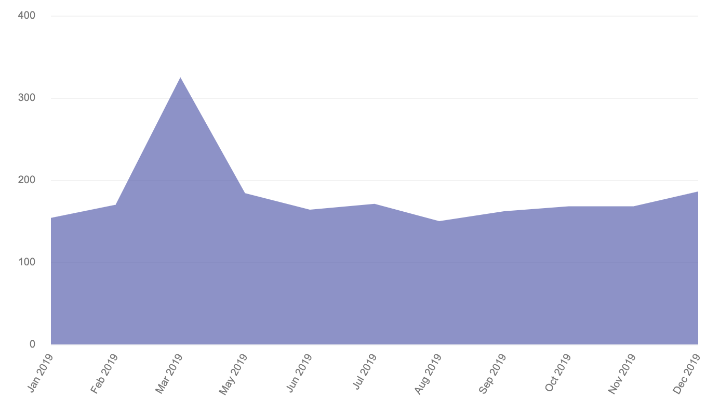
Area
Axes – Will render chart against either Rows or Columns. If the Crosstab contains both Rows and Columns, it will render the Columns by default. To render the Rows, use the Switch Chart Axes option.
Aggregations – Choose to display one or more aggregations.
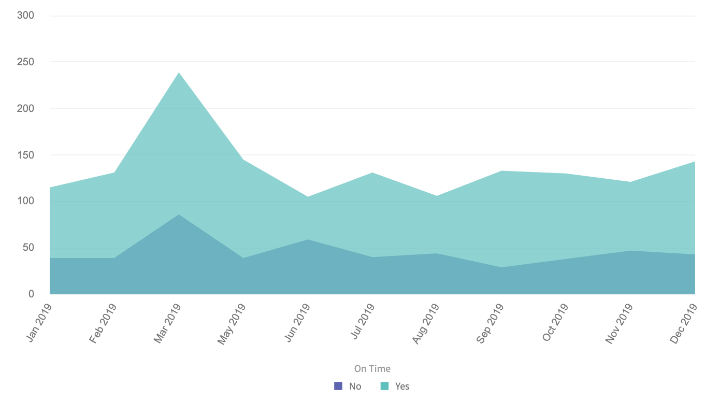
Area (Multi-Series)
Axes Requirements – Will render chart against either Rows or Columns. If the Crosstab contains both Rows and Columns, it will render the Columns by default. To render the Rows, use the Switch Chart Axes option. Choose values in a single axis to chart against multiple aggregations or use both Rows and Columns to chart against a single aggregation.
Aggregations – Choose a single aggregation when using Rows and Columns. Choose multiple aggregations if choosing just Rows or just Columns.
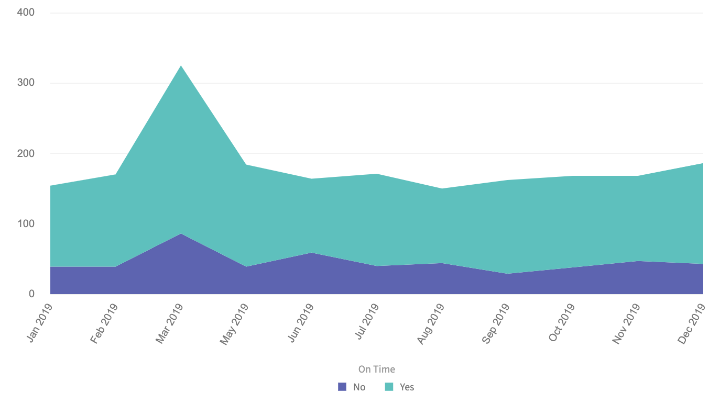
Area (Stacked)
Axes Requirements – Will render chart against either Rows or Columns. If the Crosstab contains both Rows and Columns, it will render the Columns by default. To render the Rows, use the Switch Chart Axes option. Choose values in a single axis to chart against multiple aggregations or use both Rows and Columns to chart against a single aggregation.
Aggregations – Choose a single aggregation when using Rows and Columns. Choose multiple aggregations if choosing just Rows or just Columns.
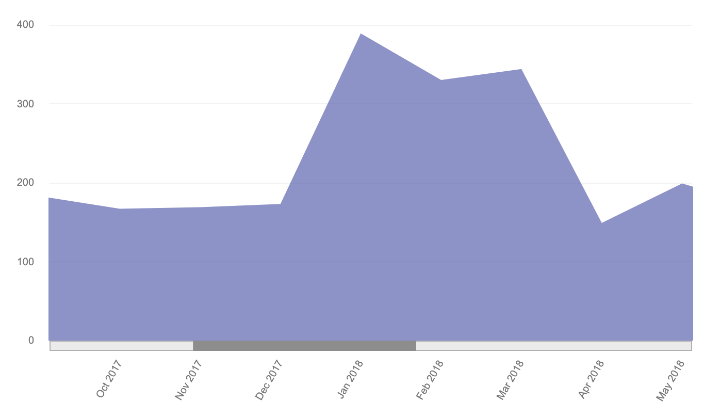
Area (Scrolling)
Axes Requirements – Will render chart against either Rows or Columns. If the Crosstab contains both Rows and Columns, it will render the Columns by default. To render the Rows, use the Switch Chart Axes option.
Aggregations – Choose to display one or more aggregations.
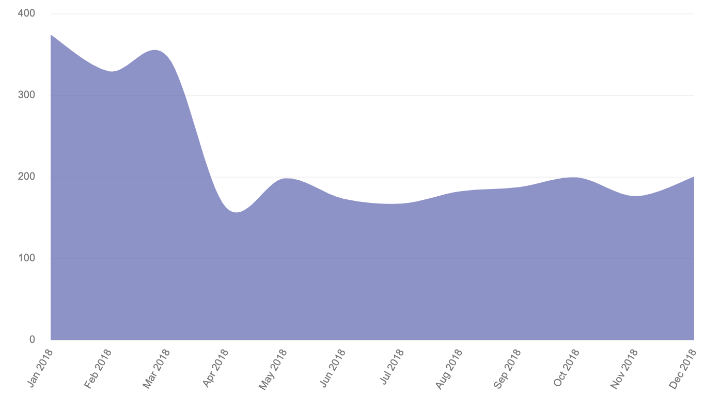
Spline Area
Axes Requirements – Will render chart against either Rows or Columns. To render the Rows, use the Switch Chart Axes option.
Aggregations – Only works with a single aggregation.
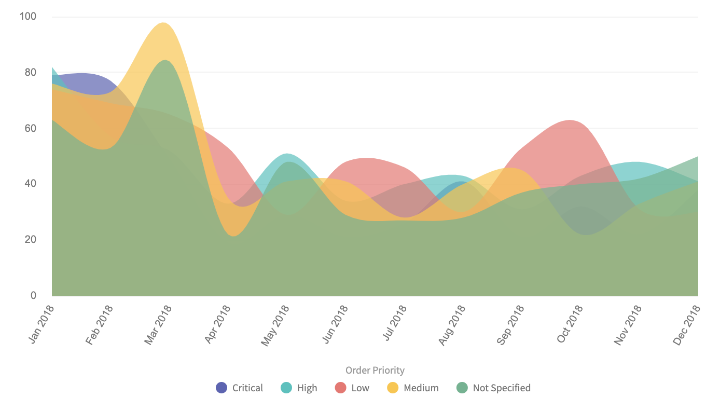
Spline Area (Multi-Series)
Axes Requirements – Will render chart against either Rows or Columns. If the Crosstab contains both Rows and Columns, it will render the Columns by default. To render the Rows, use the Switch Chart Axes option. Choose values in a single axis to chart against multiple aggregations or use both Rows and Columns to chart against a single aggregation.
Aggregations – Choose a single aggregation when using Rows and Columns. Choose multiple aggregations if choosing just Rows or just Columns.
Bar Charts
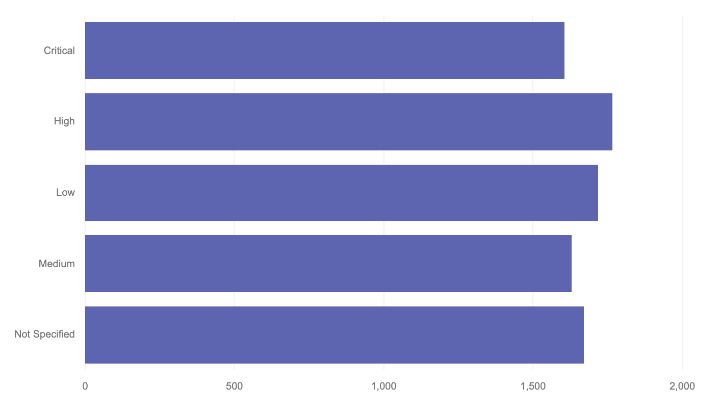
Bar
Axes Requirements – Will render chart against either Rows or Columns. If the Crosstab contains both Rows and Columns, it will render the Rows by default. To render the Columns, use the Switch Chart Axes option.
Aggregations – Choose to display one or more aggregations.
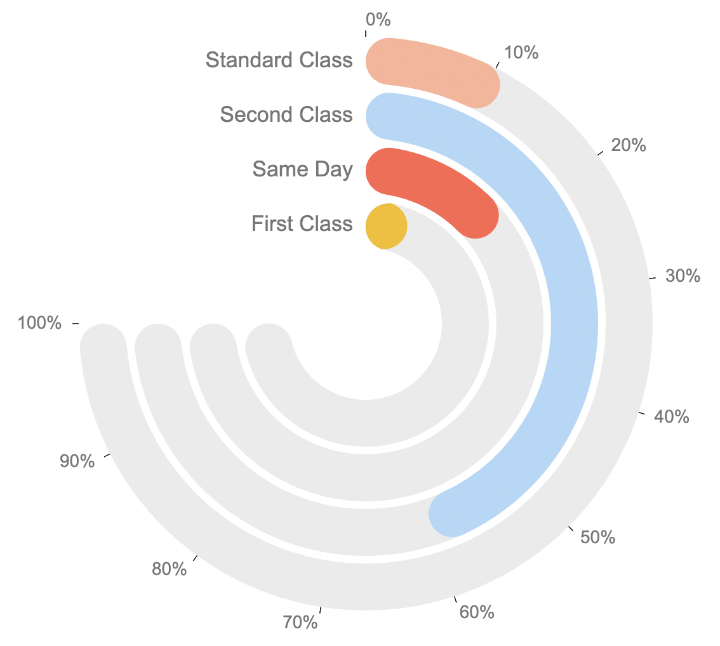
Radial Bar
Axes Requirements – Will render chart against either Rows or Columns (not Rows and Columns).
Aggregations – Will only work with a single aggregation.
Advanced Options – Additional chart specific options in the Advanced Options section allow you to change the chart caption (default caption and hover caption) and specify the Inner Radius (the size of the blank space in the middle of the radial) of the chart (in pixels).
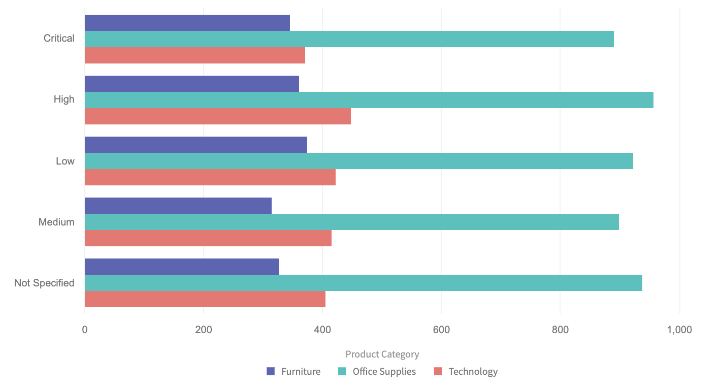
Bar (Multi-Series)
Axes Requirements – Will render chart against either Rows or Columns. If the Crosstab contains both Rows and Columns, it will render the Rows by default. To render the Columns, use the Switch Chart Axes option. Choose values in a single axis to chart against multiple aggregations or use both Rows and Columns to chart against a single aggregation.
Aggregations – Choose a single aggregation when using Rows and Columns. Choose multiple aggregations if choosing just Rows or just Columns.
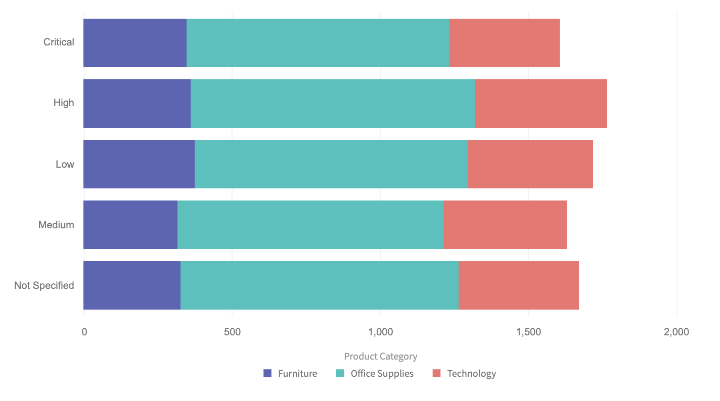
Bar (Stacked)
Axes Requirements – Will render chart against either Rows or Columns. If the Crosstab contains both Rows and Columns, it will render the Rows by default. To render the Columns, use the Switch Chart Axes option. Choose values in a single axis to chart against multiple aggregations or use both Rows and Columns to chart against a single aggregation.
Aggregations – Choose a single aggregation when using Rows and Columns. Choose multiple aggregations if choosing just Rows or just Columns.
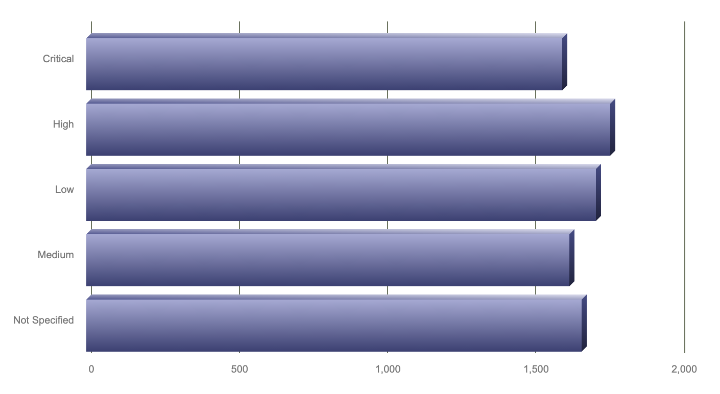
Bar 3D
Axes Requirements – Will render chart against either Rows or Columns. If the Crosstab contains both Rows and Columns, it will render the Rows by default. To render the Columns, use the Switch Chart Axes option.
Aggregations – Choose to display one or more aggregations.
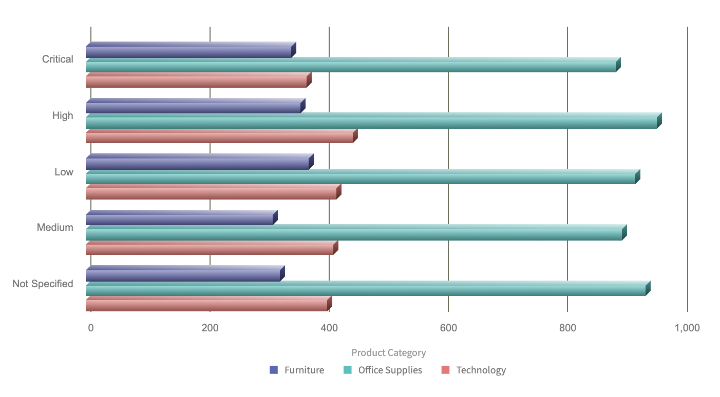
Bar 3D (Multi-Series)
Axes Requirements – Will render chart against either Rows or Columns. If the Crosstab contains both Rows and Columns, it will render the Rows by default. To render the Columns, use the Switch Chart Axes option. Choose values in a single axis to chart against multiple aggregations or use both Rows and Columns to chart against a single aggregation.
Aggregations – Choose a single aggregation when using Rows and Columns. Choose multiple aggregations if choosing just Rows or just Columns.
Bar 3D (Stacked)
Axes Requirements – Will render chart against either Rows or Columns. If the Crosstab contains both Rows and Columns, it will render the Rows by default. To render the Columns, use the Switch Chart Axes option. Choose values in a single axis to chart against multiple aggregations or use both Rows and Columns to chart against a single aggregation.
Aggregations – Choose a single aggregation when using Rows and Columns. Choose multiple aggregations if choosing just Rows or just Columns.
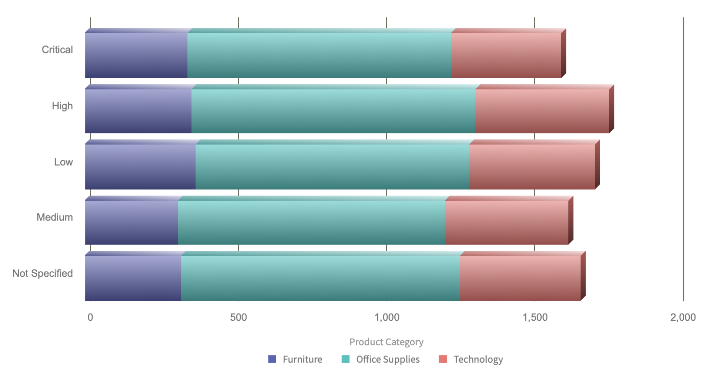
Bar (Overlapped)
Axes Requirements – Will render chart against either Rows or Columns. If the Crosstab contains both Rows and Columns, it will render the Rows by default. To render the Columns, use the Switch Chart Axes option. Choose values in a single axis to chart against multiple aggregations or use both Rows and Columns to chart against a single aggregation.
Aggregations – Choose a single aggregation when using Rows and Columns. Choose multiple aggregations if choosing just Rows or just Columns.
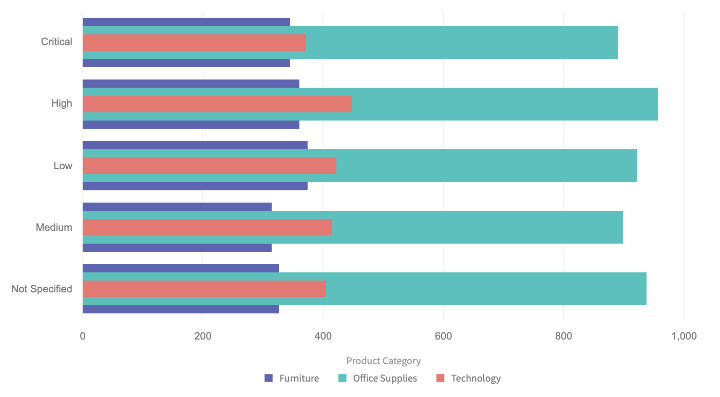
Bar (Grouped)
Axes Requirements – Will render chart against either two Rows or two Columns.
Aggregations – Will only work with a single aggregation.
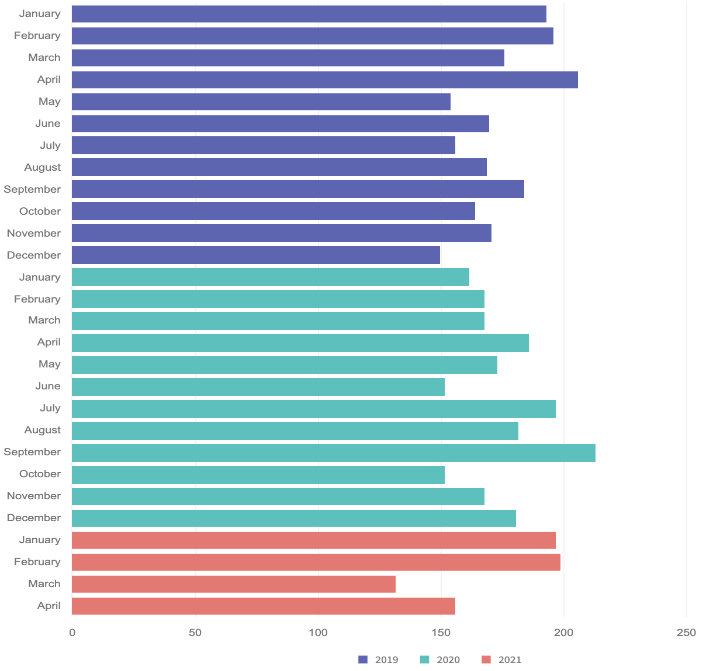
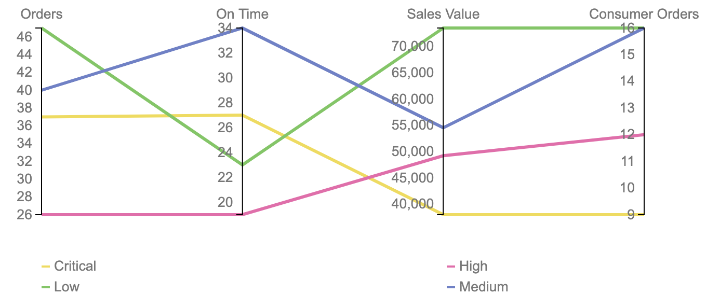
Parallel Coordinates
Axes Requirements – Can use a single row (and multiple aggregations) or rows and columns (with a single aggregation).
Aggregations – Requires multiple aggregations when used with just a row. Requires a single aggregation when used with rows and columns.
Column Charts
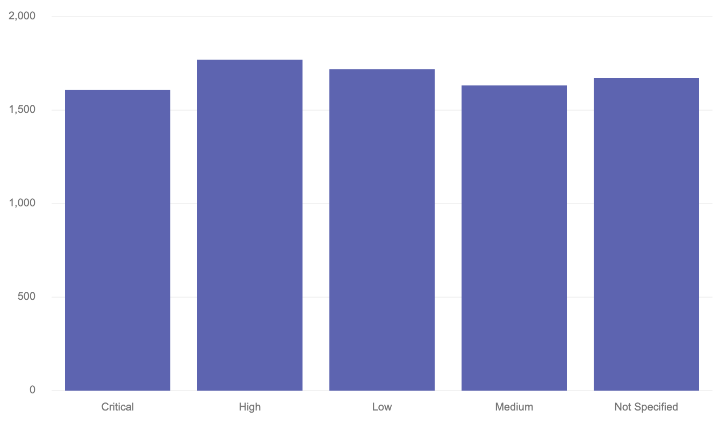
Column
Axes – Will render chart against either Rows or Columns. If the Crosstab contains both Rows and Columns, it will render the Columns by default. To render the Rows, use the Switch Chart Axes option.
Aggregations – Choose to display one or more aggregations.
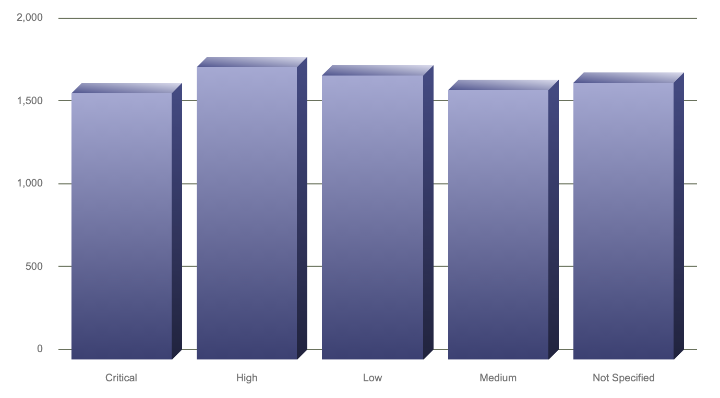
Column 3D
Axes – Will render chart against either Rows or Columns. If the Crosstab contains both Rows and Columns, it will render the Columns by default. To render the Rows, use the Switch Chart Axes option.
Aggregations – Choose to display one or more aggregations.
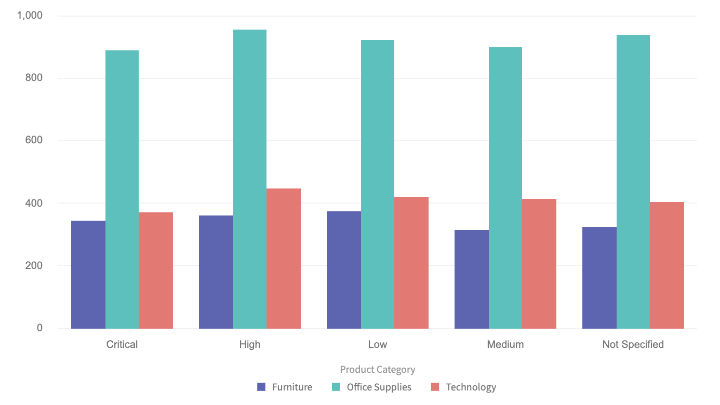
Column (Multi-Series)
Axes Requirements – Will render chart against either Rows or Columns. If the Crosstab contains both Rows and Columns, it will render the Columns by default. To render the Rows, use the Switch Chart Axes option. Choose values in a single axis to chart against multiple aggregations or use both Rows and Columns to chart against a single aggregation.
Aggregations – Choose a single aggregation when using Rows and Columns. Choose multiple aggregations if choosing just Rows or just Columns.
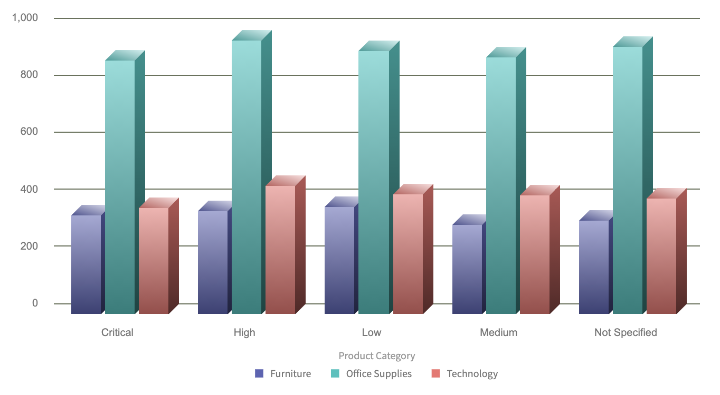
Column 3D (Multi-Series)
Axes Requirements – Will render chart against either Rows or Columns. If the Crosstab contains both Rows and Columns, it will render the Columns by default. To render the Rows, use the Switch Chart Axes option. Choose values in a single axis to chart against multiple aggregations or use both Rows and Columns to chart against a single aggregation.
Aggregations – Choose a single aggregation when using Rows and Columns. Choose multiple aggregations if choosing just Rows or just Columns.
Column (Stacked)
Axes Requirements – Will render chart against either Rows or Columns. If the Crosstab contains both Rows and Columns, it will render the Columns by default. To render the Rows, use the Switch Chart Axes option. Choose values in a single axis to chart against multiple aggregations or use both Rows and Columns to chart against a single aggregation.
Aggregations – Choose a single aggregation when using Rows and Columns. Choose multiple aggregations if choosing just Rows or just Columns.
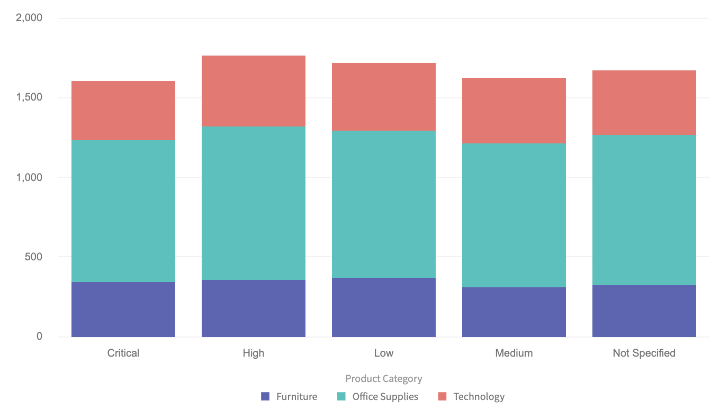
Please note that zero values are plotted when selecting this chart type.
Column 3D (Stacked)
Axes Requirements – Will render chart against either Rows or Columns. If the Crosstab contains both Rows and Columns, it will render the Columns by default. To render the Rows, use the Switch Chart Axes option. Choose values in a single axis to chart against multiple aggregations or use both Rows and Columns to chart against a single aggregation.
Aggregations – Choose a single aggregation when using Rows and Columns. Choose multiple aggregations if choosing just Rows or just Columns.
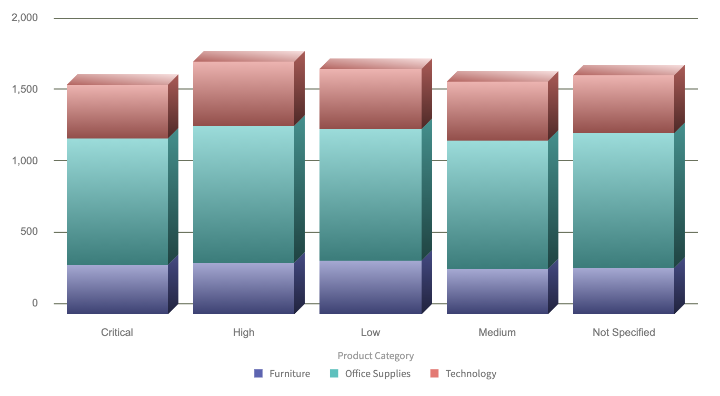
Please note that zero values are plotted when selecting this chart type.
Column (Scrolling)
Axes – Will render chart against either Rows or Columns. If the Crosstab contains both Rows and Columns, it will render the Columns by default. To render the Rows, use the Switch Chart Axes option.
Aggregations – Choose to display one or more aggregations.
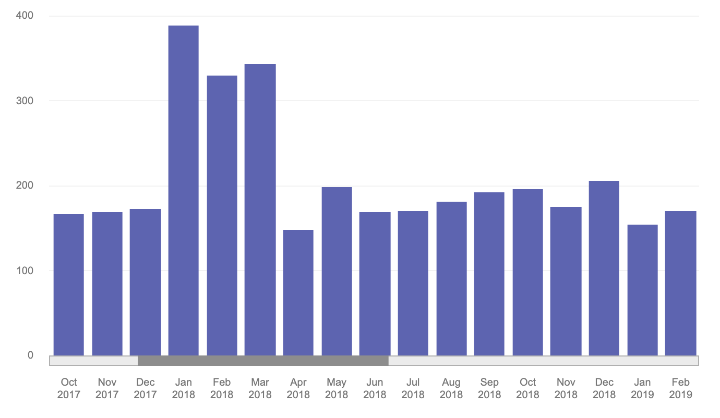
Please note that zero values are plotted when selecting this chart type.
Column (Stacked Scrolling)
Axes Requirements – Will render chart against either Rows or Columns. If the Crosstab contains both Rows and Columns, it will render the Columns by default. To render the Rows, use the Switch Chart Axes option. Choose values in a single axis to chart against multiple aggregations or use both Rows and Columns to chart against a single aggregation.
Aggregations – Choose a single aggregation when using Rows and Columns. Choose multiple aggregations if choosing just Rows or just Columns.
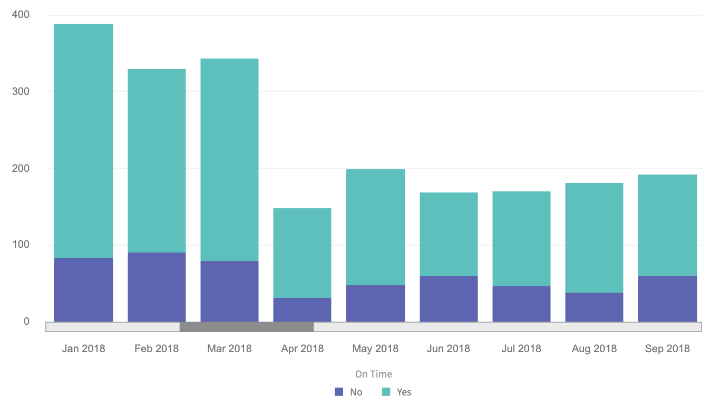
Please note that zero values are plotted when selecting this chart type.
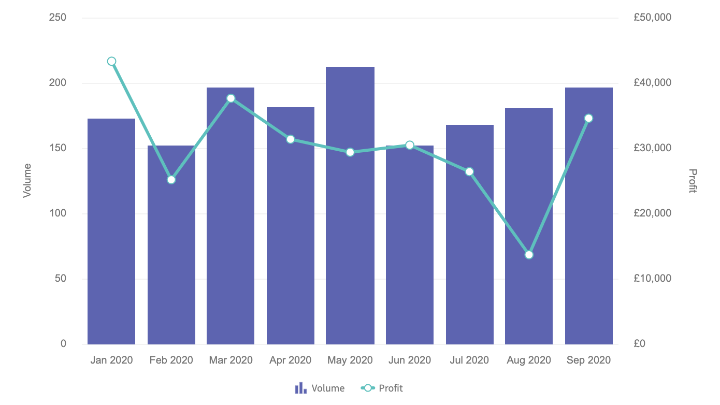
Column (Dual Y Axis)
Axes Requirements – Will render chart against either Rows or Columns. If the Crosstab contains both Rows and Columns, it will render the Columns by default. To render the Rows, use the Switch Chart Axes option.
Aggregations – Requires two aggregations. Each aggregation is plotted against their own Y-axis.
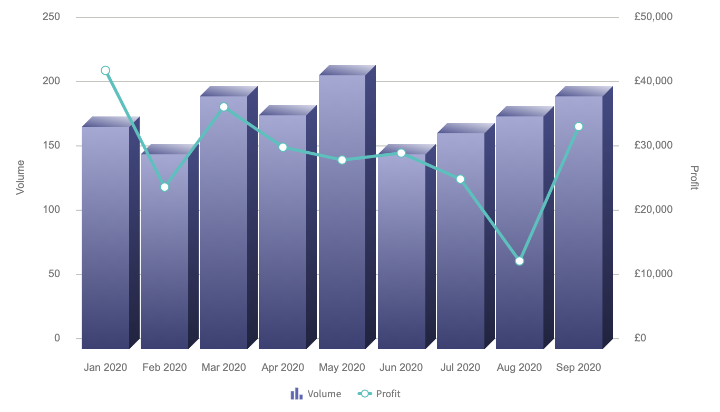
Column 3D (Dual Y Axis)
Axes Requirements – Will render chart against either Rows or Columns. If the Crosstab contains both Rows and Columns, it will render the Columns by default. To render the Rows, use the Switch Chart Axes option.
Aggregations – Requires two aggregations. Each aggregation is plotted against their own Y-axis.
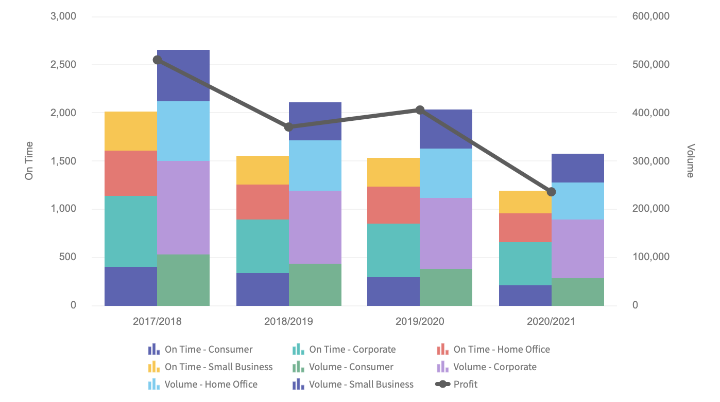
Column Multi-Series (Dual Y Axis + Line)
Axes Requirements – Requires both Rows and Columns. It will render the Columns by default and use the Rows as the Series. Use the Switch Chart Axes option to switch the Row/Column usage.
Aggregations – Requires three or more aggregations. The last aggregation in the list will be rendered as the line. Re-arrange the aggregations to change which aggregation is rendered as the line.
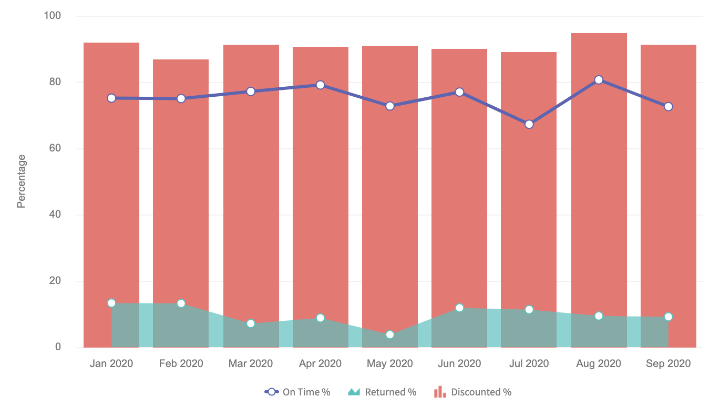
Column (Combination)
Axes Requirements – Will render chart against either Rows or Columns. If the Crosstab contains both Rows and Columns, it will render the Columns by default. To render the Rows, use the Switch Chart Axes option.
Aggregations – Can be used with two or more aggregations when just a Row or Column is used for the Axis. Can be used with one or more aggregations when both Rows and Columns are used for the Axes.
Column 3D (Combination)
Axes Requirements – Will render chart against either Rows or Columns. If the Crosstab contains both Rows and Columns, it will render the Columns by default. To render the Rows, use the Switch Chart Axes option.
Aggregations – Can be used with two or more aggregations when just a Row or Column is used for the Axis. Can be used with one or more aggregations when both Rows and Columns are used for the Axes.
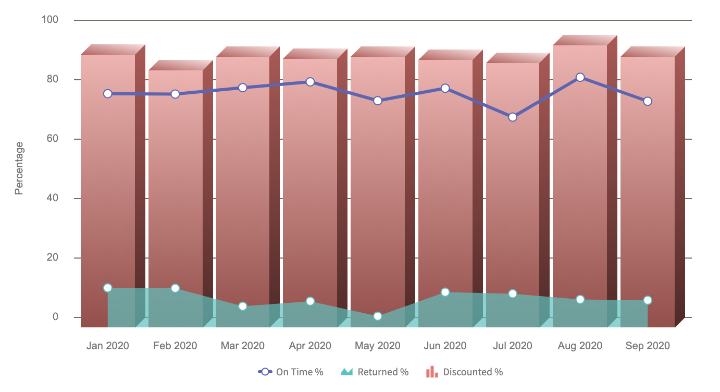
Column (Combination Scrolling)
Axes Requirements – Will render chart against either Rows or Columns. If the Crosstab contains both Rows and Columns, it will render the Columns by default. To render the Rows, use the Switch Chart Axes option.
Aggregations – Can be used with two or more aggregations when just a Row or Column is used for the Axis. Can be used with one or more aggregations when both Rows and Columns are used for the Axes.
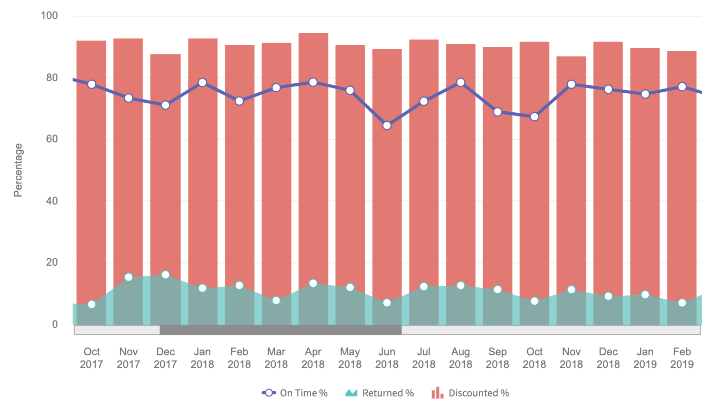
Column (Combination Dual Y Axis)
Axes Requirements – Will render chart against either Rows or Columns. If the Crosstab contains both Rows and Columns, it will render the Columns by default. To render the Rows, use the Switch Chart Axes option.
Aggregations – Can be used with two or more aggregations. Aggregations are assigned to each axis automatically. This can be overridden by manually adjusting which aggregation plots against each axis.
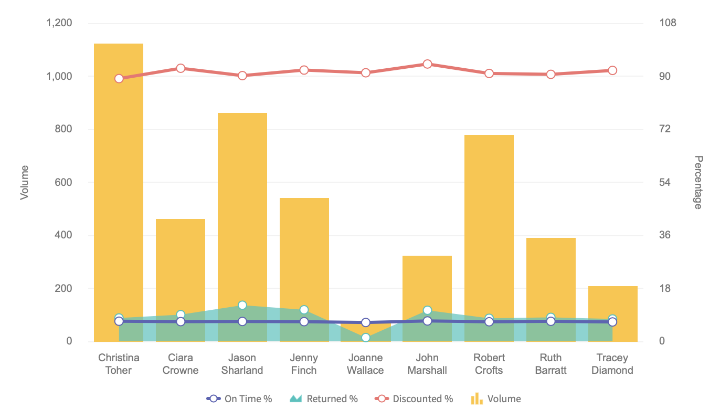
Column (Combination Scrolling Dual Y Axis)
Axes Requirements – Will render chart against either Rows or Columns. If the Crosstab contains both Rows and Columns, it will render the Columns by default. To render the Rows, use the Switch Chart Axes option.
Aggregations – Can be used with two or more aggregations. Aggregations are assigned to each axis automatically. This can be overridden by manually adjusting which aggregation plots against each axis.
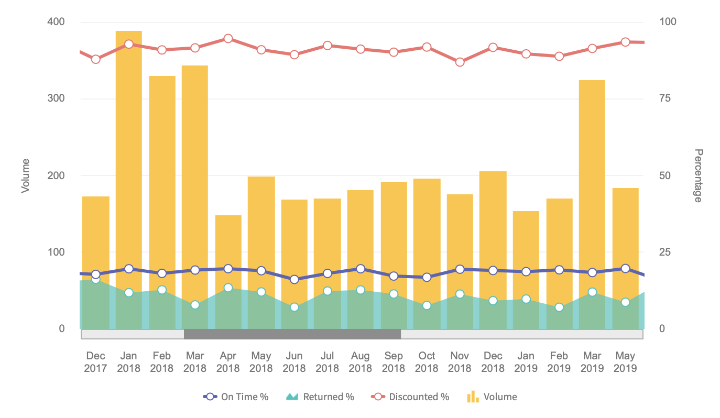
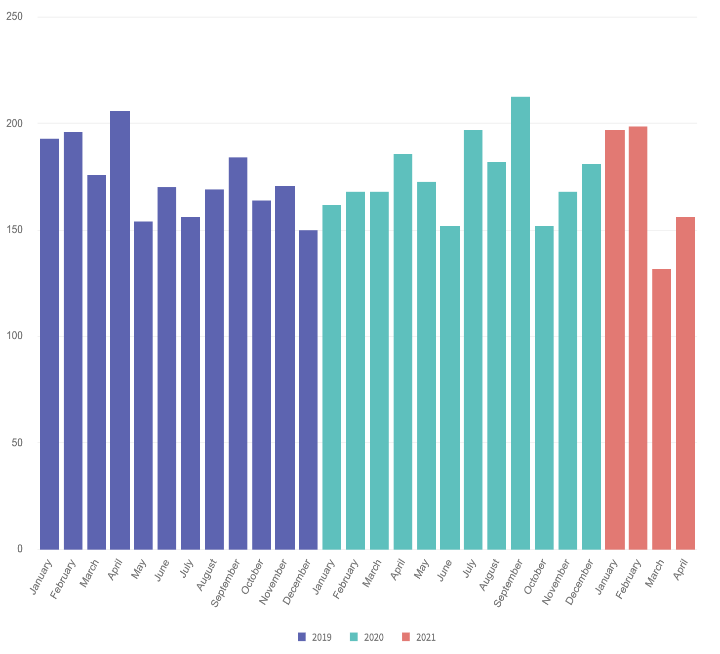
Column (Grouped)
Axes Requirements – Will render chart against either two Rows or two Columns.
Aggregations – Will only work with a single aggregation.
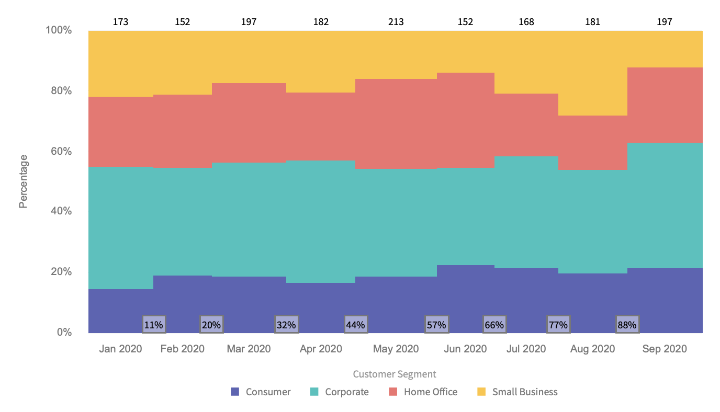
Marimekko (Multi-Series)
Axes Requirements – Primarily used by plotting Rows and Columns. It will render the Rows on the axis and the Column stacked against each Row value by default. To render the Columns as the axis, use the Switch Chart Axes option.
Aggregations – Choose a single aggregation when using Rows and Columns. Choose multiple aggregations if choosing just Rows or just Columns.
Line Graphs
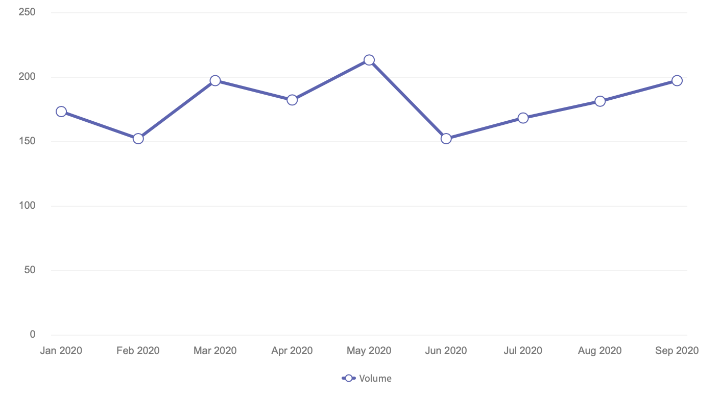
Line
Axes – Will render chart against either Rows or Columns. If the Crosstab contains both Rows and Columns, it will render the Columns by default. To render the Rows, use the Switch Chart Axes option.
Aggregations – Choose to display one or more aggregations.
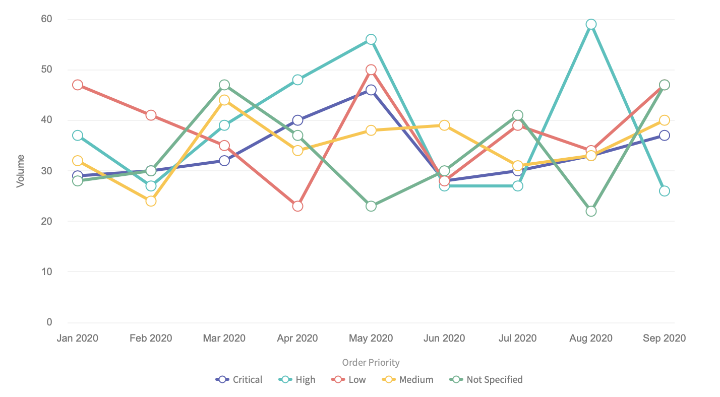
Line (Multi-Series)
Axes Requirements – Will render chart against either Rows or Columns. If the Crosstab contains both Rows and Columns, it will render the Columns by default. To render the Rows, use the Switch Chart Axes option. Choose values in a single axis to chart against multiple aggregations or use both Rows and Columns to chart against a single aggregation.
Aggregations – Choose a single aggregation when using Rows and Columns. Choose multiple aggregations if choosing just Rows or just Columns.
Line (Scrolling)
Axes Requirements – Will render chart against either Rows or Columns. If the Crosstab contains both Rows and Columns, it will render the Columns by default. To render the Rows, use the Switch Chart Axes option. Choose values in a single axis to chart against multiple aggregations or use both Rows and Columns to chart against a single aggregation.
Aggregations – Choose a single aggregation when using Rows and Columns. Choose multiple aggregations if choosing just Rows or just Columns.
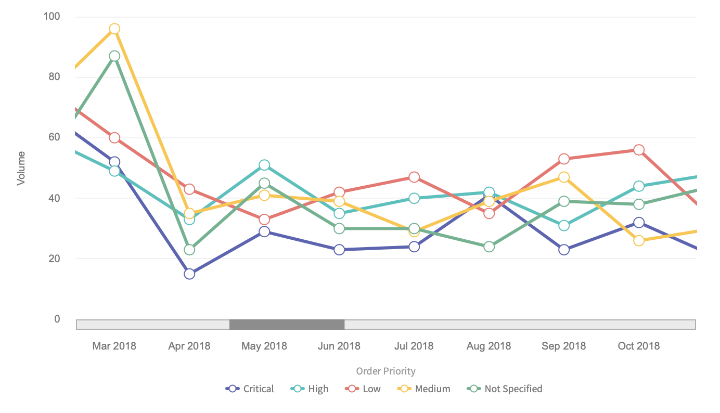
Line (Zoom)
Axes Requirements – Will render chart against either Rows or Columns. If the Crosstab contains both Rows and Columns, it will render the Columns by default. To render the Rows, use the Switch Chart Axes option. Choose values in a single axis to chart against multiple aggregations or use both Rows and Columns to chart against a single aggregation.
Aggregations – Choose a single aggregation when using Rows and Columns. Choose multiple aggregations if choosing just Rows or just Columns.
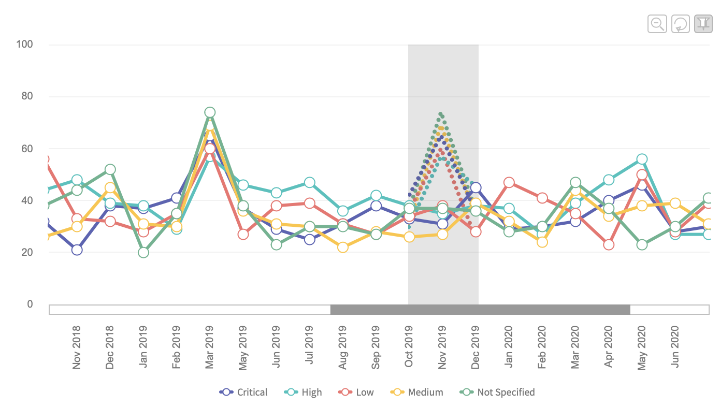
Line (Multi-Axis)
Axes Requirements – Can only be used with rows.
Aggregations – Can be used with two or more aggregations. Axes will display on the left by default. Choose left or right axis display for each aggregation.
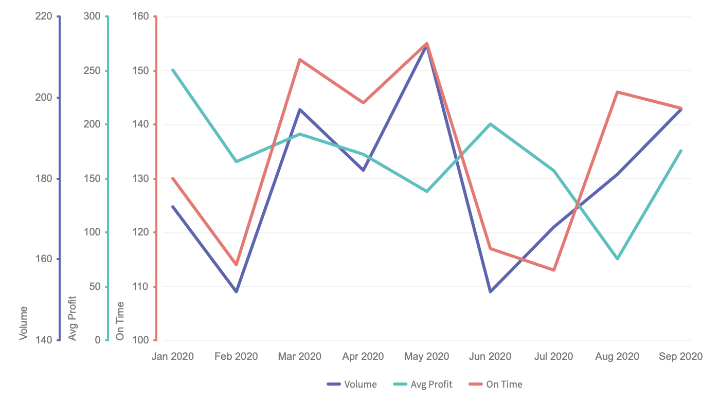
SPC Chart
Axes Requirements – Can only be used with Rows.
Aggregations – Can be used with only one aggregation.
The chart will render the selected aggregation os the main line on the chart and then automatically calculate and render the average, upper control limit and lower control limit.
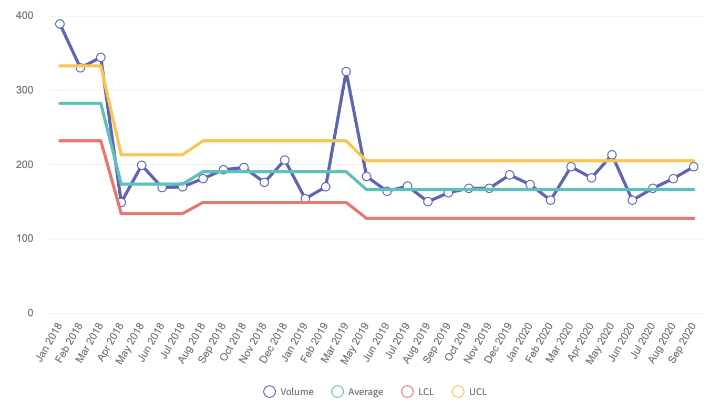
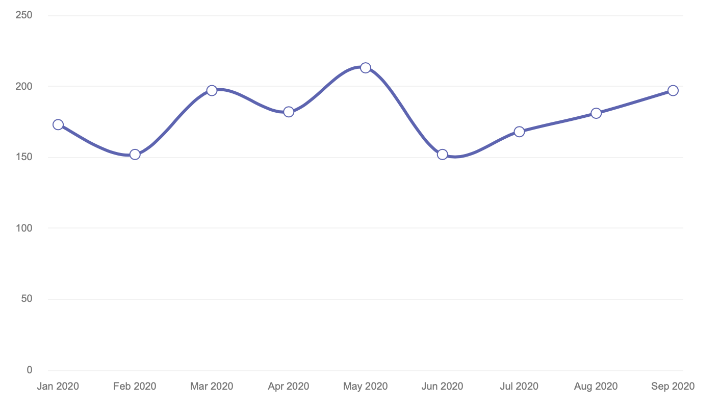
Spline
Axes – Will render chart against either Rows or Columns. If the Crosstab contains both Rows and Columns, it will render the Columns by default. To render the Rows, use the Switch Chart Axes option.
Aggregations – Choose to display one or more aggregations.
Spline (Multi-Series)
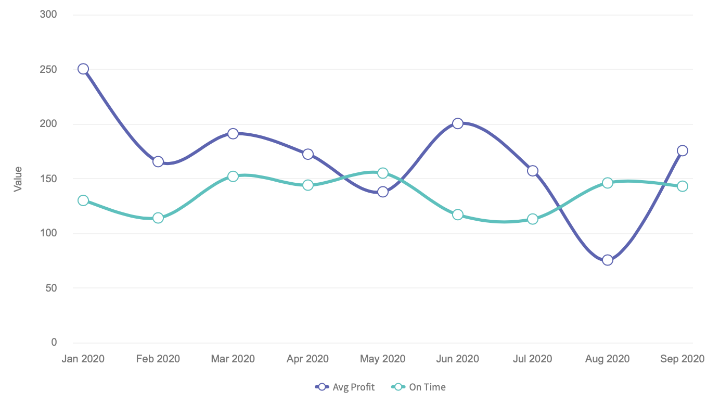
Axes Requirements – Will render chart against either Rows or Columns. If the Crosstab contains both Rows and Columns, it will render the Columns by default. To render the Rows, use the Switch Chart Axes option. Choose values in a single axis to chart against multiple aggregations or use both Rows and Columns to chart against a single aggregation.
Aggregations – Choose a single aggregation when using Rows and Columns. Choose multiple aggregations if choosing just Rows or just Columns.
Pareto
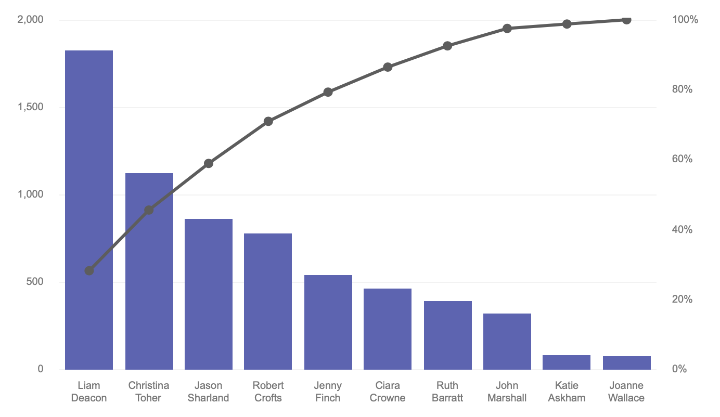
Axes – Will render the chart against either Rows or Columns (but not both).
Aggregations – Will only work with a single aggregation.
Pareto 3D
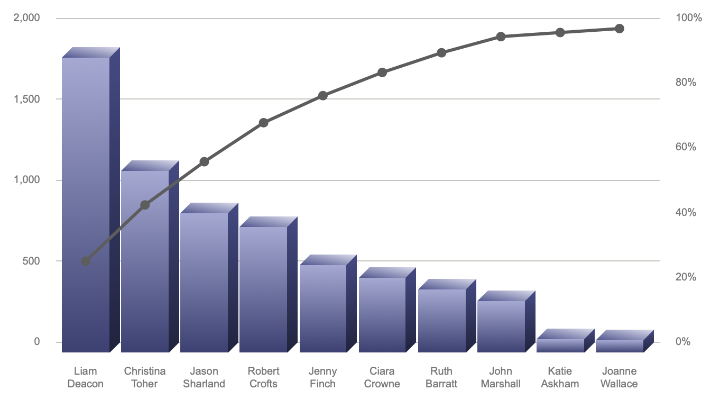
Axes – Will render the chart against either Rows or Columns (but not both).
Aggregations – Will only work with a single aggregation.
Pie Charts
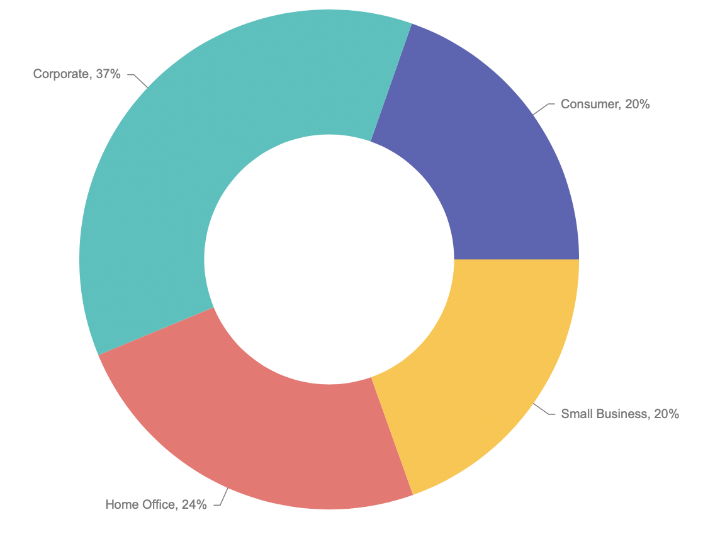
Doughnut
Axes Requirements – Will render chart against either Rows or Columns. If the Crosstab contains both Rows and Columns, it will render the Rows by default. To render the Columns, use the Switch Chart Axes option.
Aggregations – Will only work with a single aggregation.
Advanced Options
When a Doughnut chart has been specified, two additional caption options become available. Use the Default Caption text box to add text to the centre of the doughnut, and use the Hover Caption radio buttons to add text that is displayed when the cursor rolls over a section of the chart. The hover text can be a hard coded value, a variable or a combination of both. The following variables are supported:
$value - outputs the formatted value
$label - outputs the label value
$percentValue - outputs the value as a %
The Doughnut Chart can also be rendered with sections being separated from the main doughnut using Exploded Sections. This is allowed by default and just needs one or more of the segments selected.
Use the Starting Angle to change the position of the segments.
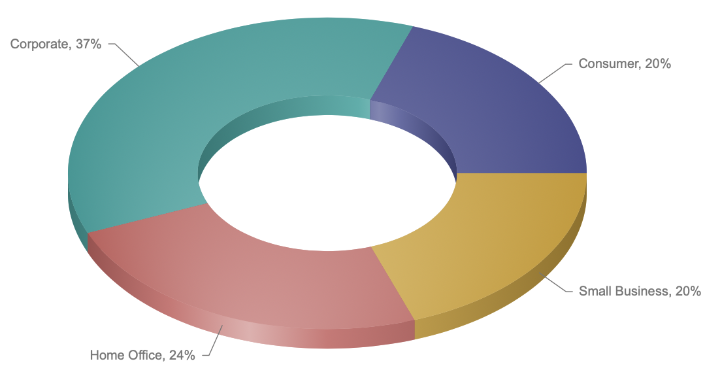
Doughnut 3D
Axes Requirements – Will render chart against either Rows or Columns. If the Crosstab contains both Rows and Columns, it will render the Rows by default. To render the Columns, use the Switch Chart Axes option.
Aggregations – Will only work with a single aggregation.
Advanced Options
Note: the Default Caption and Hover Caption are not supported for the 3D Doughnut chart.
The Doughnut Chart can also be rendered with sections being separated from the main doughnut using Exploded Sections. This is allowed by default and just needs one or more of the segments selected.
Use the Starting Angle to change the position of the segments.
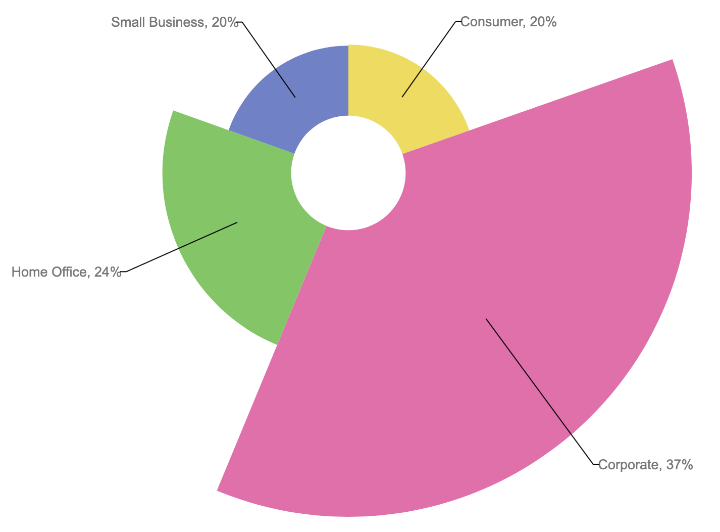
Pie (Exploded)
Axes – Will render the chart against either Rows or Columns (but not both).
Aggregations – Will only work with a single aggregation.
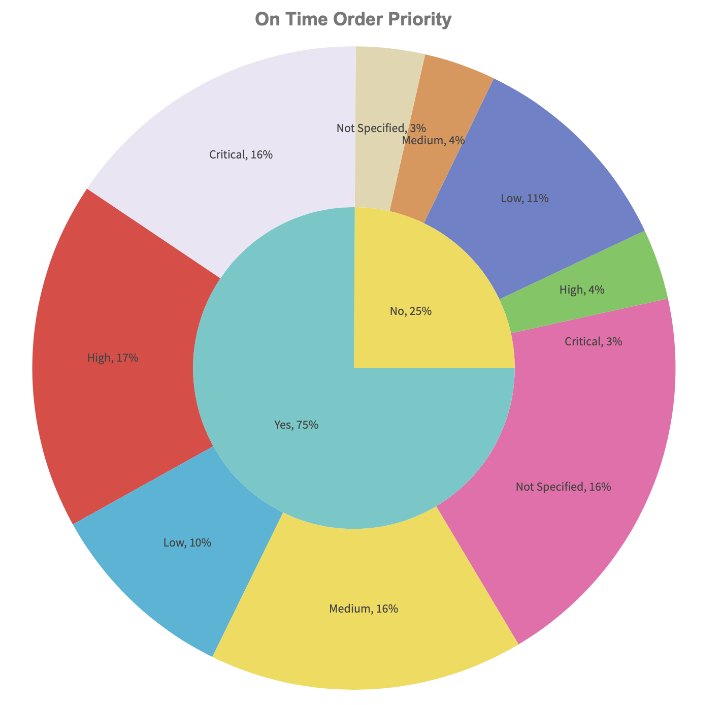
Pie (Multi-Level)
Axes Requirements – Will render chart against either nested Rows or nested Columns. If the Crosstab contains both Rows and Columns, it will render the Rows by default. To render the Columns, use the Switch Chart Axes option.
Aggregations – Will only work with a single aggregation.
Pie
Axes Requirements – Will render chart against either Rows or Columns. If the Crosstab contains both Rows and Columns, it will render the Rows by default. To render the Columns, use the Switch Chart Axes option.
Aggregations – Will only work with a single aggregation.
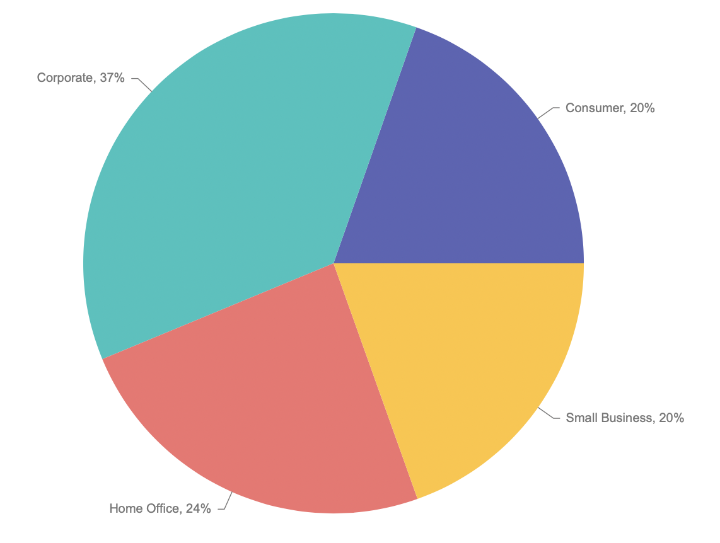
Advanced Options
The Pie Chart can also be rendered with sections being separated from the main pie using Exploded Sections. This is allowed by default and just needs one or more of the segments selected.
Use the Starting Angle to change the position of the segments.
Pie 3D
Axes Requirements – Will render chart against either Rows or Columns. If the Crosstab contains both Rows and Columns, it will render the Rows by default. To render the Columns, use the Switch Chart Axes option.
Aggregations – Will only work with a single aggregation.
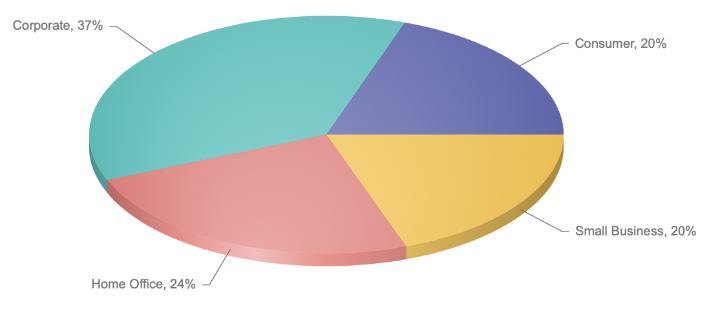
Advanced Options
The Pie Chart can also be rendered with sections being separated from the main pie using Exploded Sections. This is allowed by default and just needs one or more of the segments selected.
Use the Starting Angle to change the position of the segments.
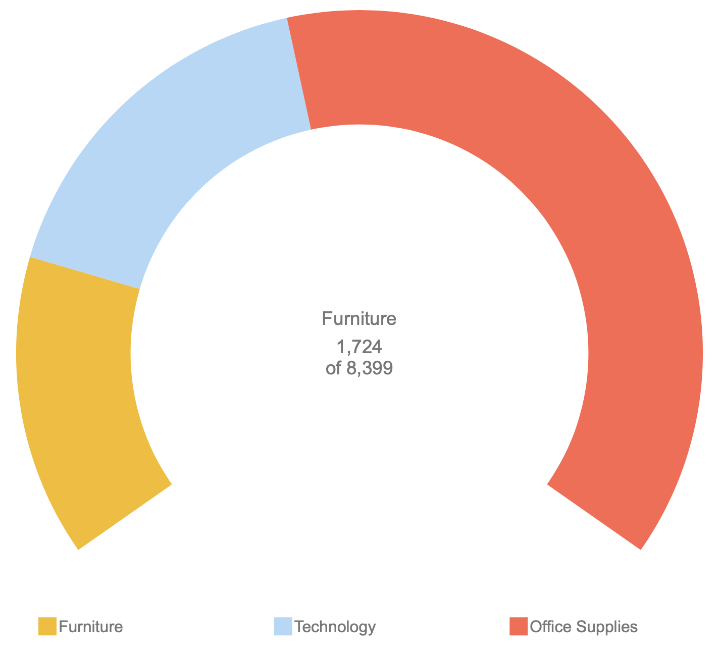
Radial Chart
Axes Requirements – Will only render chart against Rows.
Aggregations – Will only work with a single aggregation.
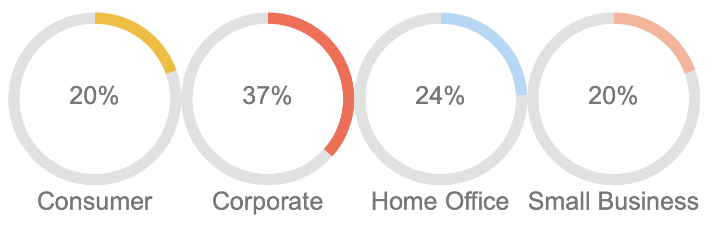
To increase the spacing between radials or their labels, click Advanced Options within the charting tab. The number of pixels separating these elements can then be specified using the Chart Paddings options.
Radial Picture Chart
Axes Requirements – Will only render chart against Rows.
Aggregations – Will only work with a single aggregation.
Upload SVG files to use in the chart using the import option. Please refer to the Importing and Exporting chapter for more information.
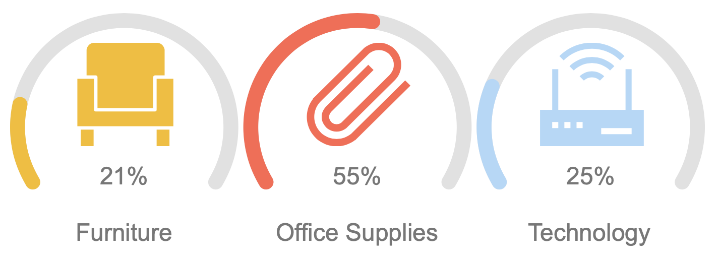
Radial Multi Chart
Axes Requirements – Will only render chart against Rows.
Aggregations – Will only work with a single aggregation.
XY
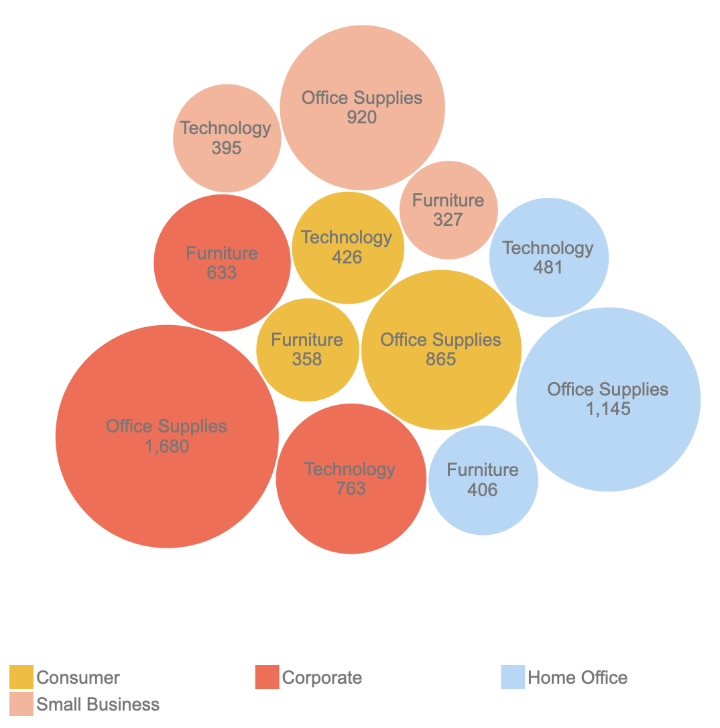
Bubble Chart Nested
Axes Requirements – Will render chart against either Rows or Columns but not both. Best results only work with 2 nested levels or Rows or Columns.
Aggregations – Will only work with a single aggregation.
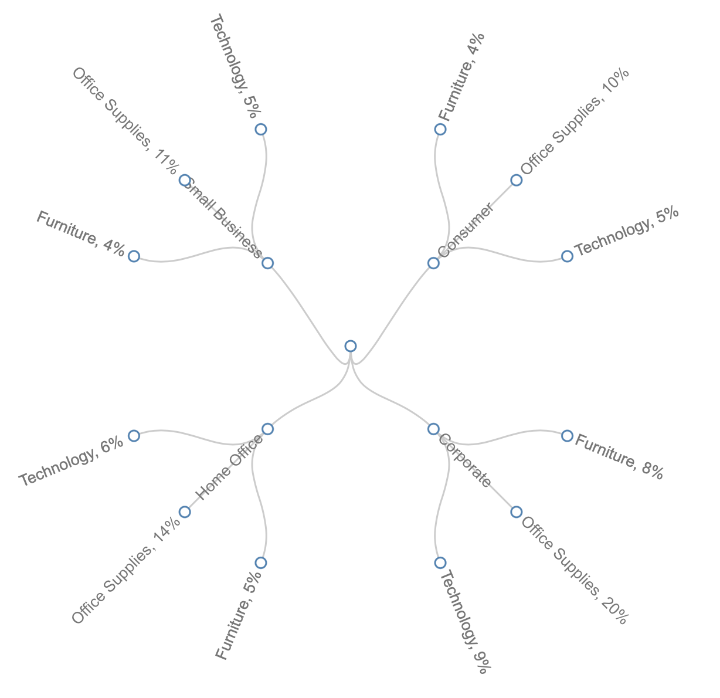
Node Link
Axes Requirements – Will only render chart against Rows.
Aggregations – Will only work with a single aggregation.
Tree
Axes Requirements – Will only render chart against Rows.
Aggregations – Will only work with a single aggregation.
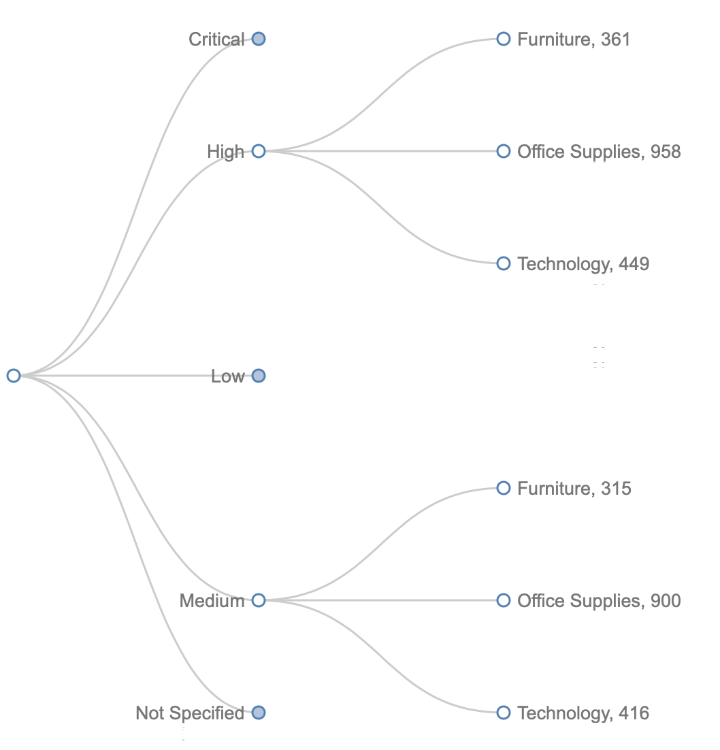
Click the coloured nodes to expand the tree based on the selected rows.
Tree Map
Axes Requirements – Will render chart against Rows or Columns (but not both). Nested fields will create more tree segments
Aggregations – Will only work with two aggregations.
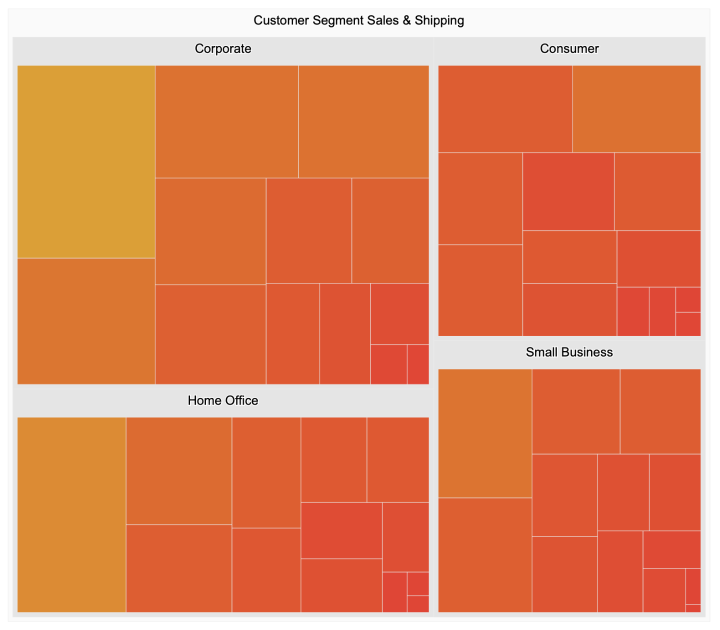
Click a value on the chart to zoom in on all associated values based on the selected rows.
Miscellaneous Charts
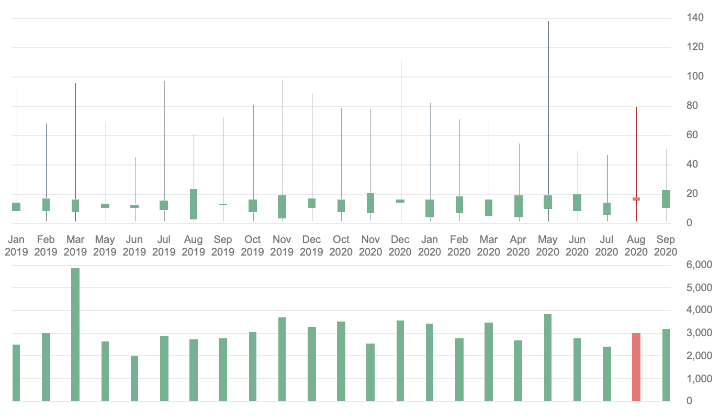
Candlestick
Axes Requirements – Will only render chart against Rows.
Aggregations – Will only work with five aggregations (Min, Max, Lower Quartile, Upper Quartile and Volume).
Pallette - Will only render correctly using the 'Fusion' Pallette.
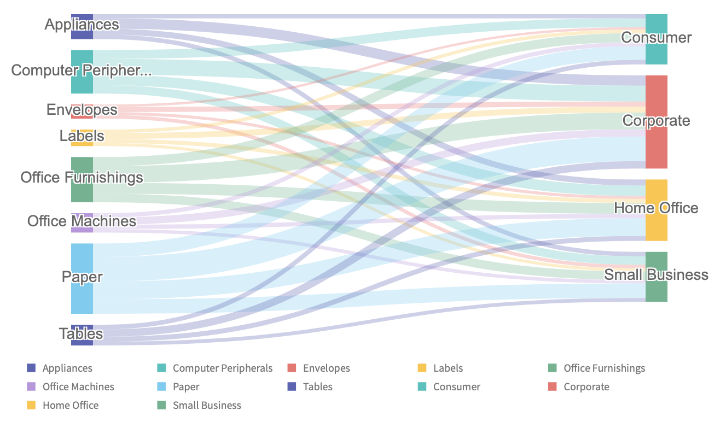
Sankey Diagram
Axes Requirements – Will only render chart against Rows and Columns.
Aggregations – Will only work with a single aggregation.
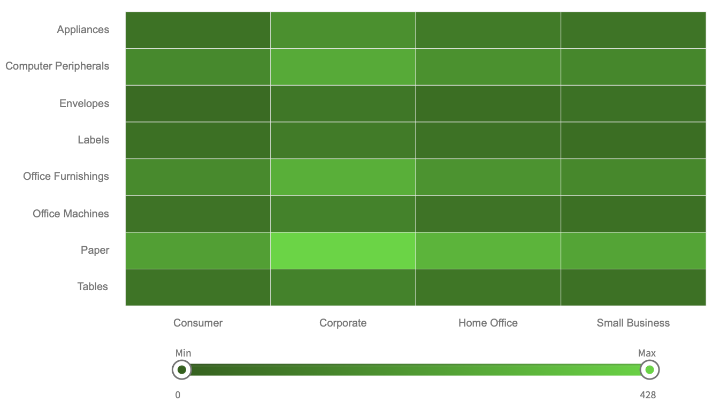
Heat Map
Axes Requirements – Will only render chart against Rows and Columns.
Aggregations – Will only work with a single aggregation.
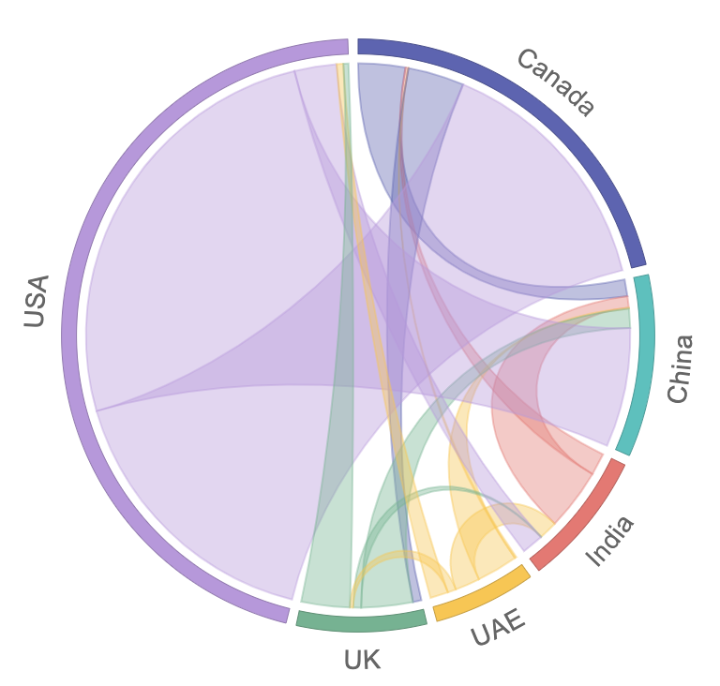
Chord
Axes Requirements – Will only render chart against Rows and Columns.
Aggregations – Will only work with a single aggregation.
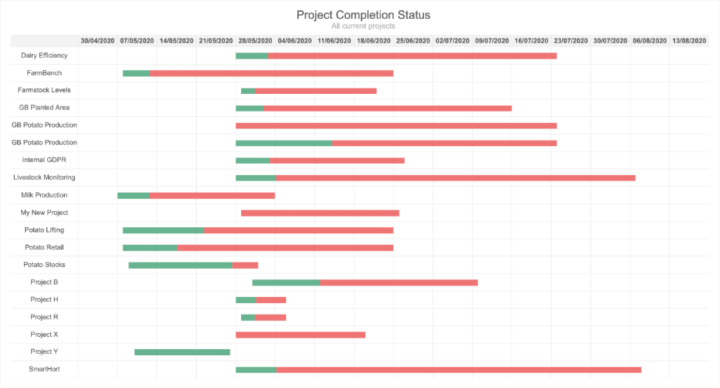
Gantt
Axes Requirements – Will only render against rows in the following format: Name, Start Date, End Date, Percentage Complete (Optional).
Aggregations – Will only work with a single aggregation.
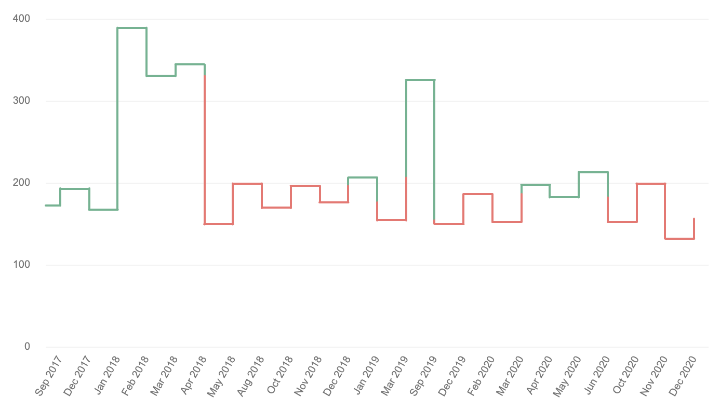
Kagi
Axes Requirements – Will only render chart against Rows and Columns.
Aggregations – Will only work with a single aggregation.
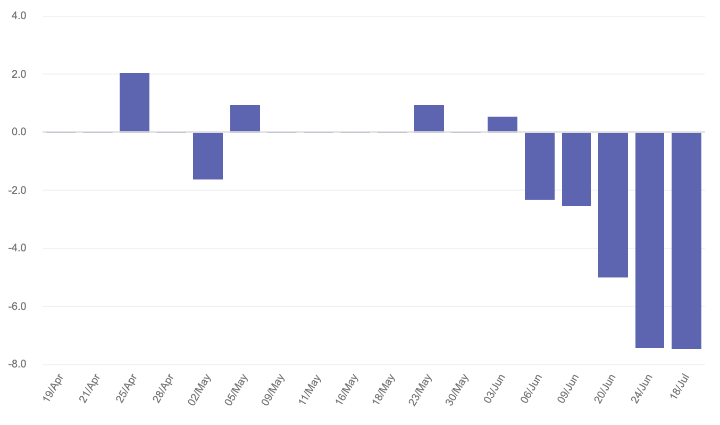
SPC Chart - CStatus
Axes Requirements – Will only render chart against Rows.
Aggregations – Will only work with a single aggregation.
The default Shift Size is set to 1. If the Shift Size needs changing this can be found in the Advanced Settings under Charting.
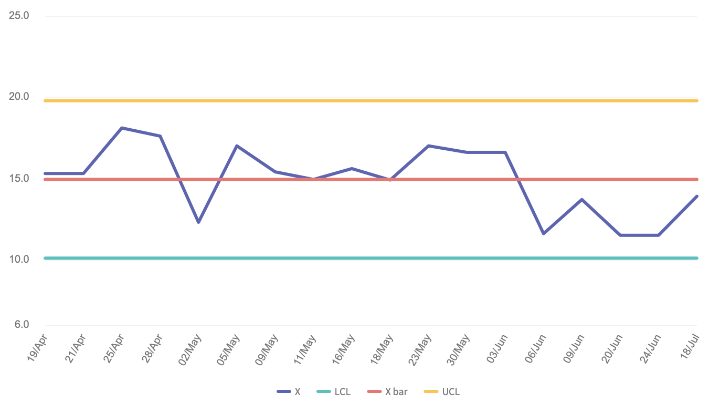
SPC Chart - Individual
Axes Requirements – Will only render chart against Rows.
Aggregations – Will only work with a single aggregation.
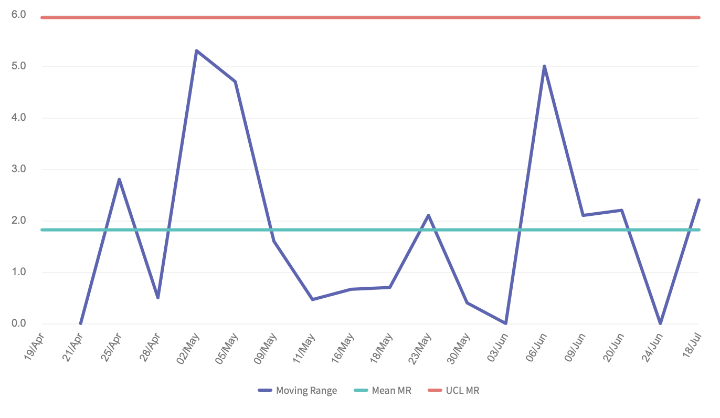
SPC Chart - Moving Range
Axes Requirements – Will only render chart against Rows.
Aggregations – Will only work with a single aggregation.
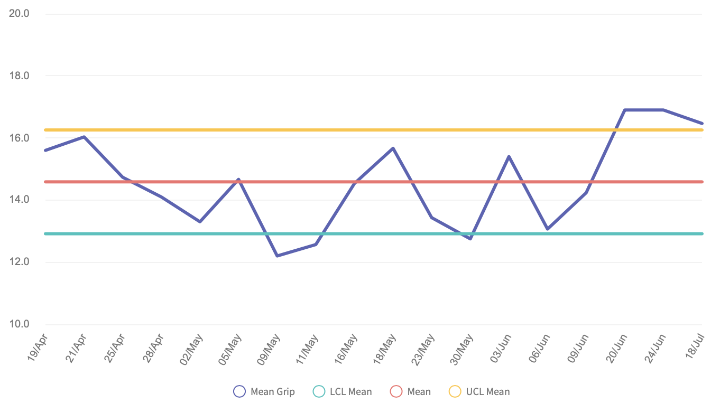
SPC Chart - X bar
Axes Requirements – Will only render chart against Rows.
Aggregations – Works best against more than one aggregation as the Mean is created across all aggregations for each axis point.
By default, the 1st aggregation in the list will be used as the Mean Label. This can be overridden in Advanced Options under Charting
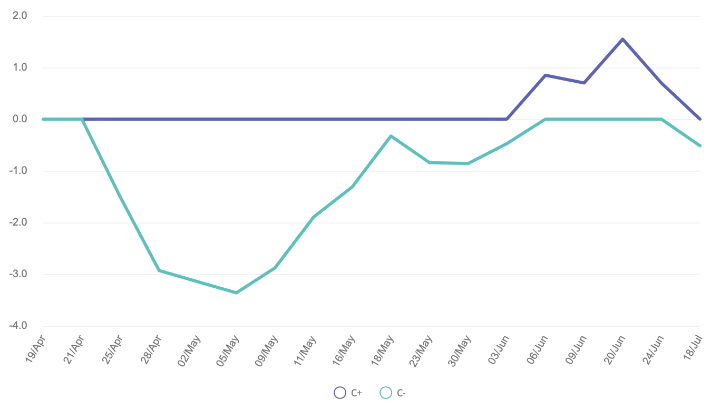
SPC Chart - Cumulative Sum
Axes Requirements – Will only render chart against Rows.
Aggregations – Will only work with a single aggregation.
The default Shift Size is set to 1. If the Shift Size needs changing this can be found in the Advanced Settings under Charting.
SPC Chart - X bar Moving Range
Axes Requirements – Can be used with a single row.
Aggregations – Works best against more than one aggregation as the Range is created from the Min and Max of the aggregations for each Axis point.
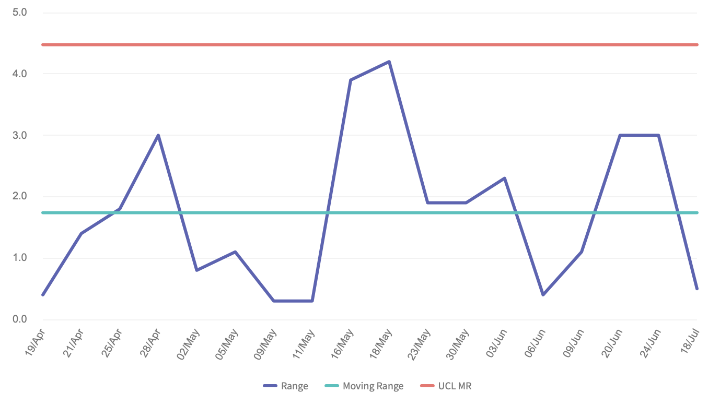
Funnel
Axes – Will render chart against either Rows or Columns. If the Crosstab contains both Rows and Columns, it will render the Rows by default. To render the Columns, use the Switch Chart Axes option.
Aggregations – Will only work with a single aggregation.
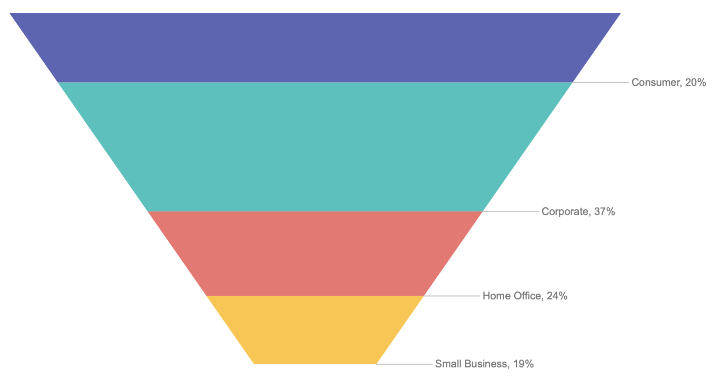
Bullet
Axes Requirements – Will only render chart against Rows.
Aggregations – Will only work with three or more aggregations.
Assign each aggregation to the Range, Measure and Marker(s). Multiple ranges and Measures can be used but they render overlapped.
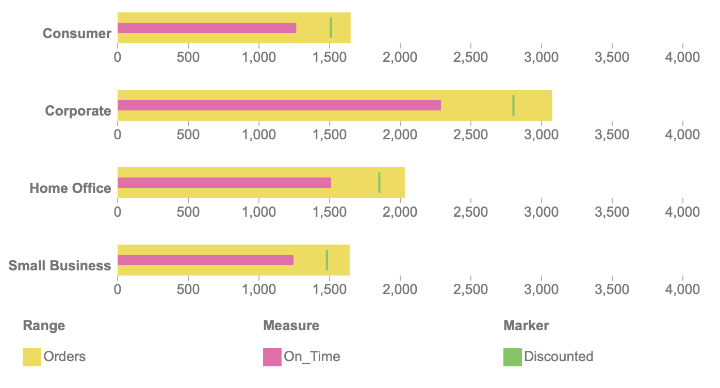
Bullet - Vertical
Axes Requirements – Will only render chart against Rows.
Aggregations – Will only work with three or more aggregations.
Assign each aggregation to the Range, Measure and Marker(s). Multiple ranges and Measures can be used but they render overlapped.
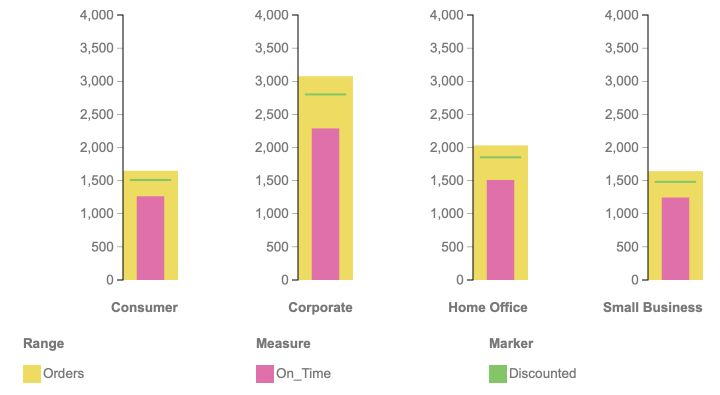
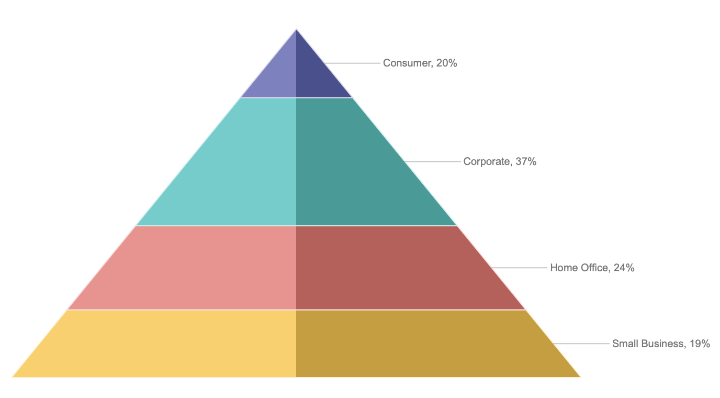
Pyramid 3D
Axes – Will render chart against either Rows or Columns. If the Crosstab contains both Rows and Columns, it will render the Rows by default. To render the Columns, use the Switch Chart Axes option.
Aggregations – Will only work with a single aggregation.
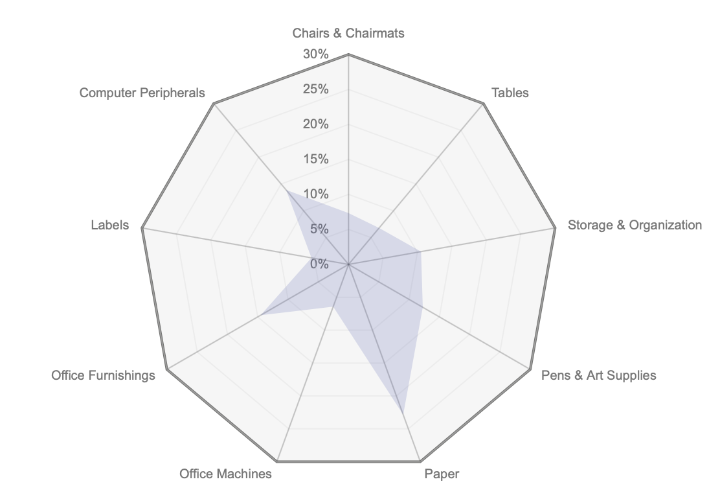
Radar
Axes Requirements – Will render chart against either Rows or Columns. If the Crosstab contains both Rows and Columns, it will render the Rows by default. To render the Columns, use the Switch Chart Axes option.
Aggregations – Choose to display one or more aggregations.
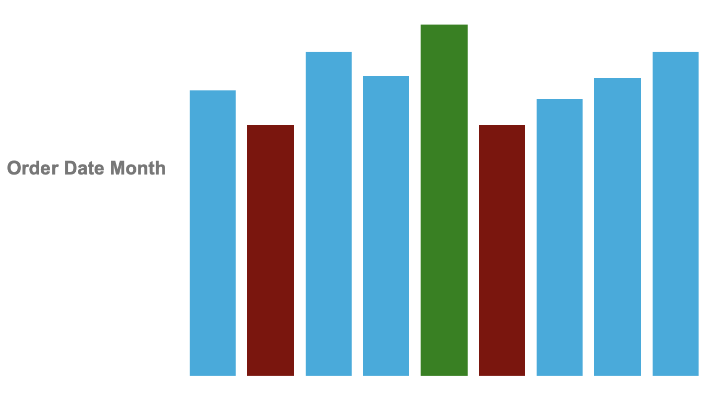
Spark Column
Axes – Will render chart against either Rows or Columns. If the Crosstab contains both Rows and Columns, it will render the Rows by default. To render the Columns, use the Switch Chart Axes option.
Aggregations – Will only work with a single aggregation.
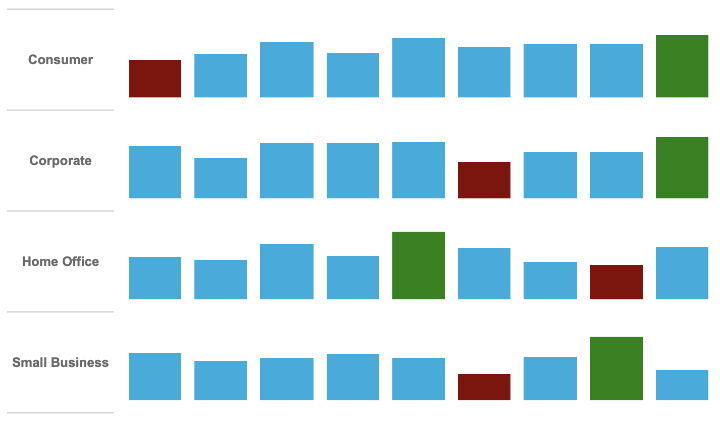
Spark Column Multi Chart
Axes – Will render chart against Rows and Columns. It will render the Rows as the series by default. To render the Columns as the series, use the Switch Chart Axes option.
Aggregations – Will only work with a single aggregation.
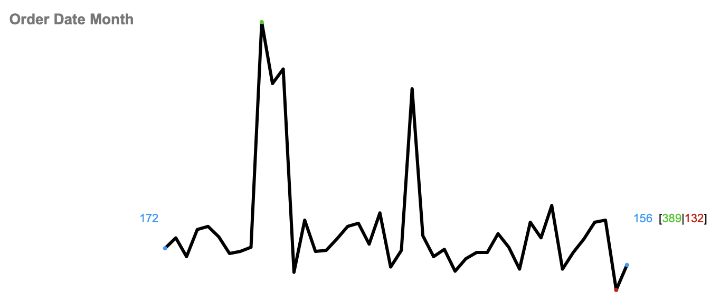
Spark Line
Axes – Will render chart against either Rows or Columns. If the Crosstab contains both Rows and Columns, it will render the Rows by default. To render the Columns, use the Switch Chart Axes option.
Aggregations – Will only work with a single aggregation.
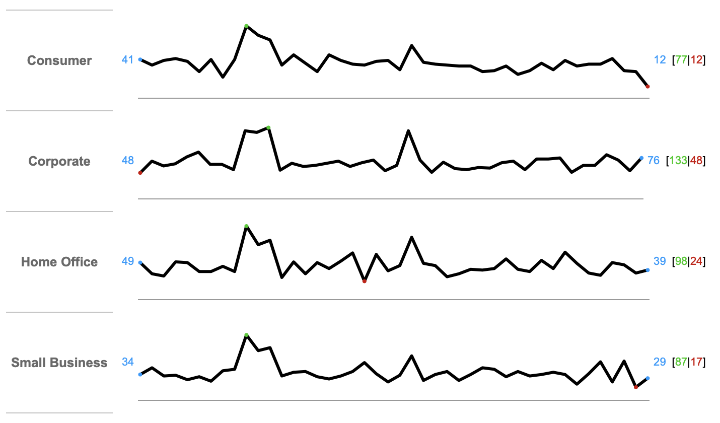
Spark Line Multi Chart
Axes – Will render chart against Rows and Columns. It will render the Rows as the series by default. To render the Columns as the series, use the Switch Chart Axes option.
Aggregations – Will only work with a single aggregation.
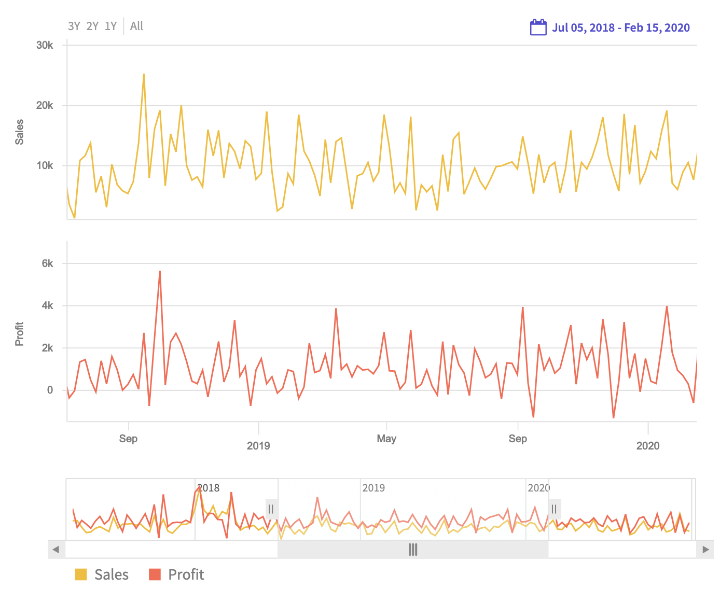
Time
Axes Requirements – Can be used with rows and columns as axes. A date field must be selected as the Row or the chart will not render.
Aggregations – Will work with one or more aggregations.
Advanced Options – Plot Nulls As Zero prevents null values will plot any null date value on the chart rather than extending the line to the next non-null plot point. The navigation slider can be hidden using the Show Navigator checkbox. The default Time chart will render using lines but this can be changed using the Plot Type drop list. Other render options are Column, Area, Smooth Area, Spline and Step Line.
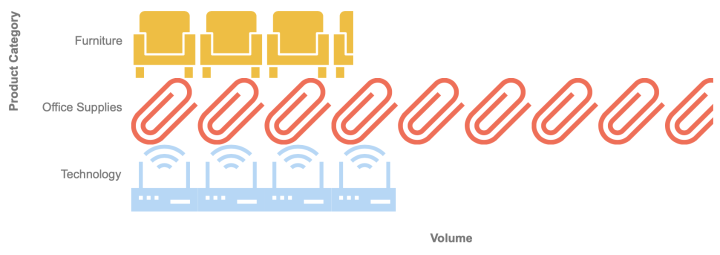
Picture Chart
Axes Requirements – Will only render chart against Rows.
Aggregations – Will only work with a single aggregation.
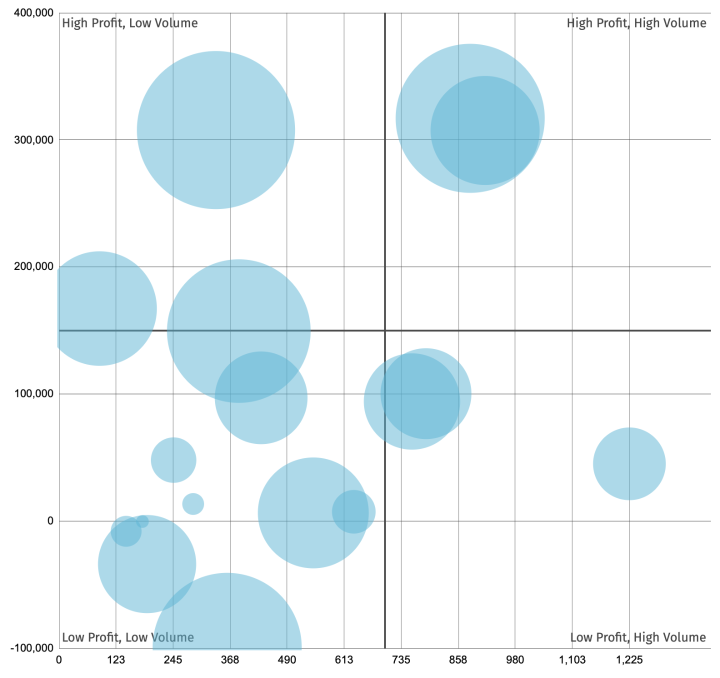
Bubble Chart
Axes Requirements – Will render chart against either Rows, Columns or Rows and Columns.
Aggregations – Will only work with three or more aggregations.
Use Quadrants in Advanced Options under Charting to provide better clarity on analysis.
Box and Whiskers
Axes Requirements – Will render chart against either Rows or Columns. If the Crosstab contains both Rows and Columns, it will render the Rows by default. To render the Columns, use the Switch Chart Axes option.
Aggregations – Will work with one or more aggregations.
Please note that the charting output will only provide meaningful output on a single total if rows and columns have been specified and the Total Type has been set to Count.
Alternatively, the five totals plotted by the chart can be manually created and must be in the following order: maximum, upper quartile, median, lower quartile and minimum.
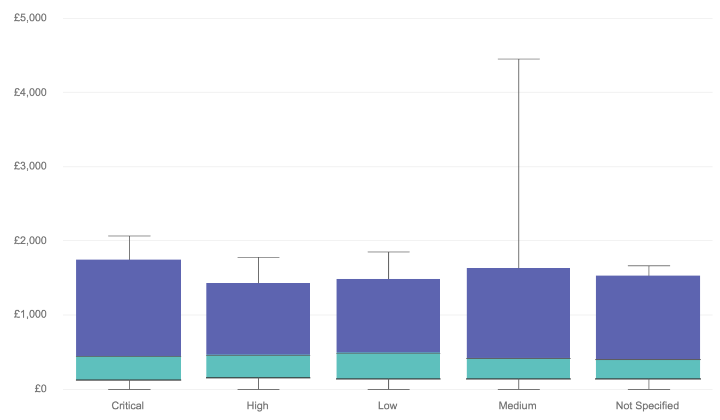
Chart Options
To control where the chart will display, select an option from the Position drop-down list. Change the size using the Width and Height textboxes to enter the required size in pixels. Change the default axis labels by using the X Axis Label and Y Axis Label textboxes.
The Chart Columns option will reverse the axis being charted. Enable and disable the chart animation with the Show Animation checkbox and add a gradient to the colour of a chart using the Show Gradient checkbox.
Toggle the representation of thousands as ‘K’ and millions as ‘M’ with the Format Number Scale checkbox. The Show Axis Labels checkbox controls whether axis labels are displayed while the Show Values checkbox controls whether values are displayed. Disable the Show Y Axis Values to hide these values on the chart. Check the Inside checkbox to display values inside the bars of a bar chart, if unticked they will appear above. Check the Rotate checkbox to display values vertically, if unticked they will appear horizontally.
Use the Select Aggregation drop-down list to choose the aggregations that will be charted. To remove, click the X icon next to the relevant aggregation. The Use Totals As Axis option becomes available when using a multi-series chart type and more than one aggregation and allows the use of aggregations as the axis labels.
When using line or spline charts, the Line Weight textbox specifies the thickness of chart lines, with a higher number producing thicker lines.
The Legend Position drop-down list allows the repositioning of the chart legend while the Show Legend Border can be used to hide or display the box that surround the legend. By checking the Reverse Legend option, the legend values will be displayed in reverse alphabetical order. Enter the required text in the Legend Caption textbox to add it at the top of the legend. Enable the Hide Legend Caption option to disable the entered caption rather than deleting it from the textbox, allowing it to be quickly re-enabled once required.
With the Colours drop-down list, a predefined colour scheme theme can be applied to the chart. The Default Colours radio button will use the predefined colours while the Specify Colours radio button will allow a colour choice for each aggregation in the chart by typing in the hex code or selecting a colour from the pop-up box. Delete colours with the relevant X icon.
When configuring line charts, click the Dashed checkbox next to the corresponding aggregation to display lines as dashes.
Click the All Same Colour radio button to display aggregations without colour differentiation and click the Gradient radio button to apply a colour gradient to all aggregations. To alter the spaces between bars in a bar chart, type a value in the Plot Space Percent textbox. The larger the value, the wider the space between values.
Advanced Options
Click Advanced Options to further configure the chart.
To add a background image, click the Select Image option under the Background Image heading to open the load dialog. Click the checkbox adjacent to the required image to load it into the report. Please note that Internet Explorer 11 cannot display chart backgrounds.
Set the minimum and maximum displayed axis values using the Axis Scale textboxes. This allows a consistent display when comparing multiple charts.
Enable the Enhanced Tooltip option to present an expanded text box where a number of options are available. Please note that when adding Enhanced Tooltips to Crosstab reports, this functionality is reduced to exclude saved reports or totals. When users hover over the added component, the enhanced tooltip is displayed.
Trends
It is possible to add one or more trendlines or zones to a chart. First, click New Trend. Enter a value into the first and second textboxes to specify the range and label the trend using the Name textbox.
Change the trend Colour by typing in the hex code or by selecting a colour from the pop-up box and use the Opacity slider to customise how prominently the trend will appear over the chart. Use the Zone checkbox to toggle between a trend line or trend zone.
If using a trendline, type a value in the Thickness textbox to edit the width of resulting line. Check the Value on Right checkbox to display text entered in the Name textbox to the right of the trend to avoid obscuring axis values. To created a dashed trendline, enable the Dashed option.
When a colour palette is configured, charts will automatically adopt the palette when the fields specified in the palette are present in the Crosstab.
Styling Options
For further styling options, click the chart preview at the bottom of the screen and select the relevant area from the subsequent popup menu.
Select Chart to style the entire chart, where the theme can be selected from the Colours drop-down list modified using the Default Colours, Specify Colours, All Same Colour and Gradient radio buttons.
The Font and Font Size are controlled using their own drop-down lists, and the Style checkboxes allow further customisation of displayed values. Change the Text Colour and Background Colour by either typing in the hex code or by selecting a colour from the pop-up colour picker.
Use the X-Axis Label Font Size and Y-Axis Label Font Size drop-down lists to control each axis label separately. The chart legend values and caption values are controlled by the Legend Font Size and Legend Caption Font Size, respectively. Change the Legend Colour by either typing in the hex code or by selecting a colour from the pop-up colour picker.
Enable the Show Values option to display underlying values as part of the chart. Enable the Inside option to display these values inside the columns.
Enable the Show Labels option to output axis labels. Once enabled, three radio button options are available to control the orientation. Select Automatic to detect the best option based on character length, or select between 90° and 45° to manually set the angle.
When Chart Values is selected from the preview popup menu, use the Background Opacity slider to modify the visibility of the specified Background Colour.